Getting Started
Sellino Food | Multi-Restaurant Delivery Ordering and POS With Flutter Apps
Developed By: BugBuild Labs
Welcome to Sellino Food
Sellino Food is a complete food delivery and restaurant management system — a multi-restaurant marketplace where customers order from the restaurants near them, kitchens cook on a live board, and your own riders deliver. The same install runs the restaurant floor: dine-in tables, KOT tickets, a kitchen display, a waiter screen, QR table ordering, reservations and recipe-based food cost.
This package ships four products that share one Laravel backend and database:
- Web Panel — this documentation. The food storefront, the admin back office, the restaurant panel, the counter POS, the kitchen display, the waiter screen and QR ordering.
- Customer App — order and track from the phone (Customer App tab).
- Restaurant App — the kitchen board and the floor in the manager's pocket (Restaurant App tab).
- Rider App — go online, pick up, deliver (Rider App tab).
This edition runs with SITE_MODE=food-multivendor. There is no general retail catalog — every seller is a restaurant, the storefront is the food home, and the retail pages (shop, brands, deals) are switched off so nothing in the panel is noise you have to work around.
Single restaurant instead of a marketplace? Set SITE_MODE=food-singlevendor. The whole system becomes one restaurant: the admin owns the menu and each outlet is an outlet. Nothing else changes — same schema, same screens, and you can switch back at any time.
Key Features:
- Location-based restaurant discovery with distance, ETA, delivery fee and a delivery-radius gate
- Menu items with sizes, prep time, food tags and a one-tap availability switch
- Add-on groups with required and min/max rules, priced and taxed as real order lines
- Kitchen flow — accept with a prep time, preparing, ready — on the web and the Restaurant App
- Riders: online switch, live location, OTP delivery, proof photo, tips in earnings
- Distance-based delivery fee, packaging charge, free delivery above an amount, minimum order
- Dine-in floor map, running checks, move and merge, KOT to kitchen stations
- Kitchen Display System on any screen, waiter screen and public QR table ordering
- Service charge, waiter tip, split payment and table reservations with deposits
- Recipes, food cost percentage and ingredient consumption through normal stock movements
- Built-in double-entry accounting, restaurant payouts and commission split
- Page-builder food storefront with two restaurant-page styles
- HR & Payroll, role-based access control, activity logs and multi-language (RTL/LTR)
- Push notifications (Firebase), local or S3-compatible media storage
Server Requirements
Make sure your hosting meets these before installing the web backend. The built-in installer checks every item automatically on its first screen.
| Requirement | Minimum |
|---|---|
| PHP | 8.3 or higher |
| Laravel | 12.x (bundled with the source) |
| MySQL | 8.0 or higher |
| Web server | Apache or Nginx |
| Build tools | Composer, Node.js & NPM |
| SSL certificate | Recommended for production (HTTPS) |
Required PHP extensions
All of these must be enabled — most shared hosts have them on by default:
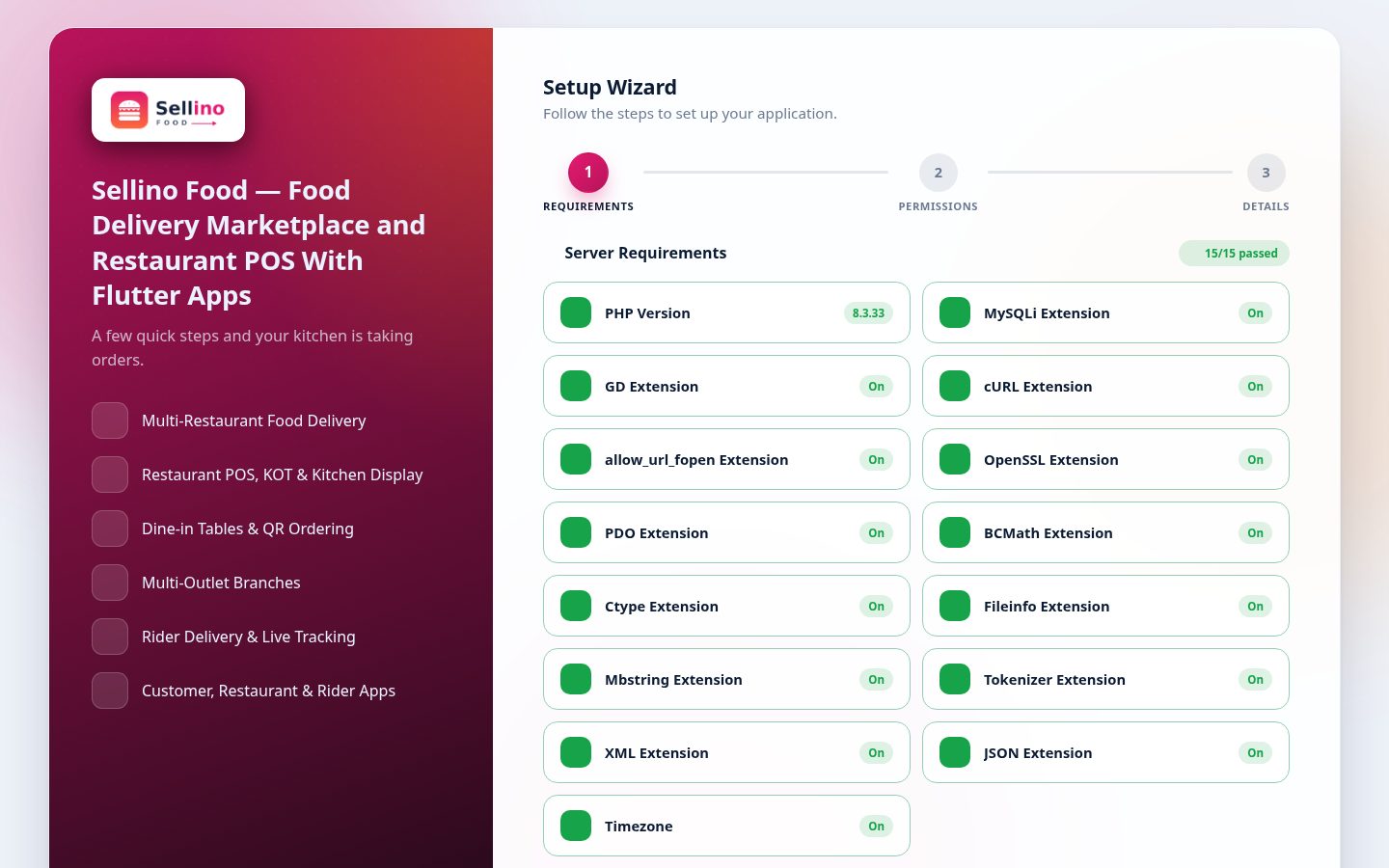
BCMath   Ctype   cURL   Fileinfo   GD   JSON   Mbstring
OpenSSL  PDO     Tokenizer  XML   Zip  MySQLi   allow_url_fopen
Not sure your server qualifies? Open https://yourdomain.com/install — the installer's first step shows a live green/red check of every requirement and extension above, so you know exactly what to fix.
Database Setup (via cPanel)
Create a MySQL database before running the installer.
Step 1 – Login to cPanel:
Open your hosting cPanel (usually https://yourdomain.com/cpanel).
Step 2 – MySQL® Database Wizard:
Search and open MySQL® Database Wizard.
Step 3 – Create Database:
Enter a database name and click Next Step.
Step 4 – Create User:
Add a username and a strong password, then Create User. Save these securely.
Step 5 – Add User to Database:
Grant All Privileges and finish.
✅ Keep these three ready for the installer:
| Credential | Where you enter it |
|---|---|
| Database Name | Installer → Database Details (or DB_DATABASE in .env) |
| Database Username | Installer → Database Details (or DB_USERNAME) |
| Password | Installer → Database Details (or DB_PASSWORD) |
Host: on most cPanel/shared hosting the database host is localhost. Use that in the installer unless your provider says otherwise.
Package Contents & Source Code
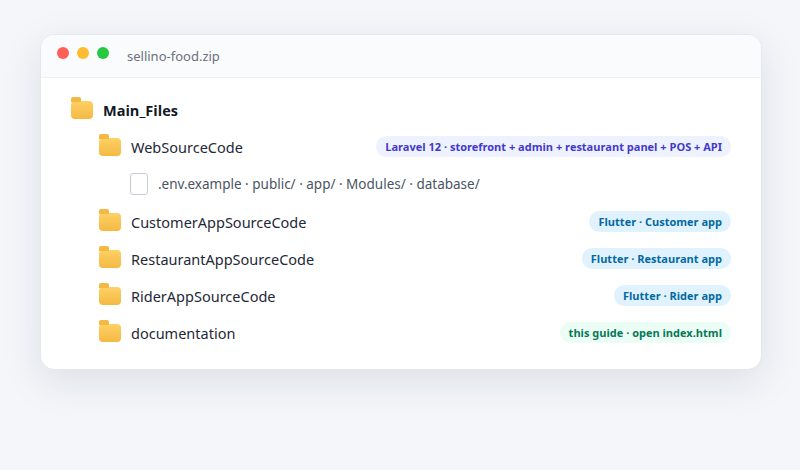
Download Main_Files.zip from your CodeCanyon downloads and extract it locally. Inside you will find the full source for every product, each in its own folder:
Main_Files/
├── WebSourceCode/              Laravel — storefront, admin, restaurant panel, POS, REST API
├── CustomerAppSourceCode/      Flutter — Customer app (Android + iOS)
├── RestaurantAppSourceCode/    Flutter — Restaurant app (Android + iOS)
└── RiderAppSourceCode/         Flutter — Rider app (Android + iOS)
| Folder | What it is |
|---|---|
WebSourceCode |
The Laravel backend — the food storefront, the admin panel, the restaurant panel, the POS terminal and the REST API the three apps run on. This is what you install on your server (see Upload & Environment). |
CustomerAppSourceCode |
The Flutter Customer app — browse, order, pay and track (Android & iOS). See the Customer App guide. |
RestaurantAppSourceCode |
The Flutter Restaurant app — kitchen board, menu availability, outlets and the dine-in floor. See the Restaurant App guide. |
RiderAppSourceCode |
The Flutter Rider app — go online, pick up, navigate, deliver with OTP. See the Rider App guide. |
All four connect to one Laravel backend and database — install WebSourceCode first, then point each app at its API URL.
Also in the package: this documentation, and the standard CodeCanyon licence & changelog. The .env file is not included — you create it during setup (it holds your private database and mail credentials).
Upload Files & Environment
Step 1 – Upload Application:
Extract Main_Files.zip, open the WebSourceCode folder and zip its contents. Upload that to public_html (or your domain root) and extract it on the server. Point your web root at the public/ folder.
Step 2 – Install dependencies (only if installing manually via SSH — skip on shared hosting where vendor files are already included):
composer install
npm install && npm run build
Step 3 – Create the environment file — copy .env.example to .env:
cp .env.example .env
Step 4 – Set core values in .env. What each one actually changes:
Identity & mode — set these first
| Variable | What it does if you get it wrong |
|---|---|
APP_NAME | Shown in the panel title bar and outgoing mail. Cosmetic. |
APP_URL | Critical. Every generated link, image URL and payment callback is built from it. A wrong value breaks images in the apps and returns customers to the wrong host after payment. Must include the scheme, no trailing slash — https://shop.example.com. |
APP_ENV | production on a live server, local while developing. Laravel hides detailed errors and enables caching optimisations in production. |
APP_DEBUG | Must be false in production. Left true, any visitor who triggers an error sees your file paths, environment variables and database credentials on the error page. |
APP_KEY | The encryption key for sessions and encrypted columns. Leave it empty and run php artisan key:generate — never reuse someone else's. Changing it later invalidates existing sessions and any encrypted data. |
SITE_MODE | Selects the edition this install runs as — food-multivendor for this item. It decides which panels and routes exist at all (no storefront, no seller panel in POS mode). |
APP_INSTALLED | Set to true by the web installer when it finishes. Flipping it back to false re-opens the installer — only do that on a fresh database. |
APP_DEMO | Leave false. It enables the public demo's passwordless quick-login buttons for the accounts listed in APP_DEMO_EMAILS — intended only for a throwaway demo site, never a real shop. |
Database
| Variable | Notes |
|---|---|
DB_HOST, DB_PORT | Usually 127.0.0.1 and 3306. Shared hosts sometimes require localhost instead. |
DB_DATABASEDB_USERNAMEDB_PASSWORD | The database you created in cPanel. On cPanel these are usually prefixed with your account name (myacct_sellino). A wrong value stops the installer at its database step with a connection error. |
Mail — OTP and notifications depend on this
MAIL_MAILER, MAIL_HOST, MAIL_PORT, MAIL_USERNAME, MAIL_PASSWORD, MAIL_ENCRYPTION, MAIL_FROM_ADDRESS. If mail is not working, email OTP, password reset and order mail all silently fail — configure it before going live, and use the panel's Test mail button. Where the host blocks SMTP ports, use the Gmail API transport instead (see Settings → Mail).
Performance & infrastructure — safe defaults ship in .env.example
| Variable | Impact |
|---|---|
QUEUE_CONNECTION | database queues mail, push and exports to a background worker — needs the queue worker running or those jobs never execute. sync runs them inline instead: no worker needed, but the user waits for every email. |
CACHE_STORE, SESSION_DRIVER | database or file works everywhere. redis is faster but needs a Redis server. |
SESSION_LIFETIME | Minutes before an idle panel user is logged out. Default 120. |
FILESYSTEM_DISK | public keeps uploads on the server; s3 sends them to your bucket using the AWS_* values below — see Storage. |
LOG_LEVEL | error in production keeps storage/logs small; debug while troubleshooting. |
BCRYPT_ROUNDS | Password hashing cost. Higher is safer but slower on weak shared hosting. Default 12 is fine. |
API, apps & real-time
| Variable | Impact |
|---|---|
APP_API_KEY | Fallback for the X-App-Key the apps send. The value saved in Settings → API Security wins over this. Empty = the check is off (fail-open). See Security. |
JWT_SECRET | Signs the app's login tokens. Generate your own (php artisan jwt:secret). Changing it logs out every app user immediately. |
JWT_TTL, JWT_REFRESH_TTL | Access-token and refresh-token lifetimes in minutes. Shorter is safer; the app refreshes automatically. |
REVERB_* | Websocket credentials for chat and live updates — only used if you run the Reverb daemon. See Real-time & Chat. |
FIREBASE_PROJECT_IDFIREBASE_CREDENTIALS | Push notifications. Optional — leave unset and everything else still works. See Common Setup. |
AWS_* | Only read when FILESYSTEM_DISK=s3. Works with any S3-compatible provider (Wasabi, DigitalOcean Spaces, R2). |
The .env file is secret. It holds your database password, app key, JWT secret and gateway keys. Never commit it to source control, never share it, and keep it outside public/ — which it already is by default.
Step 5 – Generate the app key:
php artisan key:generate
⚠ Important: Never skip php artisan key:generate — without a valid APP_KEY, sessions and encrypted data will break. (The web installer does this for you automatically.)
Step 6 – File permissions
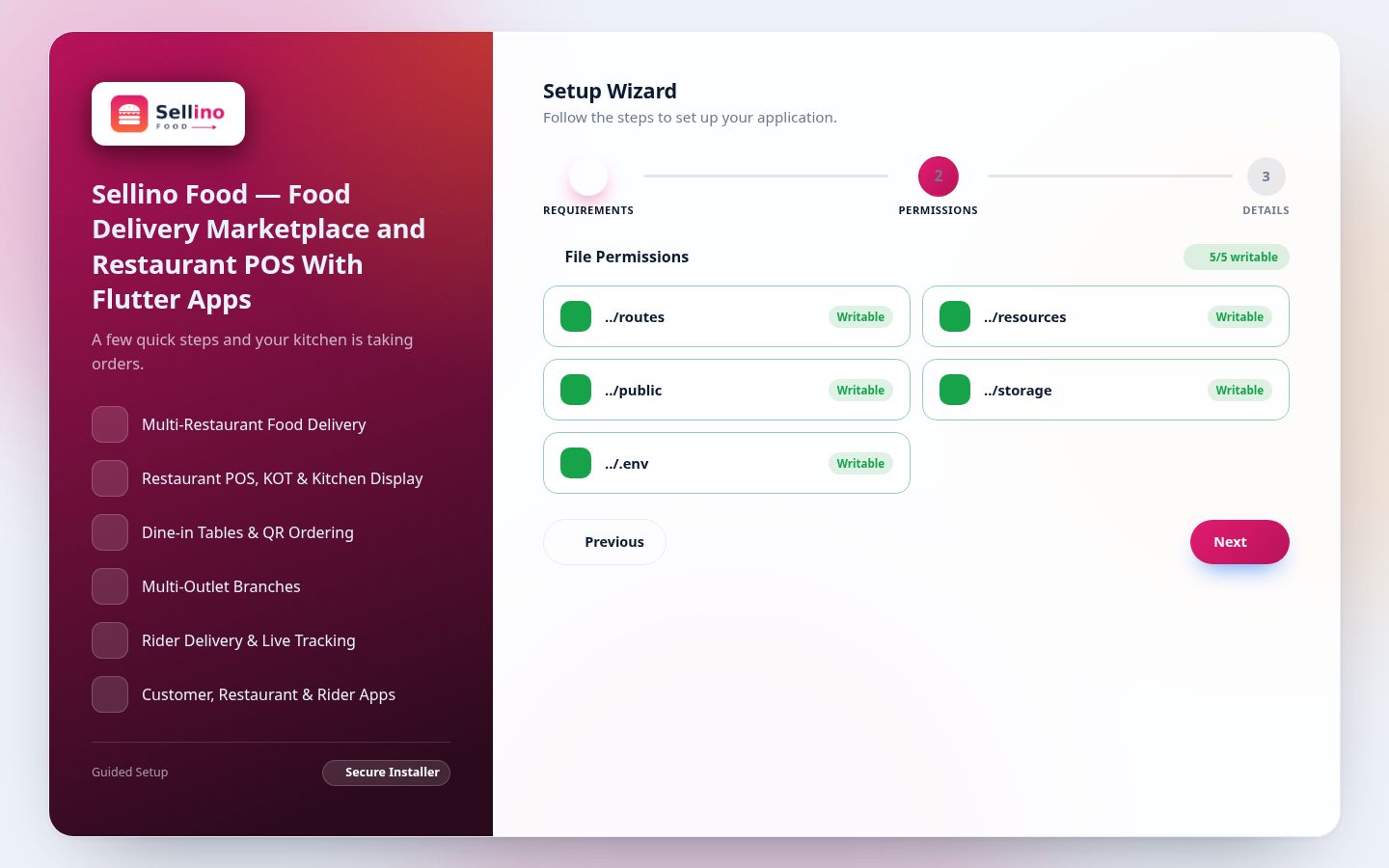
The web server must be able to write to these paths — the installer's Permissions step checks each one:
| Path | Why it must be writable |
|---|---|
storage/ | Logs, cache, compiled views and uploaded media |
bootstrap/cache/ | Framework config & route cache |
.env | The installer writes your app key, DB and JWT config here |
Set them from SSH:
chmod -R 775 storage bootstrap/cache
chmod 664 .env

# If the web server runs as another user (e.g. www-data), also give it ownership:
chown -R www-data:www-data storage bootstrap/cache .env
On cPanel (no SSH): use File Manager → right-click → Change Permissions and set 775 on storage and bootstrap/cache, and 664 on .env.
Installation
You can install with the web wizard (recommended for shared hosting) or the command line.
Web installer:
- Visit your domain in a browser — the installer opens automatically.
- It checks PHP version, extensions and folder permissions.
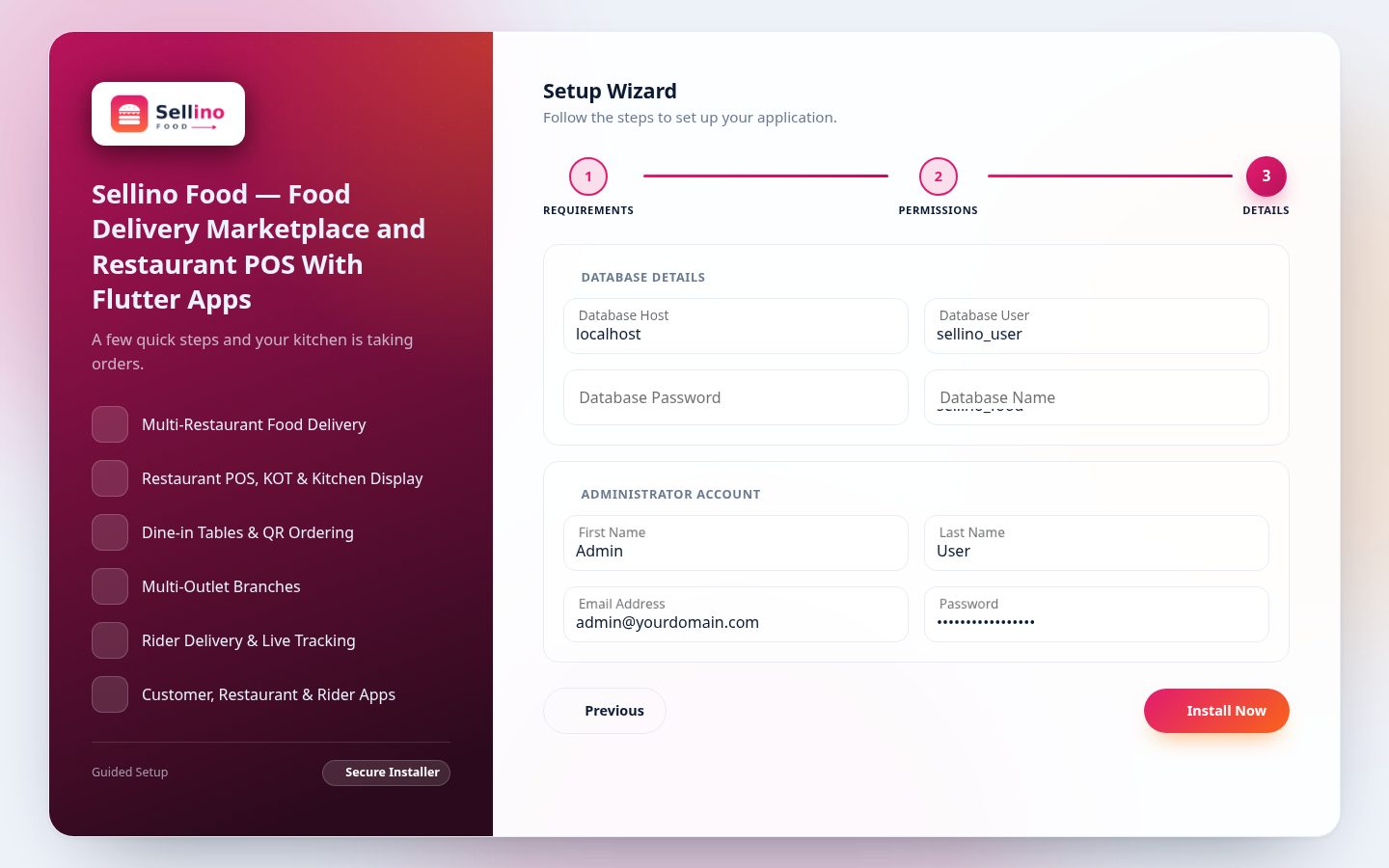
- Fill in the Database Details and create the Administrator Account (fields below).
- Click Install Now to run migrations & seed default data.
What you enter in the wizard
| Field | What to put |
|---|---|
| Database Details | |
| Database Host | localhost on most shared/cPanel hosting (change only if your provider says otherwise) |
| Database User | The MySQL username you created (see Database Setup) |
| Database Password | That user's password |
| Database Name | The database you created |
| Administrator Account (your first admin login) | |
| First Name / Last Name | The admin's name |
| Email Address | Admin login email — you sign in with this |
| Password | A strong admin password |
The web installer also generates the app key and the JWT secret automatically — nothing extra to do. When it finishes, sign in with the admin email & password you just set.
Command line (alternative)
On a VPS with SSH you can install without the wizard:
php artisan migrate --seed
php artisan jwt:secret     # API & mobile apps use JWT for login
The default seed creates the standard roles/permissions, clean settings (every third-party key is a placeholder you fill in under Settings) and a default administrator [email protected] / 12345678 — sign in with it at the admin URL and change the password immediately (see Login & Security for every seeded account).
Demo menu included. In a food edition the seed also creates a sample menu so the storefront looks finished on first login: six categories (Biryani & Rice, Kebab & Grill, Paratha & Breakfast, Bhorta & Vegetable, Snacks & Sides, Drinks & Desserts), 21 dishes with sizes, prep times and food tags, optional add-on groups, and studio-style dish photos. Re-run it any time with php artisan db:seed --class=FoodMenuSeeder (it re-prices instead of duplicating); before launch, simply delete the sample dishes and restaurants from the panel.
Real-time chat: the live chat feature uses Laravel Reverb. On a local/VPS setup run php artisan reverb:start to enable websockets — see Real-time Chat.
Manual Database Migration (if the installer fails)
The web installer runs the migrations and seeders for you. If it times out, dies half-way, or your host blocks long-running requests, do the same work by hand over SSH — the result is identical.
1. Start from a clean database
Migrations are not re-runnable over a half-built schema. If the installer created some tables before failing, drop and recreate the database (or run php artisan migrate:fresh, which drops every table first).
2. Confirm .env is correct
php artisan config:clear
php artisan migrate:status     # proves the DB credentials work before you change anything
A connection error here means DB_DATABASE, DB_USERNAME, DB_PASSWORD or DB_HOST is wrong — fix that first, nothing else will work.
3. Run the migrations and seed the defaults
php artisan key:generate          # only if APP_KEY is still empty
php artisan migrate --force       # --force is required when APP_ENV=production
php artisan db:seed --force       # currencies, countries, languages, settings,
                                  # permissions, roles and the default admin user
php artisan storage:link          # public symlink for uploaded media
4. Mark the install complete
Set APP_INSTALLED=true in .env — otherwise visiting the site re-opens the installer. Then warm the caches:
php artisan optimize:clear
php artisan optimize
You can now log in at your admin URL (example.com/admin-7eP9kM4QX2pUoEic/login) with the seeded administrator [email protected] / 12345678 and change its password from Profile & Password.
Common failures
| Symptom | Cause & fix |
|---|---|
SQLSTATE[42000] … max key length | MySQL older than 8.0 (or MariaDB without innodb_large_prefix). Upgrade to MySQL 8.0+ as the requirements state. |
Base table or view already exists | A partial install left tables behind. Drop the database and start from step 1, or use php artisan migrate:fresh --force. |
| Installer page times out | Shared-host execution limit. Use these CLI steps instead — they have no time limit. |
Access denied for user | The DB user has no rights on that database. In cPanel, add the user to the database with All Privileges. |
| Blank page after install | Cached config from the failed attempt. Run php artisan optimize:clear, and check storage/logs/laravel.log. |
Upgrading an existing install? Run only php artisan migrate --force — never migrate:fresh or the plain db:seed, both of which will destroy or overwrite live data. Take a database backup first.
Queue Worker & Scheduler
Background jobs (emails, push notifications, media variants, backups) run through Laravel's queue, and timed jobs through the scheduler. Both are optional at first — but recommended in production.
- Queue driver —
.envships withQUEUE_CONNECTION=sync(jobs run inline, no worker needed). For production setQUEUE_CONNECTION=databaseand run a worker. - Run the worker —
php artisan queue:work. Keep it alive with Supervisor/systemd (same pattern as Reverb), or on shared hosting usephp artisan queue:work:daemon. - Scheduler — add one cron entry:
* * * * * cd /path-to-app && php artisan schedule:run >> /dev/null 2>&1. - Timed commands —
push-campaigns:dispatch-due(scheduled push campaigns),backup:database/backup:files(see Backups),currency:update-rates(nightly FX refresh when daily auto-update is on — see Currency Rates).
After changing QUEUE_CONNECTION or deploying new code, restart the worker: php artisan queue:restart.
Login & Security
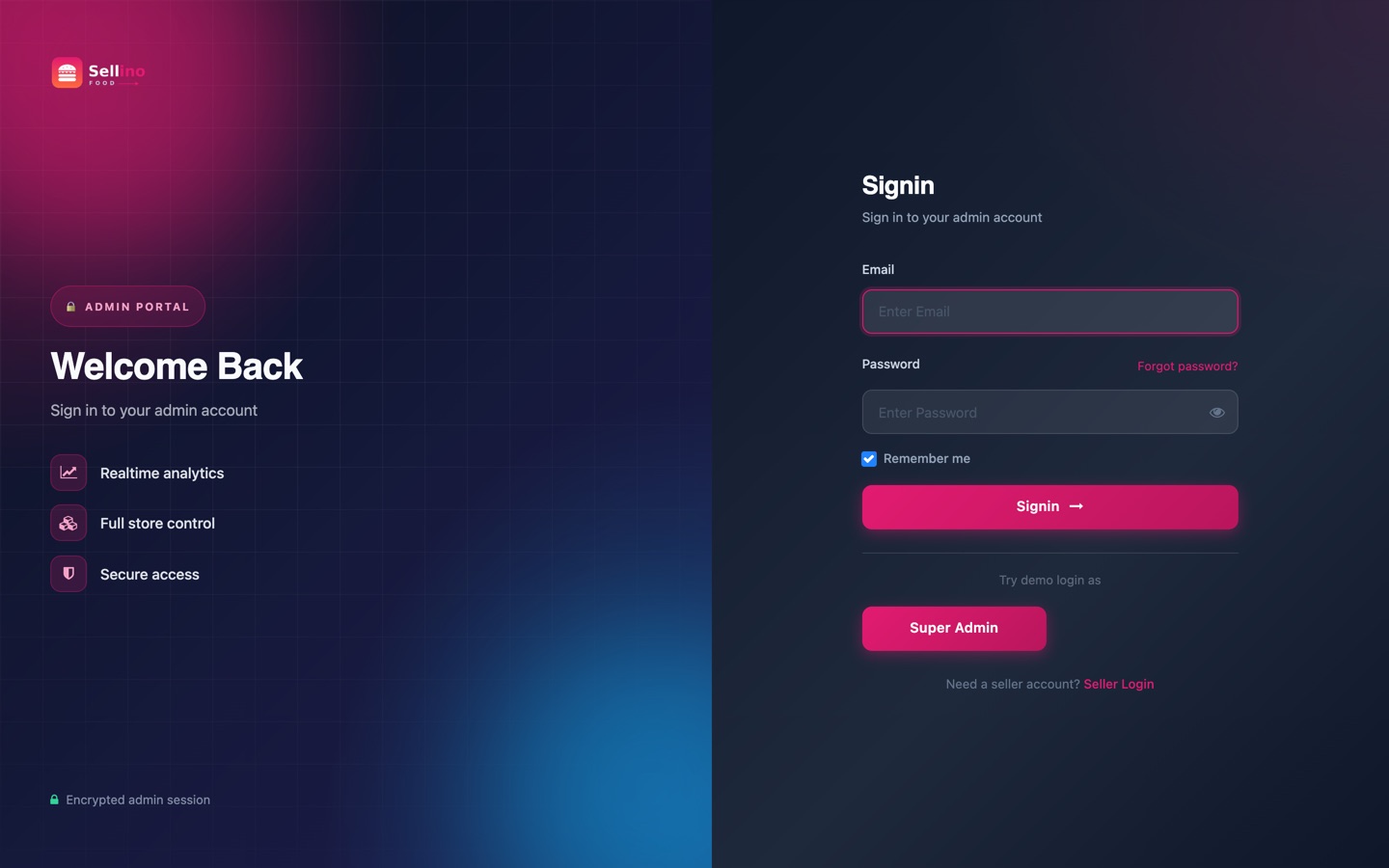
The admin login link ends with a randomized security slug (set in config('site.admin_login_path')) so the admin panel is not at a guessable URL.
Login URLs (replace example.com with your own domain):
- Admin / staff:
example.com/admin-7eP9kM4QX2pUoEic/login(slug fromconfig('site.admin_login_path')) - Restaurant (seller panel):
example.com/seller/login— restaurant owners and their staff. The admin door does not accept restaurant accounts; it redirects them here. - Rider:
example.com/delivery/login— the same account the Rider App uses. - Customer:
example.com/login
Seeded accounts (only when you installed from the command line with db:seed; the web installer creates the admin you typed in instead). Password for all: 12345678 — change it right after the first login.
| Role | Login door | |
|---|---|---|
| Super admin | /admin-7eP9kM4QX2pUoEic/login | [email protected] |
| Co-admin | /admin-7eP9kM4QX2pUoEic/login | [email protected] |
| Restaurant (Spice Garden) | /seller/login | [email protected] |
| More demo restaurants | /seller/login | kebab@ / pizza@ / [email protected] |
| Rider | /delivery/login | [email protected], [email protected] |
Change the admin slug: edit admin_login_path in config/site.php (e.g. 'my-office-9kQ2/login'), then run php artisan optimize:clear. Keep it random and unguessable. Change the seeded accounts: emails/passwords live in database/seeders/UserSeeder.php (admins), SellerSeeder.php (restaurants) and DeliveryManSeeder.php (riders) — or simply delete the demo users from Users / Restaurants / Riders in the panel before launch.
Log in:
- Open the admin login link, enter your email and password, click Login.
- If two-step verification is on, enter the code emailed to you.
Forgot password: click Forgot password?, enter your email, type the emailed code, then set a new password.
Note: Never share your password. Change it from Profile & Password if anyone else may know it.
Dashboard
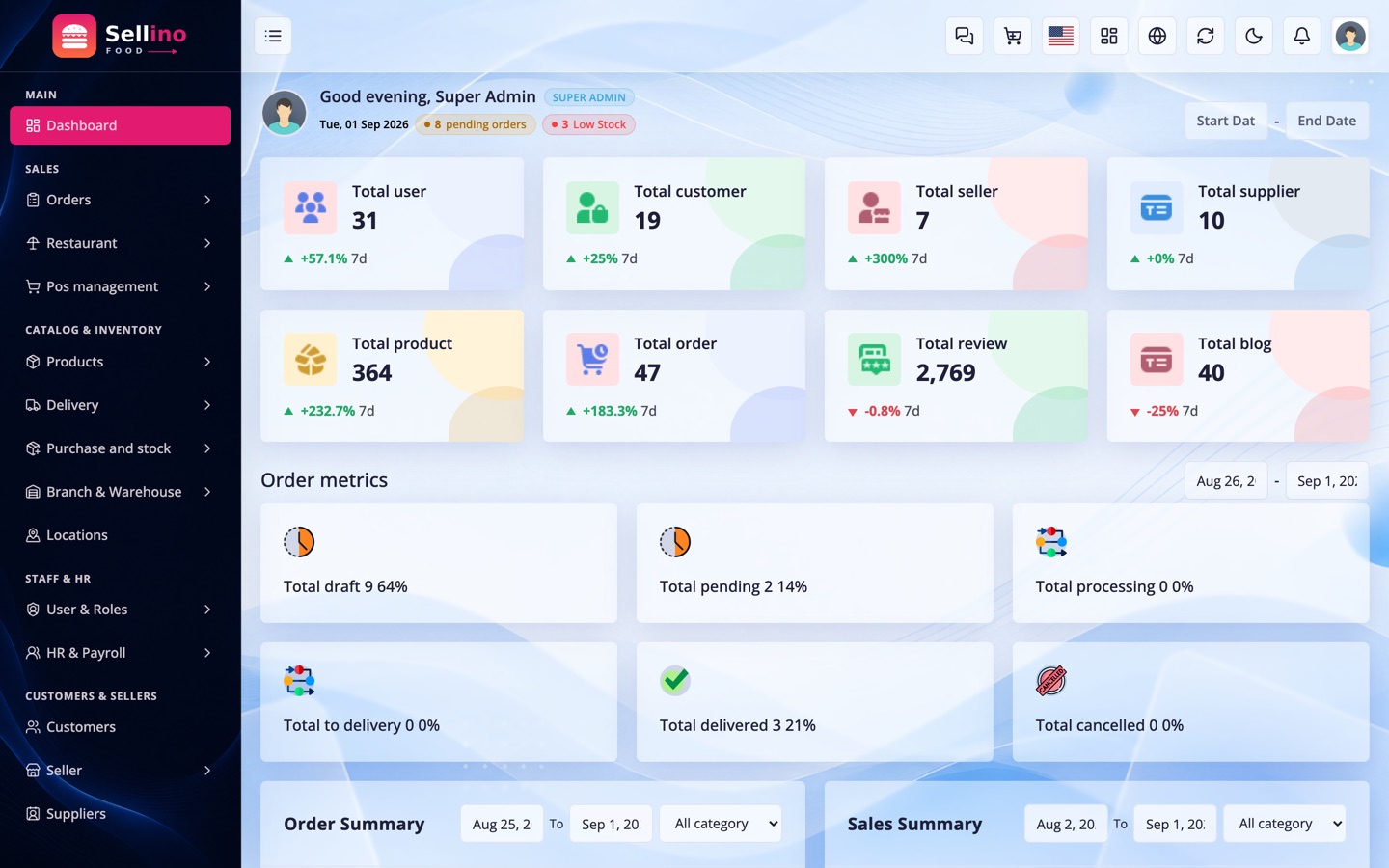
The first screen after login — a quick overview of your business.
- Summary cards: today's sales, orders, customers and revenue.
- Charts: sales and revenue trends at a glance.
- Left menu: opens every module, grouped exactly like this guide.
- Top-right menu: your profile, change password and logout.
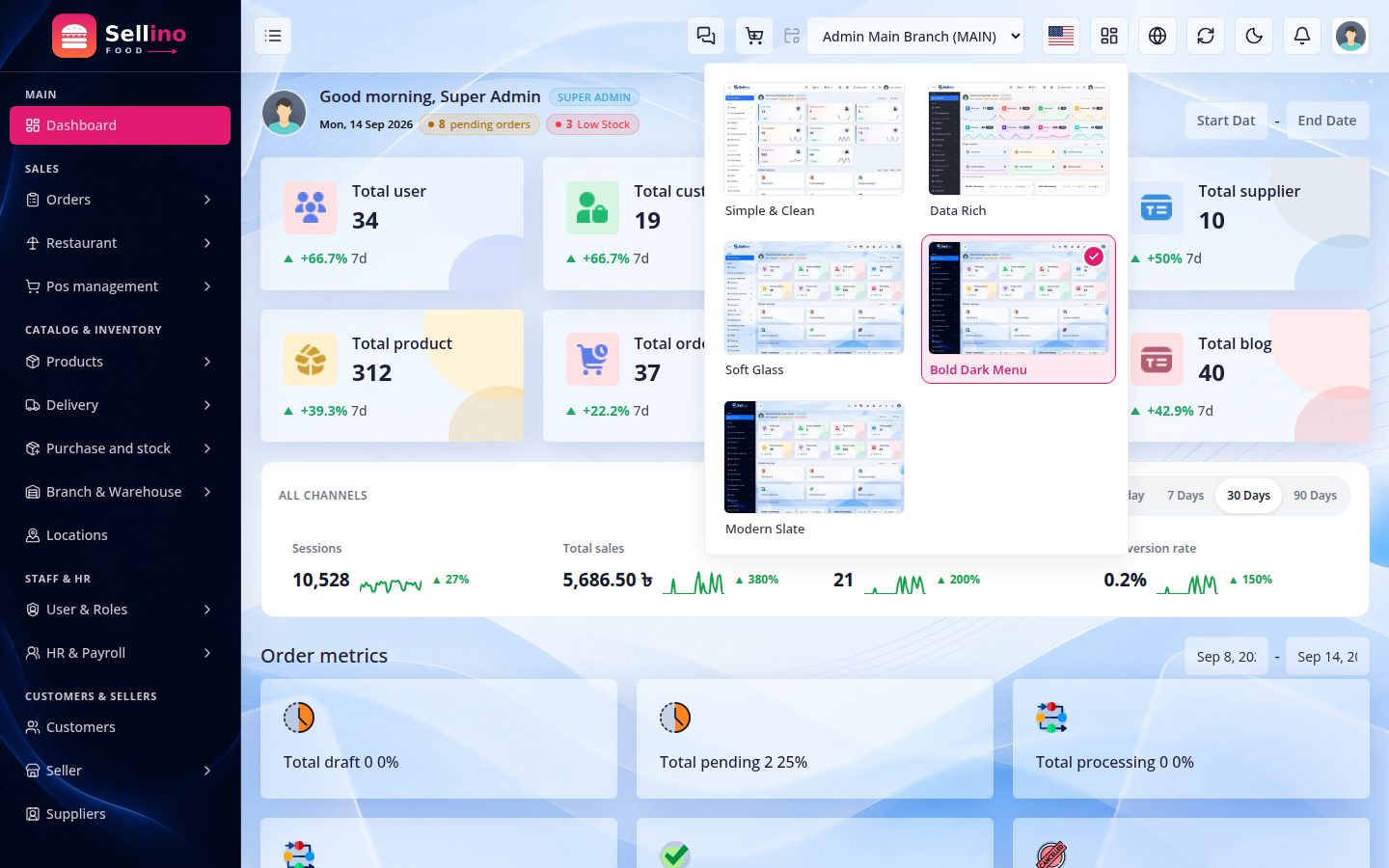
Dashboard Styles (Admin Panel Look)
The admin panel itself ships with four looks. Open the style switcher from the top navbar — each entry shows a screenshot thumbnail of that style, so you pick by looking, not by guessing from a name.
| Style | What it looks like |
|---|---|
| Default | The original panel look — no extra stylesheet is loaded. |
| New | Refreshed cards, softer surfaces and updated stat tiles. |
| Glass | Glassmorphism — translucent, blurred panels. |
| Sidebar | Redesigned sidebar-led layout. |
- Per user, not per store — the choice is saved in your session and a one-year cookie, so it survives logout and follows that browser. Another admin can run a different style at the same time.
- Nothing else changes — only CSS. Data, permissions and every screen stay identical.
- This is the admin panel look. The customer-facing website and the apps are styled from Web Theme / App Theme.
Developers: styles are listed in config/dashboard_themes.php. A new style = one entry there (label + stylesheet + preview image) — the switcher, the page and the validation all read that one list.
Food Delivery Settings
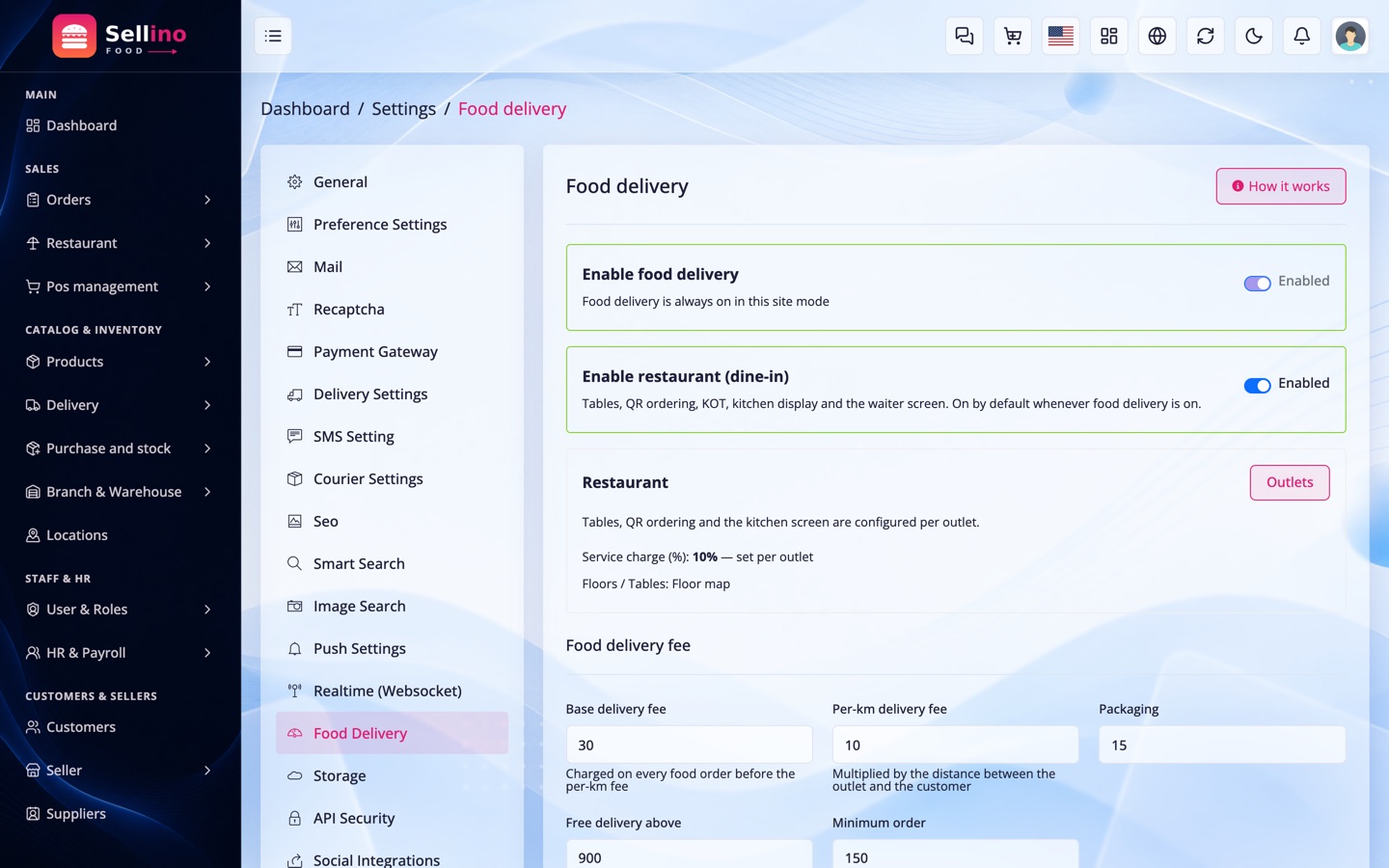
Settings → Food Delivery. One page decides how delivery is priced and how the kitchen behaves. Every value here is a platform default; a restaurant can override the money fields from its own settings.
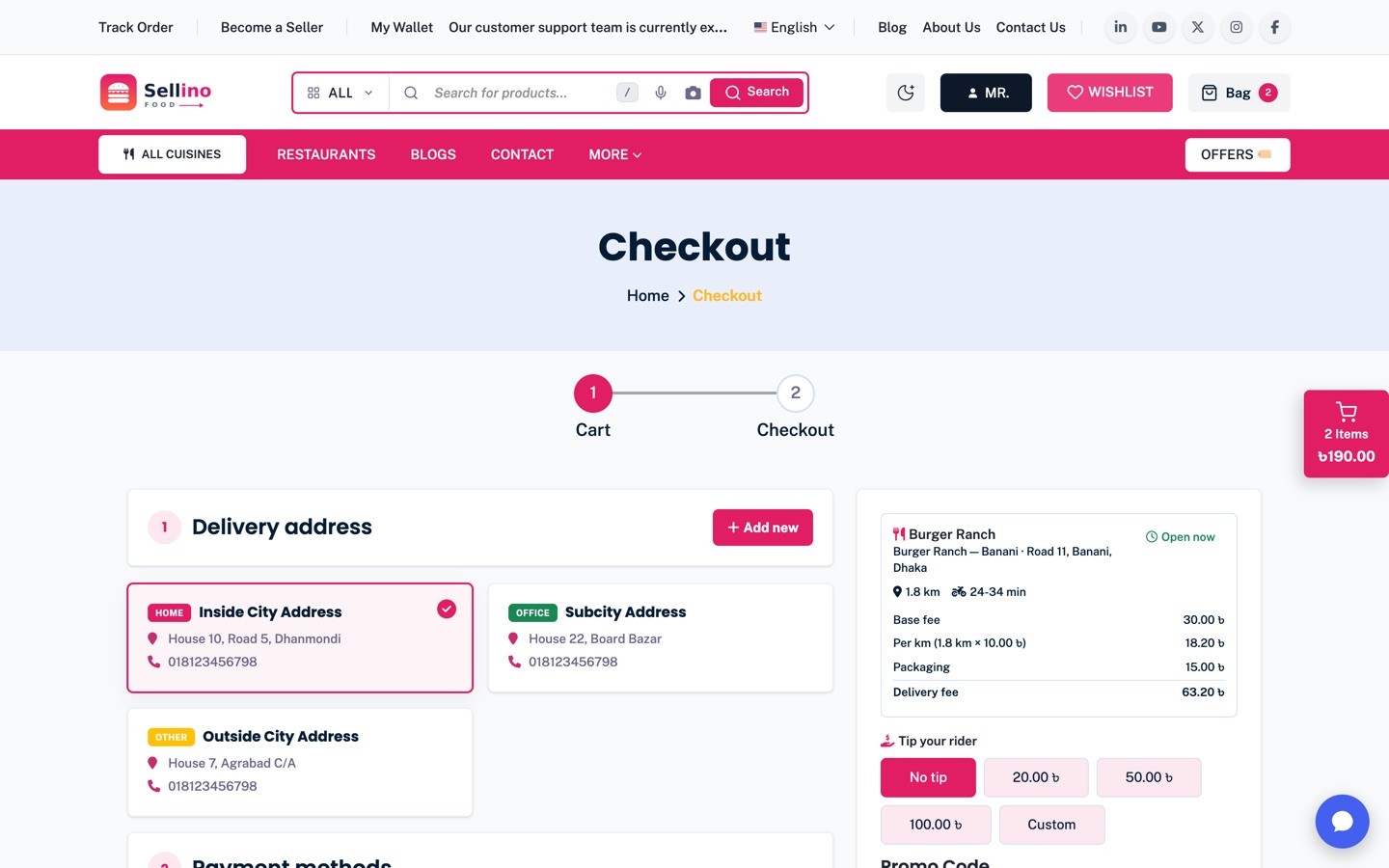
- Base fee and Per-km fee — the delivery charge is
base + per-km × distance + packaging, measured between the customer's map pin and the outlet's pin. - Packaging charge — a flat amount added to every food order.
- Free delivery above — subtotal at which the delivery fee drops to zero. Leave it 0 to never give free delivery.
- Minimum order — checkout blocks below this amount and tells the customer how much more to add.
- Default radius (km) and default prep time — used by any outlet that has not set its own.
- Assumed rider speed (km/h) — turns distance into the ETA the customer sees.
- Auto accept — skip the kitchen's Accept step and send new orders straight to preparing.
- Allow rider tip and Tip presets — comma-separated amounts, e.g.
20,50,100, shown as buttons at checkout. - Allow scheduled delivery — lets the customer pick a later delivery slot at checkout instead of "as soon as possible".
- Auto dispatch — hand a ready order to an available rider automatically, so the kitchen never waits on manual assignment.
- Let customers choose the outlet — shows a branch chip beside the delivery pin so a customer of a chain can pick which outlet serves them. The pin still decides: a branch that cannot reach the address is skipped. Off by default.
- Food tags — the labels a dish can carry, comma-separated (
Veg, Non-veg, Spicy, Halal, Bestseller, Newship built in). Add your own — Extra Jhal, Chef special — and they appear in the dish form, as badges and as filter chips; removing one never breaks an already-tagged dish. - Dine-in, QR ordering and QR needs waiter approval — the switches for the whole Restaurant module.
A tip is not your money. It is booked to a liability account (Rider Tip Payable) and stays there until you pay the rider out with a Liability Settlement voucher, so it never inflates revenue or commission.
Restaurants
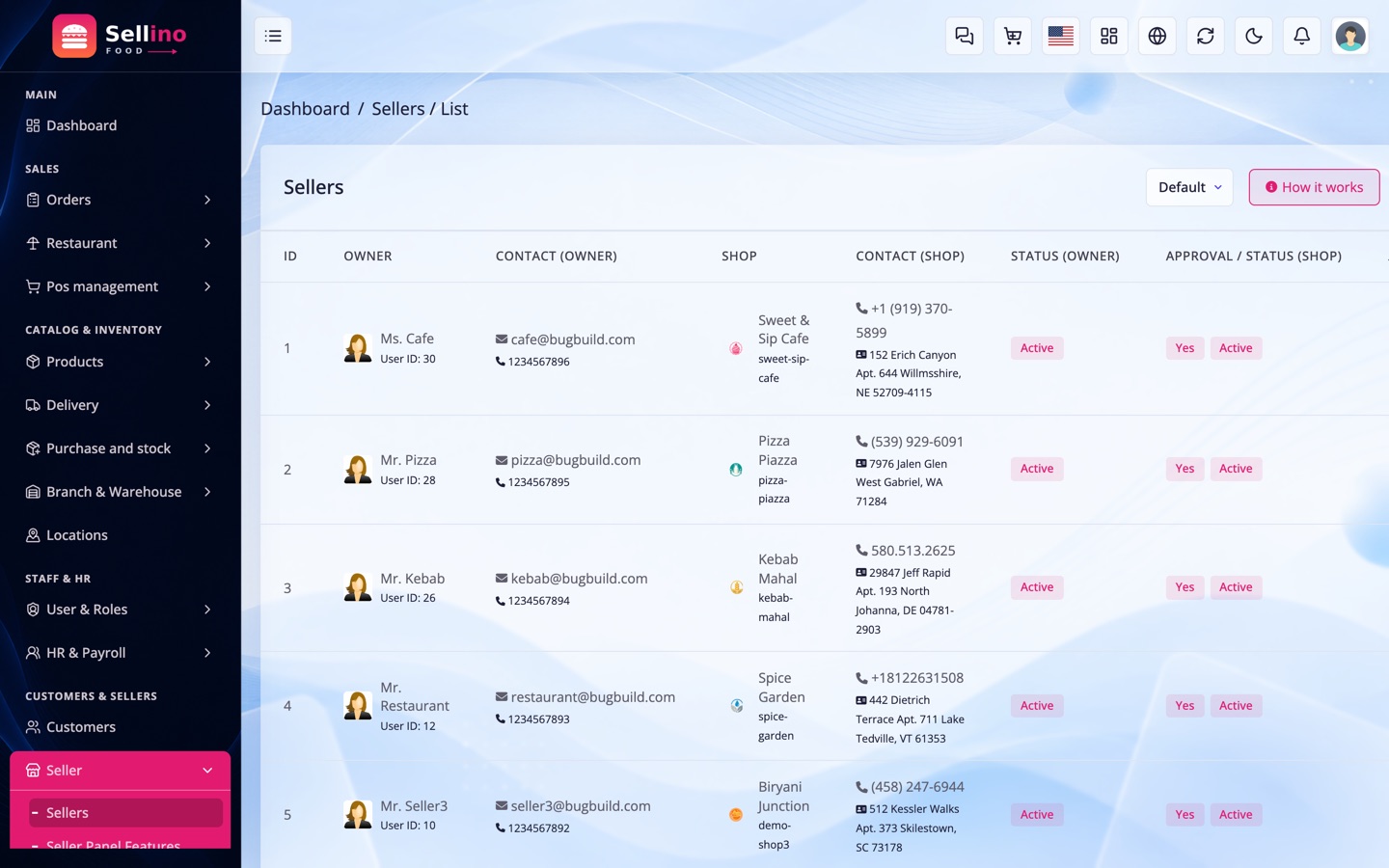
Restaurants (Sellers) → All Restaurants. In this edition every seller is a restaurant — a brand with a logo, banner, description, cuisines and one or more outlets.
- Sign-up & approval — a restaurant registers from the storefront ("Become a Seller") and stays invisible until you approve it. Approved + active is what puts it on the food home.
- Cuisine tags — Biryani, Pizza, Cafe, Kebab… these become the filter chips, the cuisine rail and the header dropdown customers browse by, so keep them short and repeat them across restaurants. Twenty common cuisines come with bundled photo artwork; any other name shows a neutral icon.
- Commission — a platform rate per restaurant or per category. It is deducted on every delivered order and settles into the restaurant's balance.
- Payouts — restaurants request a withdrawal, you approve and pay; the journal is posted for you.
- Restaurant panel — its own door at
example.com/seller/login(see Login & Security); the admin login page redirects restaurant accounts there. A restaurant sees only its own menu, outlets, kitchen, orders, riders and reports.
A brand new restaurant automatically gets a Main Branch. That is its first outlet — open it and drop the map pin, or the restaurant will not appear in any customer's search.
Outlets (Branches)
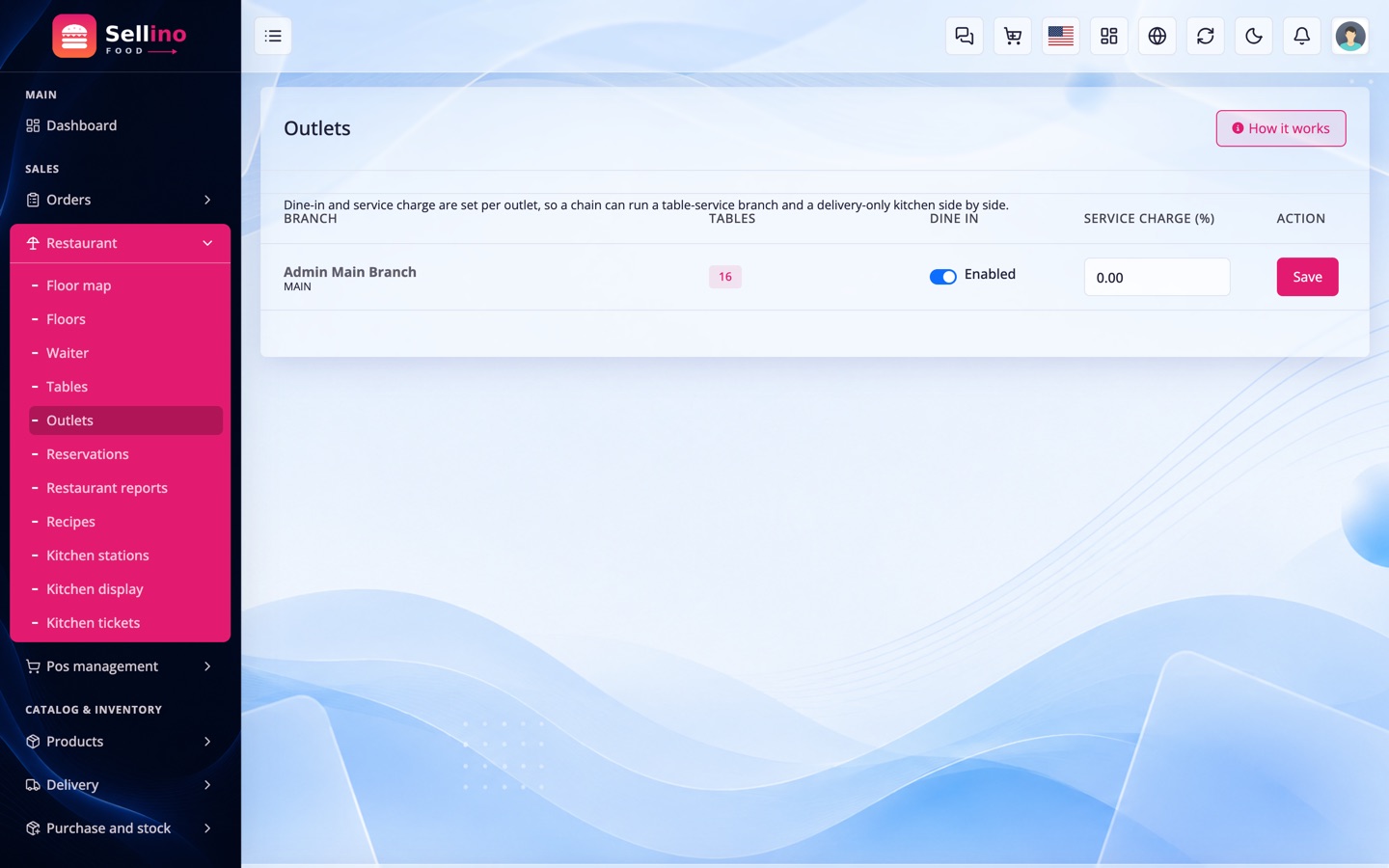
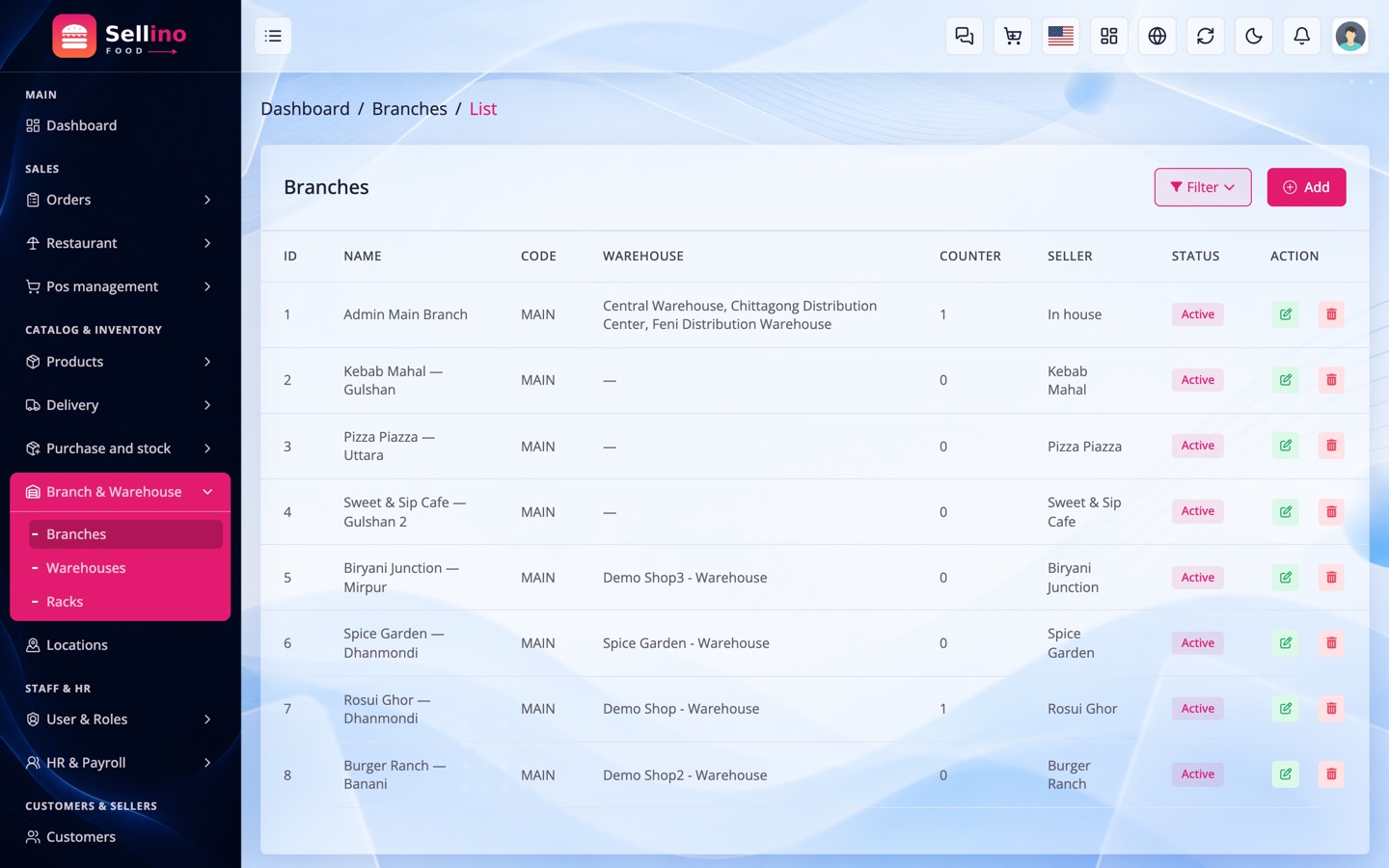
Restaurant → Outlets, or Branch & Warehouse → Branches. An outlet is a branch: the physical kitchen that cooks, and the point deliveries are measured from. A chain is one restaurant with several outlets.
- Map pin (lat/lng) — required everything geographic hangs off it: distance, ETA, fee, the radius gate and rider navigation. An outlet with no pin is invisible to customers.
- Delivery radius (km) — beyond it, checkout refuses the order and says why.
- Opening hours — per weekday, several windows a day, and windows may cross midnight (18:00 → 02:00).
- Open / Closed override — the manual switch that beats the schedule when the kitchen has to stop taking orders right now.
- Average prep time — the kitchen half of the ETA; the delivery half comes from distance ÷ assumed speed.
- Service charge % and dine-in on/off — see Billing.
- Staff & stock — every outlet has its own warehouse, counters, staff and reports.
Menu & Dishes
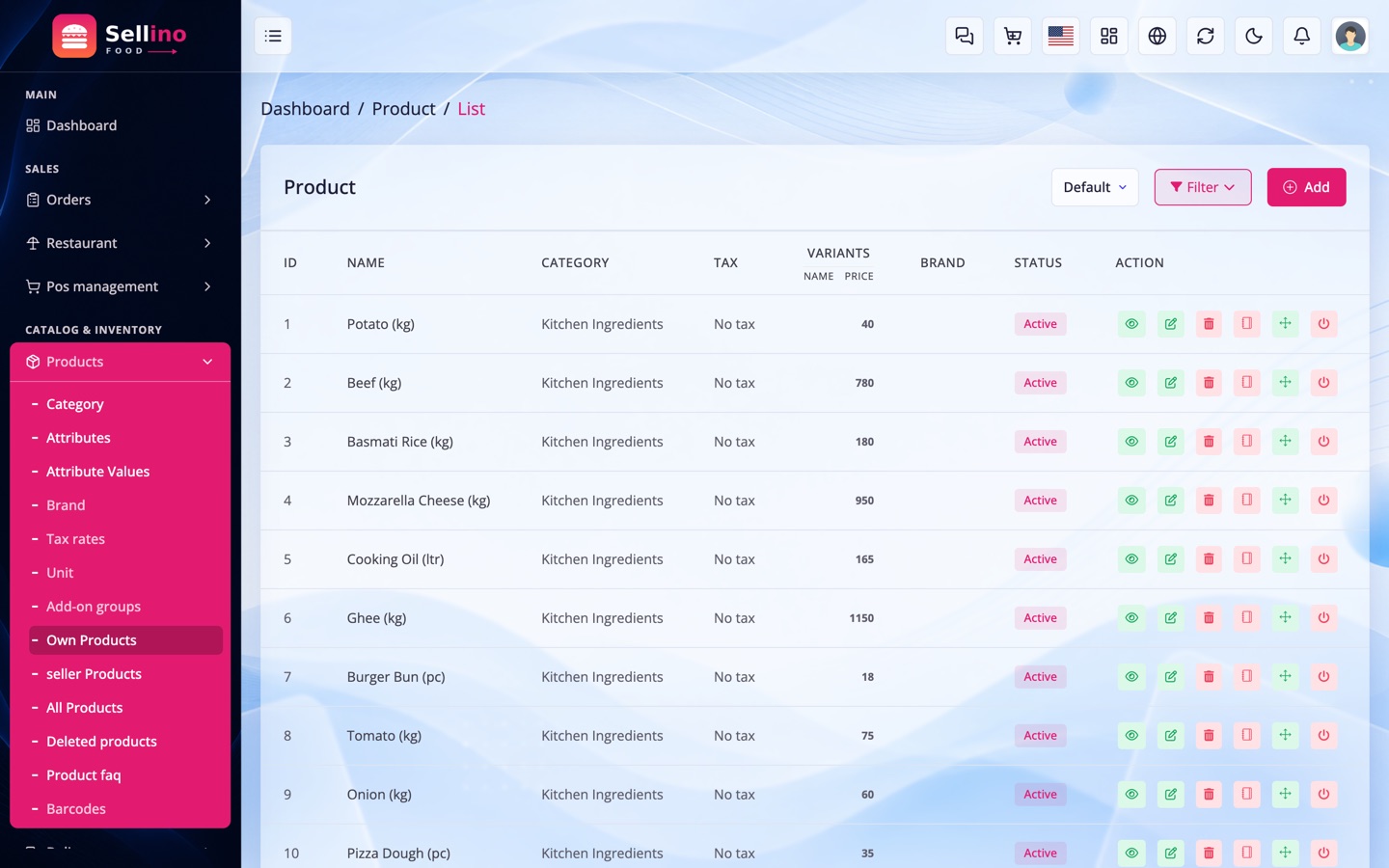
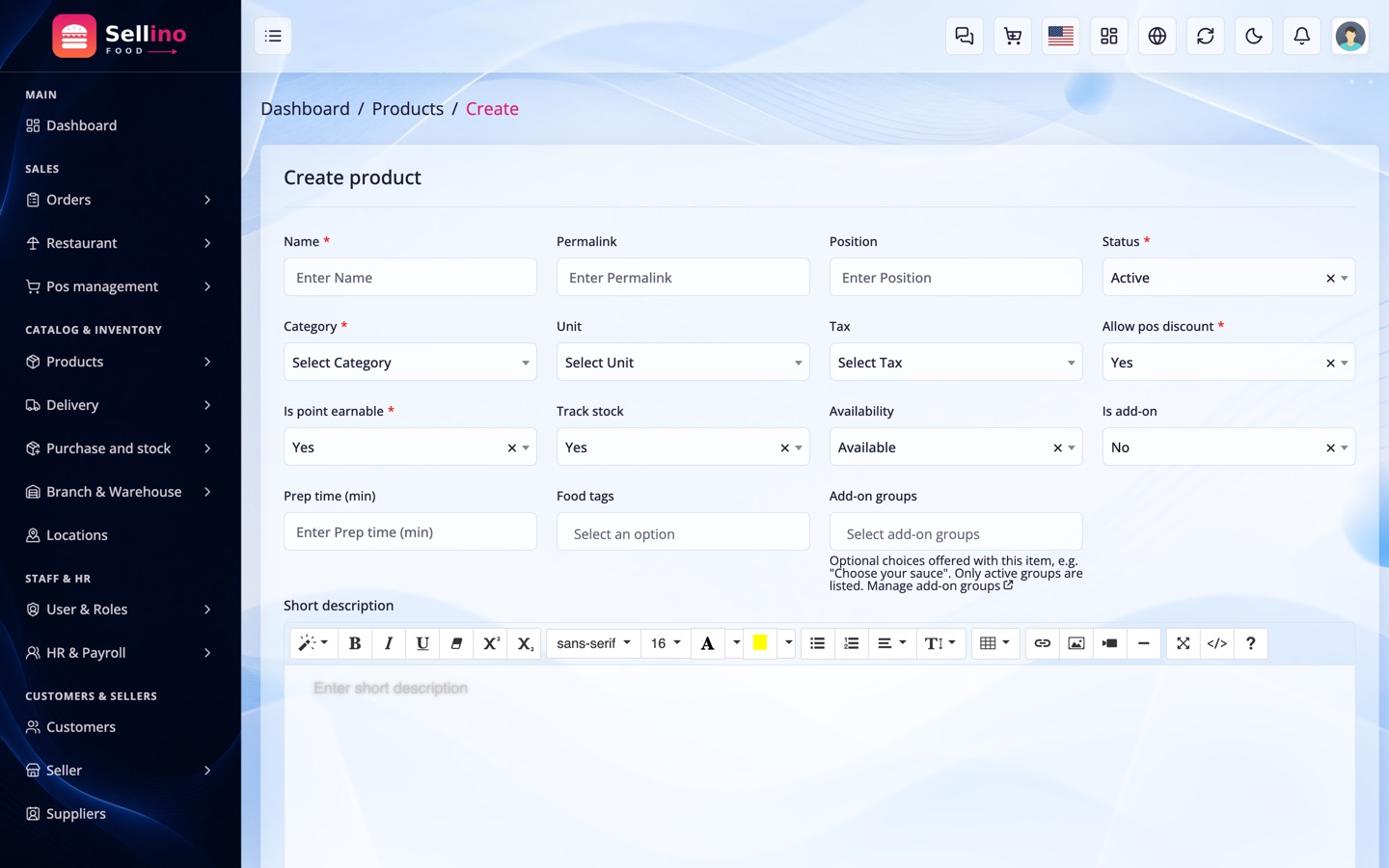
Products → Menu. A dish is a product, but it behaves differently from a retail item: it is cooked to order, so it has no stock — just an availability switch.
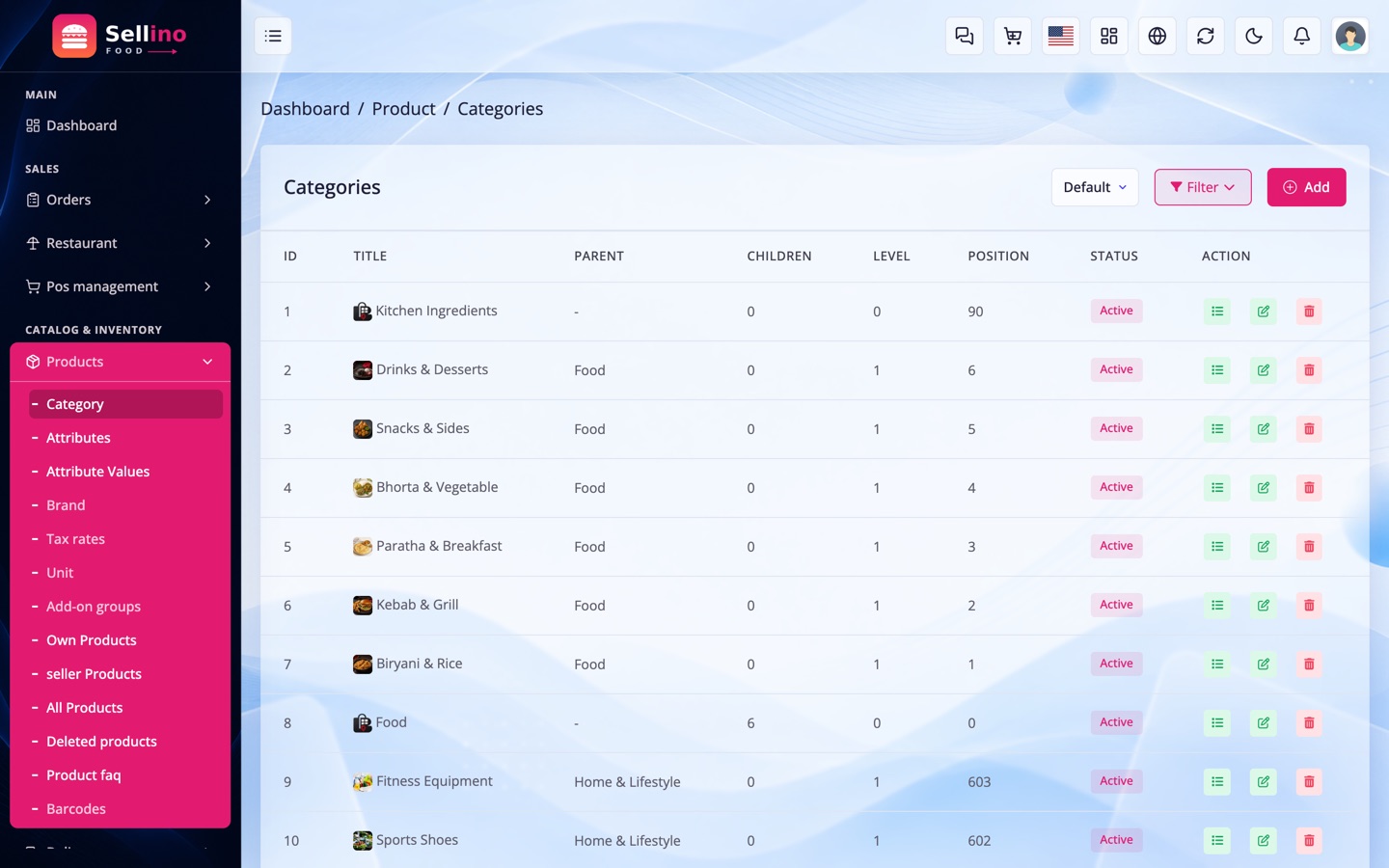
- Categories (Products → Category) — the sticky tabs on the restaurant page: Biryani & Rice, Kebab & Grill, Drinks & Desserts. Give each one an icon.
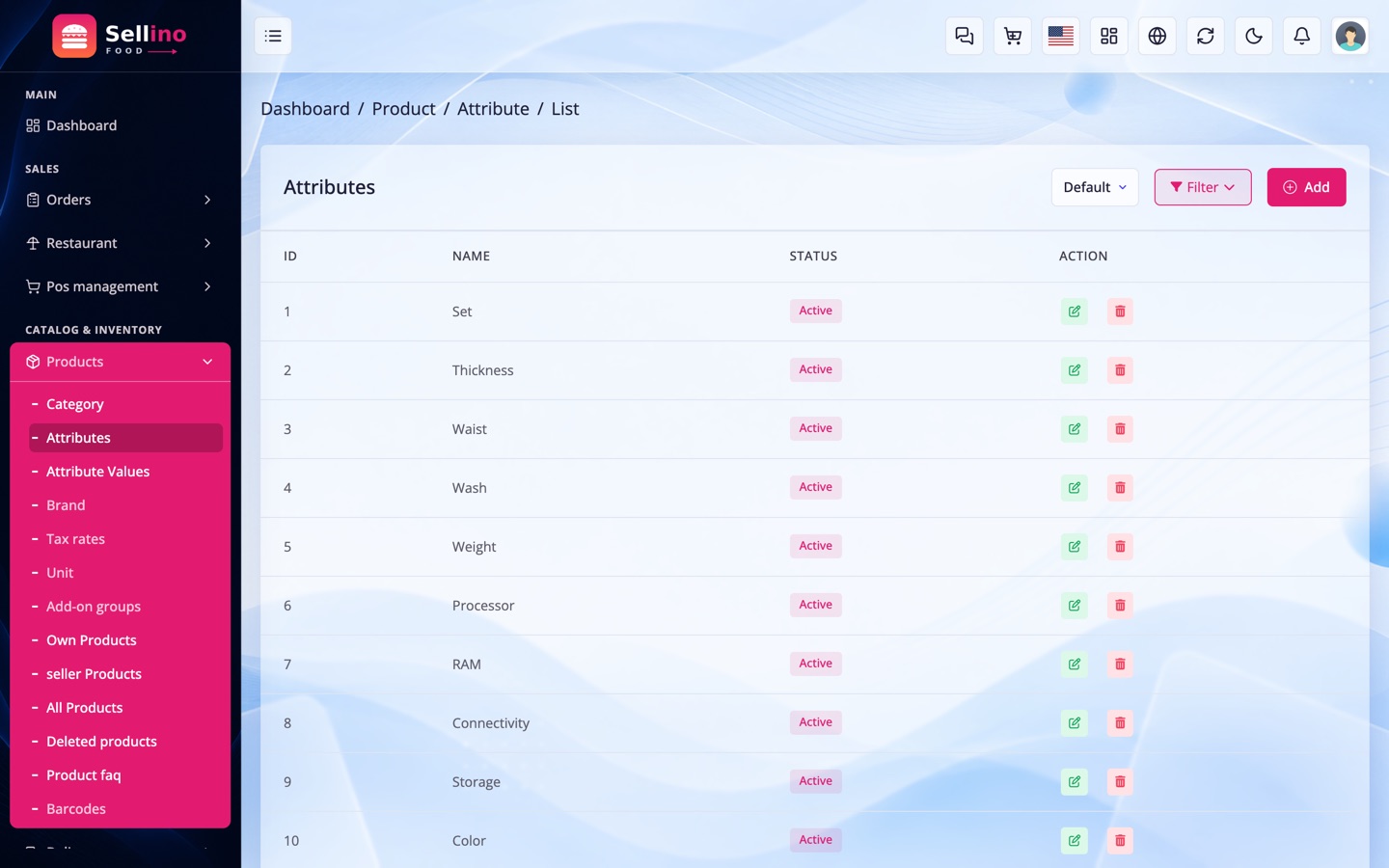
- Sizes — an Attribute ("Size") with values (Regular, Family, Half, Full). Each size is a variant with its own price.
- Prep time (min) — per dish; the kitchen half of the ETA.
- Food tags — Veg, Non-veg, Spicy, Halal, Bestseller, New, plus anything you add under Settings → Food Delivery. They become badges on the card and working filters: a customer can narrow discovery, a restaurant's menu and the popular rail by tag on the web, in the app and through the API (several tags together mean "all of them").
- Available — the 86 switch. Turn it off and the dish greys out instantly on every surface; nothing else changes.
- Track stock — leave it off for normal dishes. Turn it on only for a limited item (20 cakes a day) and the ordinary stock system takes over.
- Add-on groups — attach the groups this dish should offer (see below).
Why "no stock" matters: with Track stock off, the cart never blocks an order for being out of stock and no stock movement is written when it sells. Ingredients are still consumed — through Recipes, which is the correct place for a kitchen.
Add-on Groups (Modifiers)
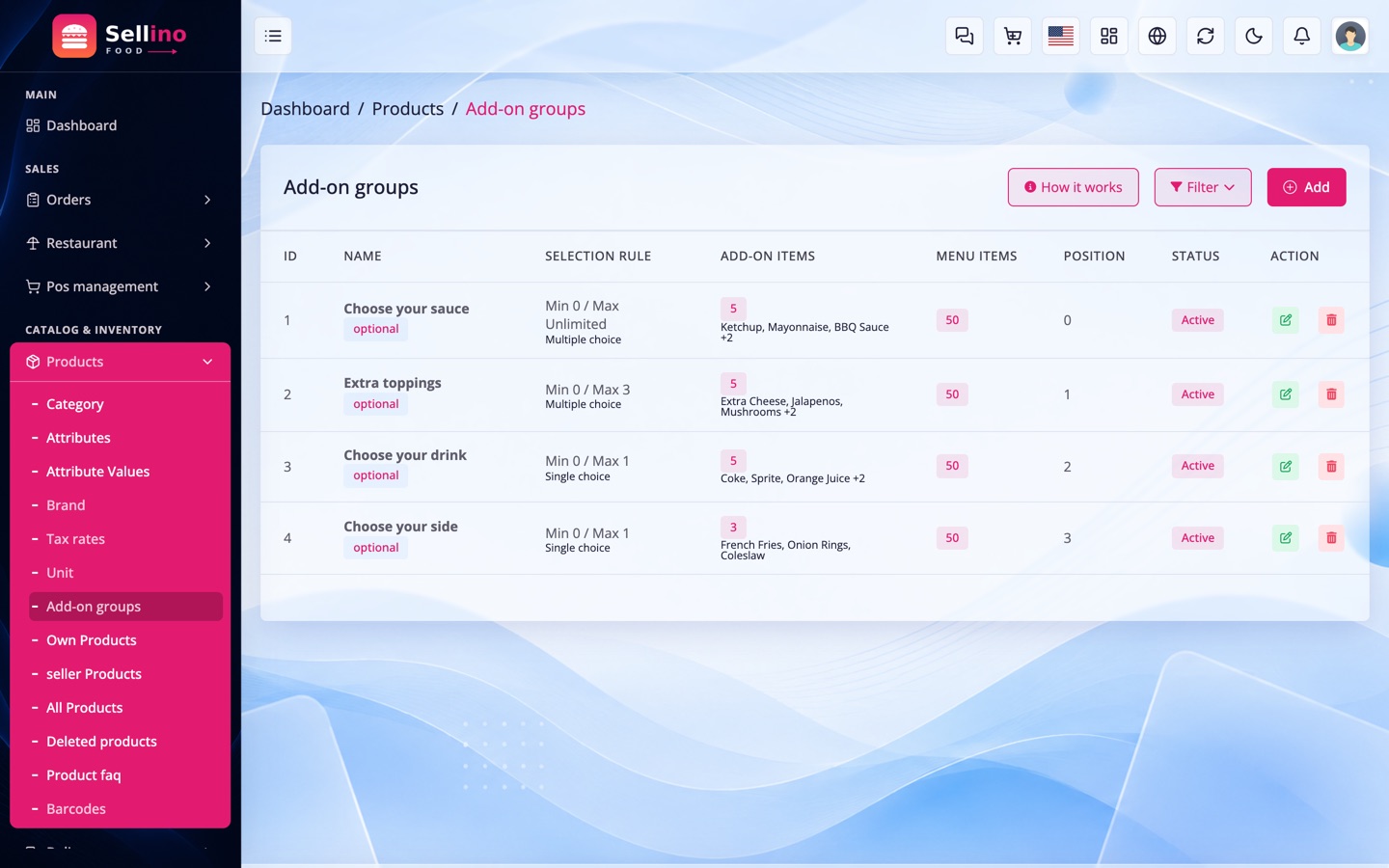
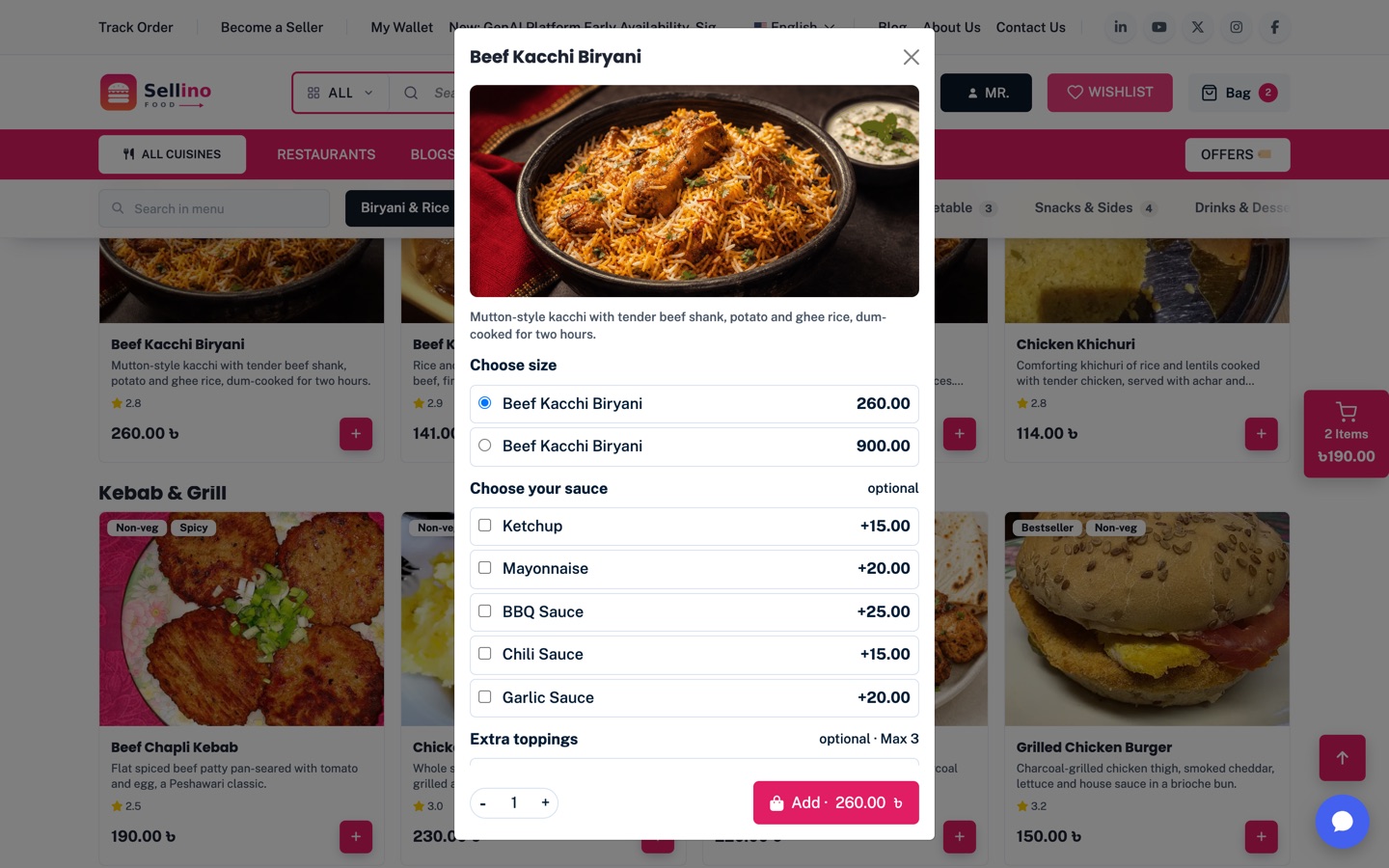
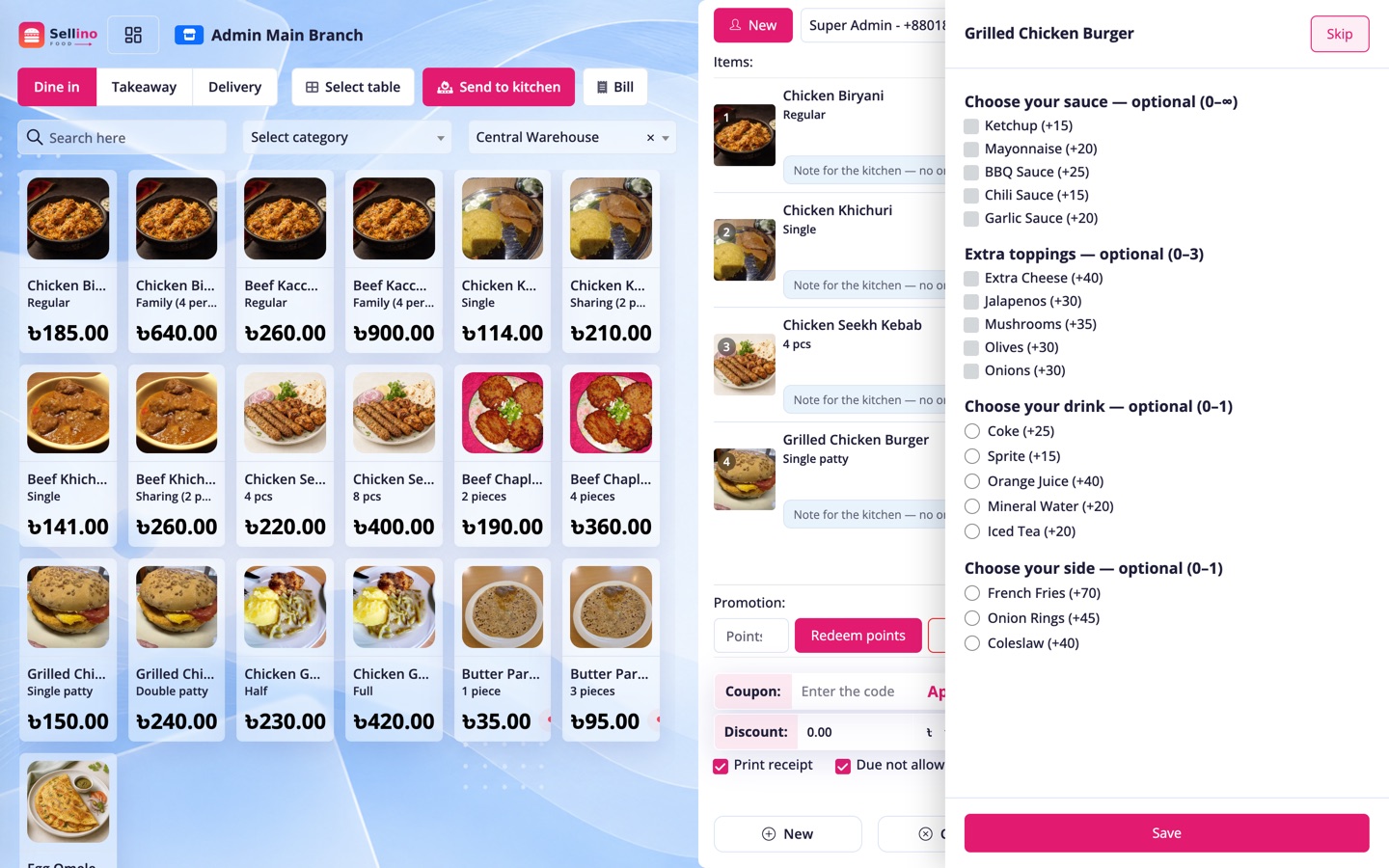
Products → Add-on groups. "Choose your sauce", "Extra toppings", "Pick a drink" — a named group of priced options attached to any number of dishes.
- Required — the customer cannot add the dish without choosing.
- Min / Max select —
0–1is a radio,0–3is a checkbox capped at three,1–1required is a forced choice. - Items — each option is a small product of its own, so it carries a price and a tax rate.
- Attach to dishes — one "Choose your sauce" group can serve every grill on the menu; edit it once.
How an add-on is billed: it becomes a child line under the dish on the order, not a note. That is what makes tax, commission, coupon split, refunds and every journal work on it with no special case anywhere — and why an add-on always follows its parent when an order is edited, returned or refunded.
Price add-ons like modifiers, not like dishes. A sauce at 15–25 reads right next to a 260 biryani; the same sauce at 145 makes the sheet look broken.
The Kitchen Flow
A food order carries a kitchen state alongside its order status, so the cook and the accountant never fight over the same field.
| Step | Who does it | What happens |
|---|---|---|
| Placed | Customer | Order is Pending. The kitchen gets a notification (with sound in the app). |
| Accepted | Restaurant | Accept with a prep time, or Reject — which cancels and refunds. Auto accept skips this step. |
| Preparing | Kitchen | Cooking. The customer's tracker moves. |
| Ready | Kitchen | Bagged and waiting for a rider. |
| Picked up | Rider | Order moves to To delivery; the shipment starts. |
| Delivered | Rider | OTP + proof photo. This is where the money is recognised — sale, tax, delivery, commission and tip all post here. |
You drive the same flow from three places — the order page in the panel (Kitchen card), the Restaurant App board, and the Kitchen Display. They are the same state, so whichever is nearest wins.
Orders
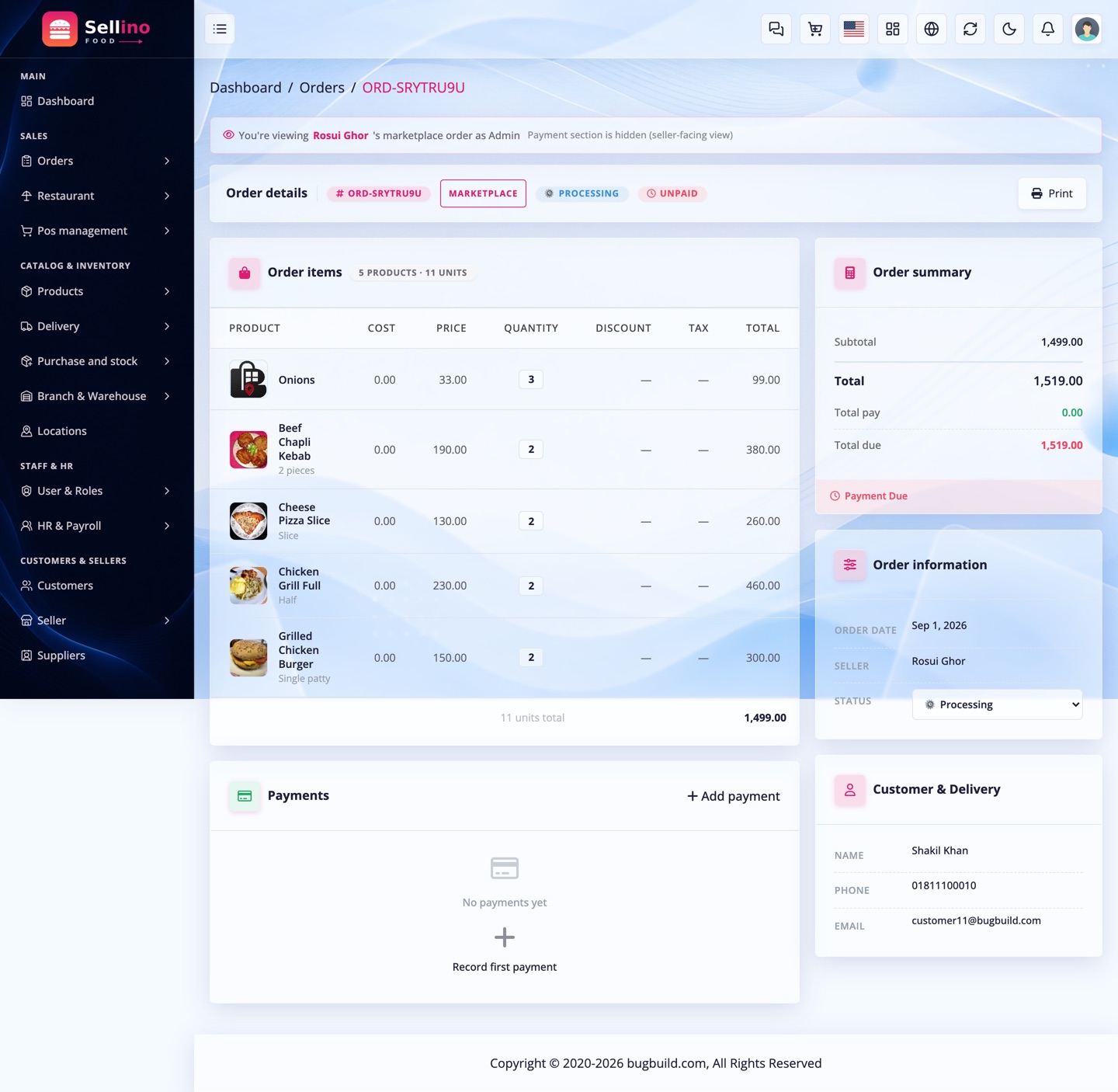
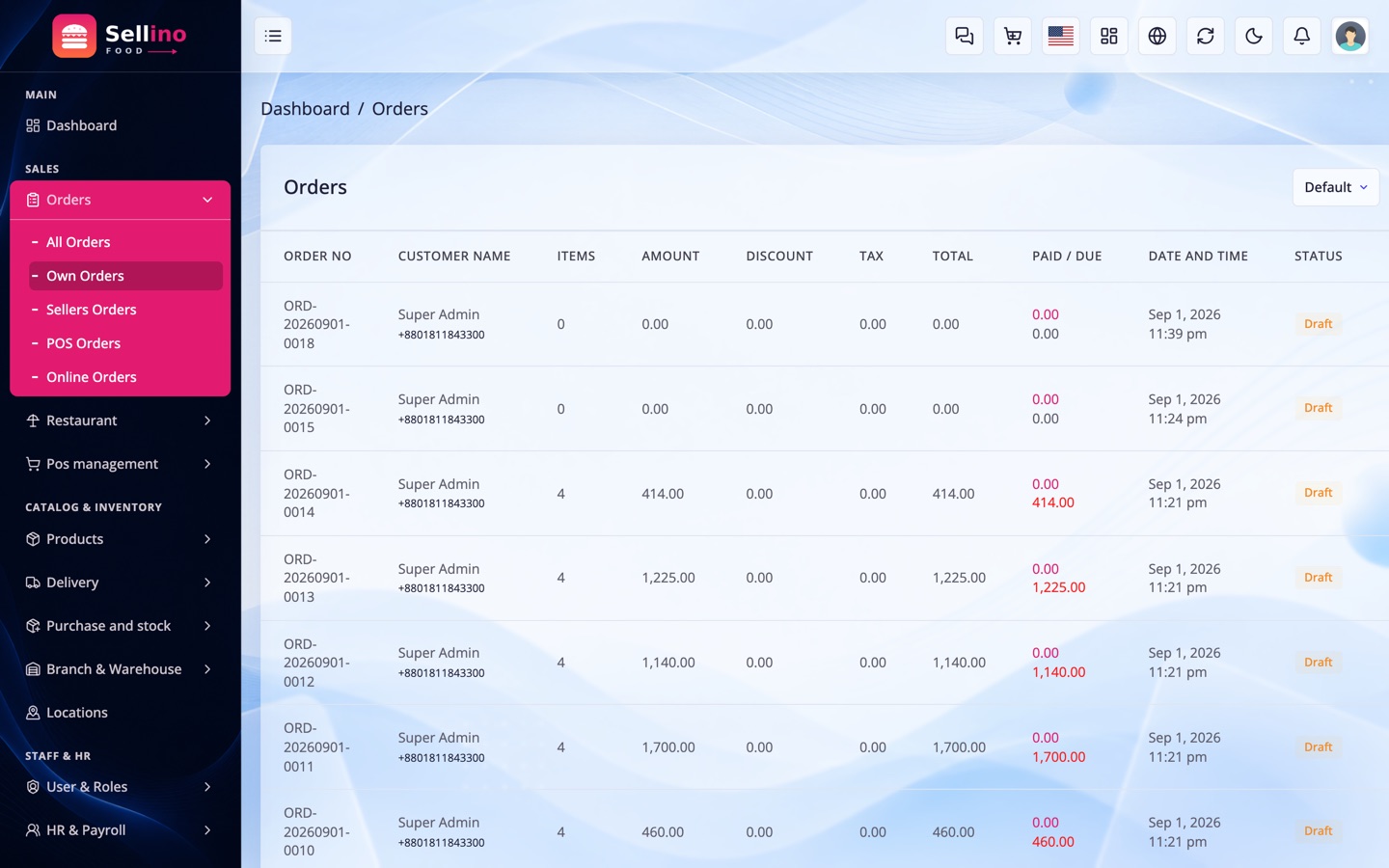
Orders → All Orders. Every order — delivery, takeaway and dine-in — lands here with its restaurant, outlet, kitchen state, rider and payment.
- Order type — Delivery, Takeaway or Dine in. Dine-in orders arrive from the POS or a table check.
- Status — Draft → Pending → Processing → To delivery → Delivered / Cancelled. This is the accounting spine, so it never changes for a kitchen event.
- Kitchen card — accept, reject, preparing, ready, right on the order page.
- Assign a rider — pick one from the delivery-men list, or let the restaurant's own rider take it.
- Payment — cash on delivery, wallet, online gateway or a mix; part-paid orders keep a due.
- Invoice — print or download, and print a kitchen ticket for the same order.
Add-on lines are nested under their dish so a bag of "Burger + Extra cheese + Coke" reads as one item, not three.
Editing & Cancelling an Order
A pending order can still be changed — the customer forgot a drink, the kitchen ran out of a dish. Open the order and use Edit: add an item, change a quantity, remove a line.
- Only orders from the same restaurant can be added to; the one-restaurant rule holds after checkout too.
- Removing a dish removes its add-ons with it — a parent and its children always move together.
- Total goes up → the difference is taken from the customer's wallet, or left as a due.
- Total goes down → the difference is refunded to the wallet.
- Cancel refunds what was paid and releases everything the order was holding.
Once the kitchen has accepted, editing is a conversation, not a button — reject and re-place, or handle it as a refund.
Refunds & Complaints
Food is not returned like a shirt — a wrong or spoiled order is refunded, not restocked. Purchase and stock → Return requests handles both, and for a food order the useful half is the refund.
- Refund method — wallet (instant, most common), cash, or bank with a reference number.
- Partial refund — refund one dish out of a bag; its add-ons go with it.
- Who pays — the fault decision routes the cost to the platform or the restaurant, and the journals follow.
- No stock is returned for a dish, because none was ever deducted. Ingredients already consumed stay consumed — which is the truth.
Replacements exist in the system and work, but for food most operators leave them off and refund instead. It is faster, and the customer is hungry now.
Riders & Delivery
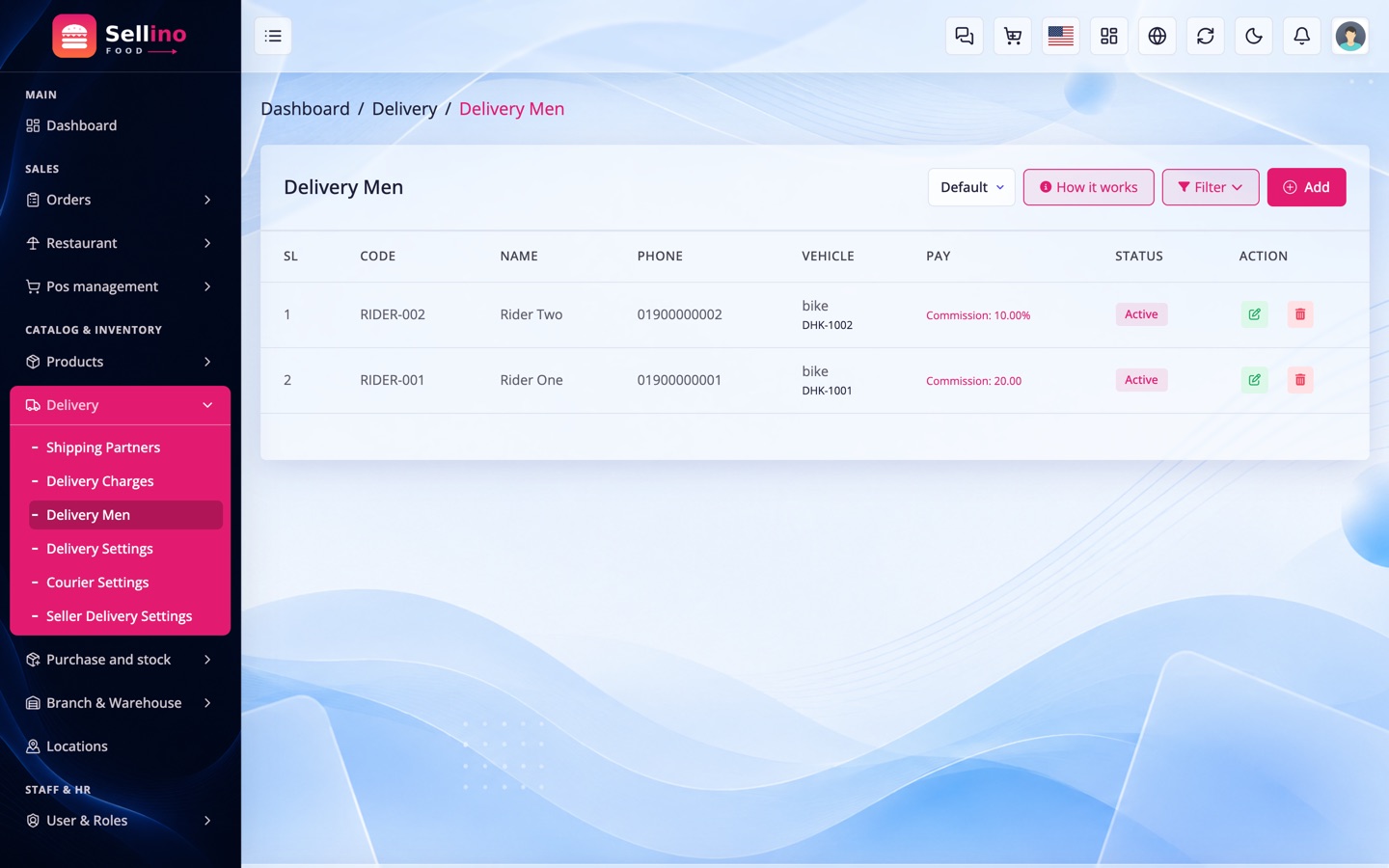
Delivery → Delivery men. A rider is a user with the delivery role, a phone and a vehicle, belonging either to the platform or to one restaurant.
- Assignment — assign from the order page, or let the restaurant assign its own rider. The task appears in the Rider App immediately.
- Online switch — a rider marks themselves available; while online the app pings its location so the customer's map moves.
- Pickup → drop — the task card shows the outlet, the drop pin, the distance and what the rider earns.
- Delivery proof — an OTP the customer reads out, plus an optional photo. Only then does the order become Delivered.
- Earnings — commission per delivery plus tips, visible to the rider and settled by you.
- Who keeps the fee — a platform rider means the platform keeps the delivery fee and pays the rider; a restaurant's own rider means the restaurant keeps it. The books follow automatically.
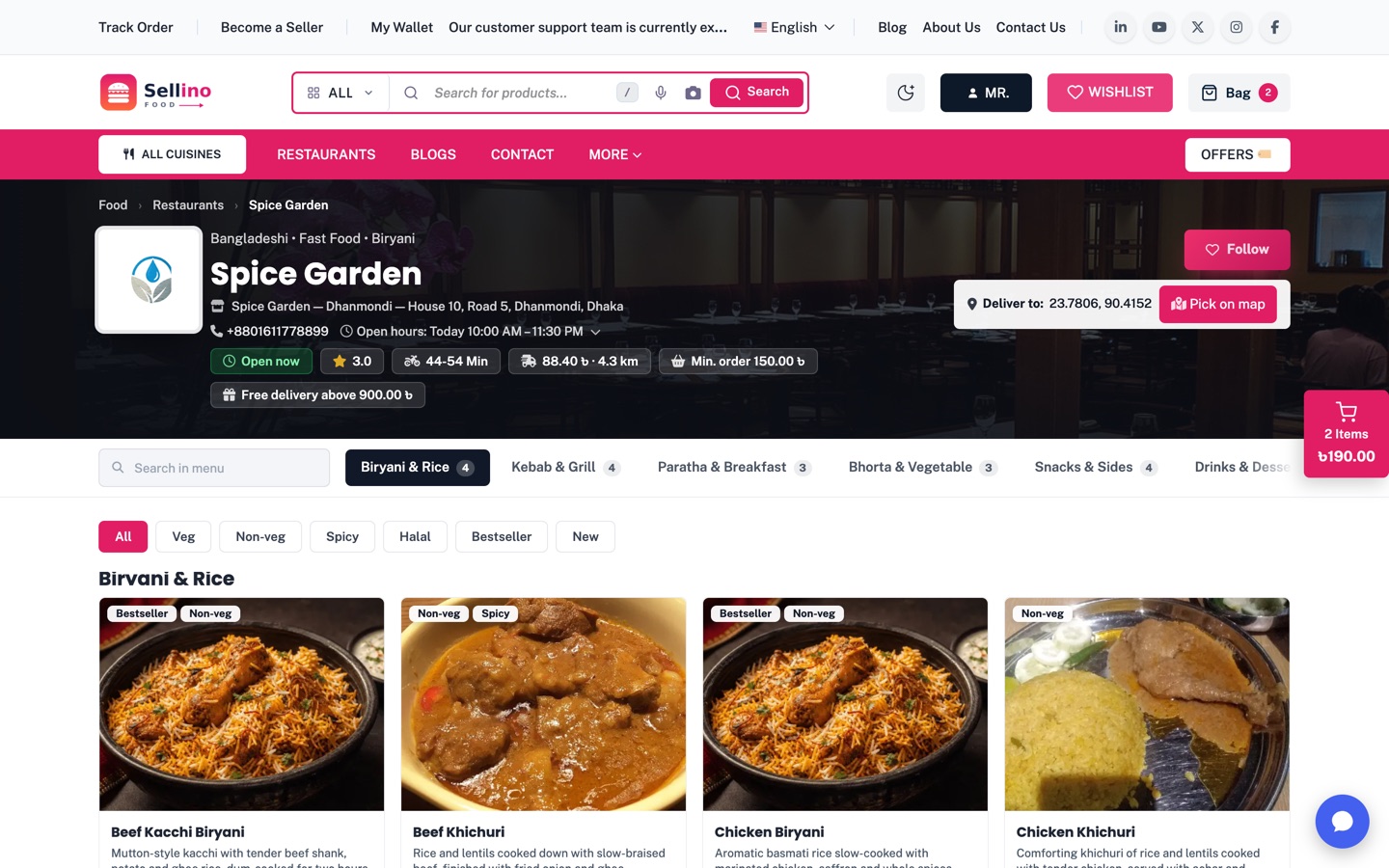
The Food Storefront
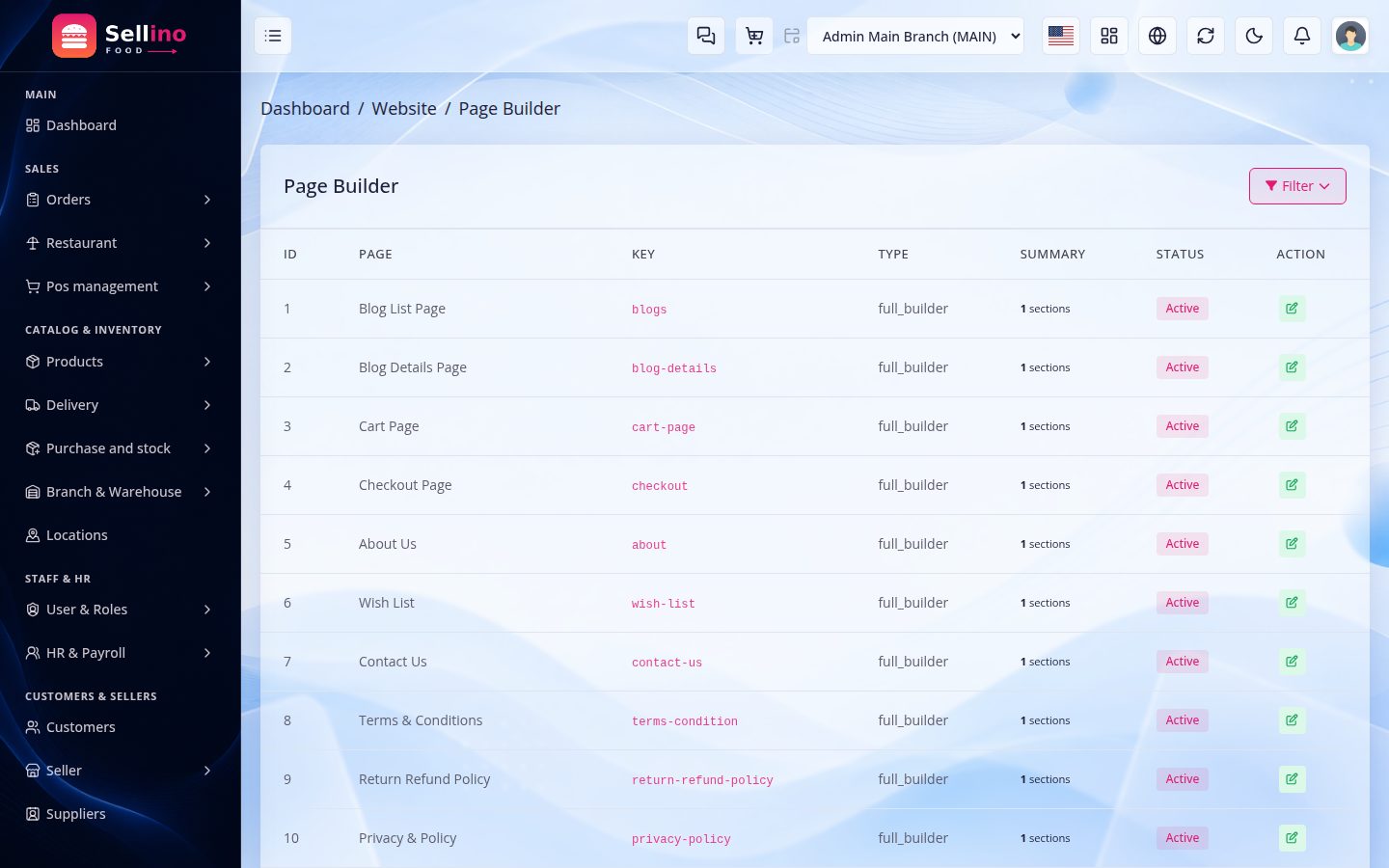
The customer site is built from blocks, not code. Website → Page Builder ships four food pages you can rearrange: food-home (your home page), restaurants (discovery), restaurant-page (a single restaurant) and food-menu-item-page (a dish). Every block below is a widget with its own title, hint and toggles.
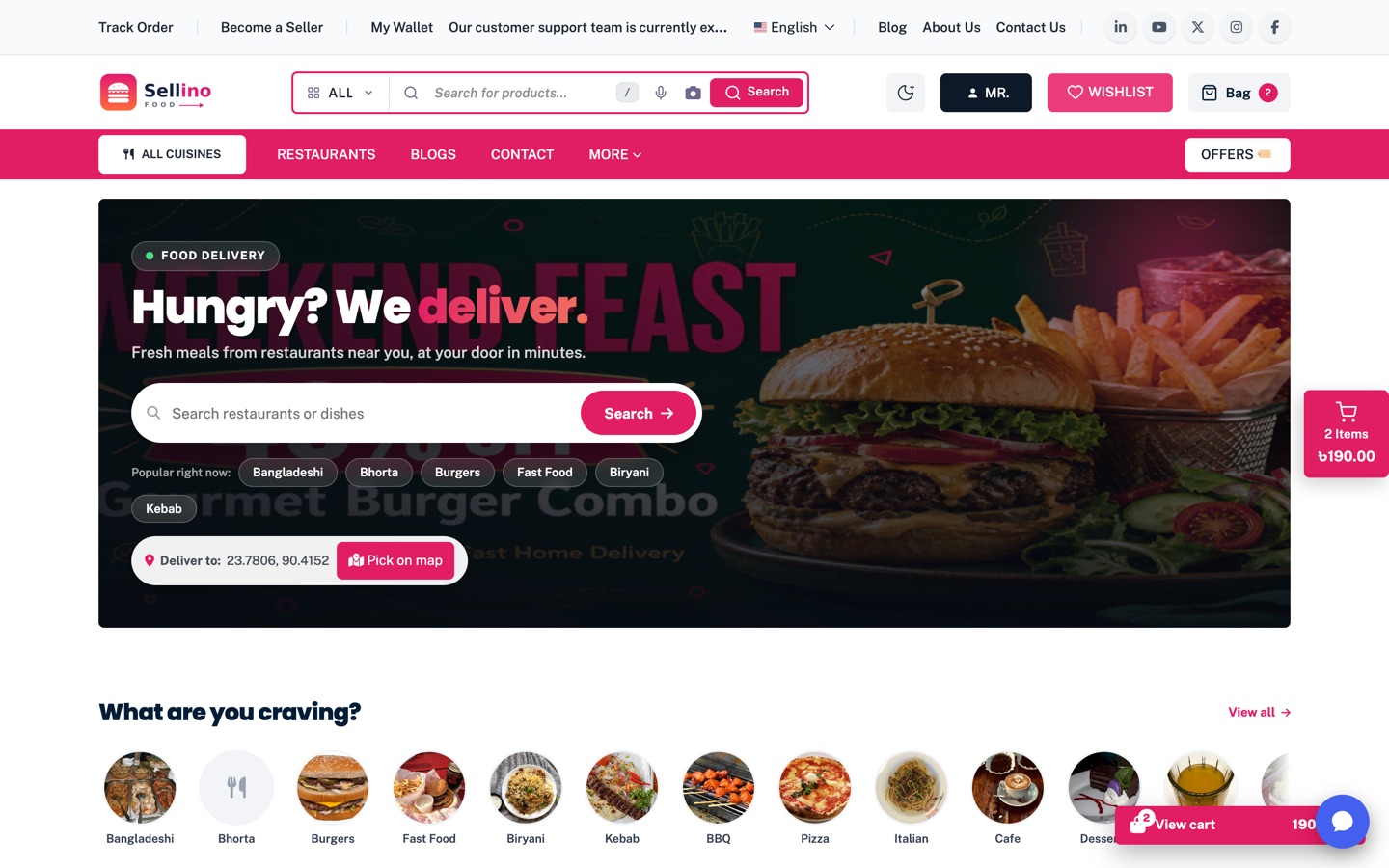
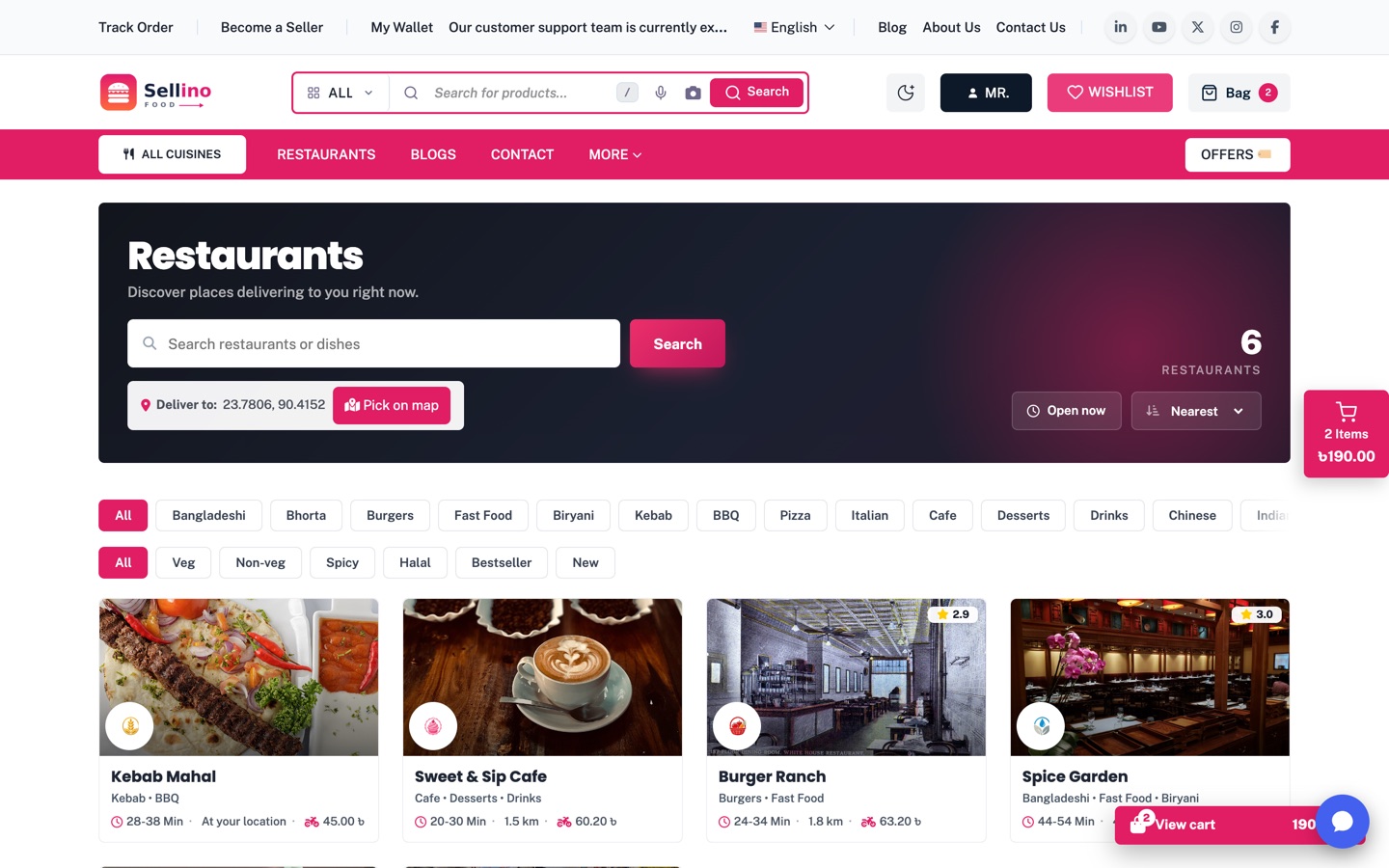
- Two heroes — Food One Hero: photo, headline (the last word takes the brand gradient), a pill search dock with live suggestions (restaurants and dishes as you type) and a "Popular right now" cuisine row; or the Bento hero: six live tiles — nearest, top rated, fastest, free delivery, a deal and a cuisine — that update with the customer's pin.
- Cuisines — round photo tiles or chips (bundled artwork for the common cuisines, an icon for the rest), plus a Cuisines Style Two photo grid.
- Deals & offers — every active platform and restaurant coupon as a strip with tap-to-copy codes; checkout still validates the code.
- Restaurants near you, Top rated restaurants and Collections — Free delivery, Under 30 min, Top rated and New as four photo tiles; a collection with no match hides itself.
- Trending this week (ranked by what was actually ordered in the last N days), Popular dishes with a dietary chip filter (Veg, Spicy…) and Order again — a reorder rail from the signed-in customer's own history.
- How it works — a three-step strip (set location → pick food → track the rider); every title and text is a field.
- Restaurant discovery — the restaurants page opens with a live result board (orbiting logos, open and rating badges) and a filter deck: result count, removable filter pills, Reset, Open now, sort by nearest / top rated / fastest / newest, cuisine and tag rails, and three quick filters — Free delivery, Max ETA and Minimum rating.
- Restaurant page styles — Style One (clean menu with sticky tabs) or Style Two (hero badges, deals strip, reviews and a sticky order panel); both take the tag chip rail. Switch on the builder page; no code.
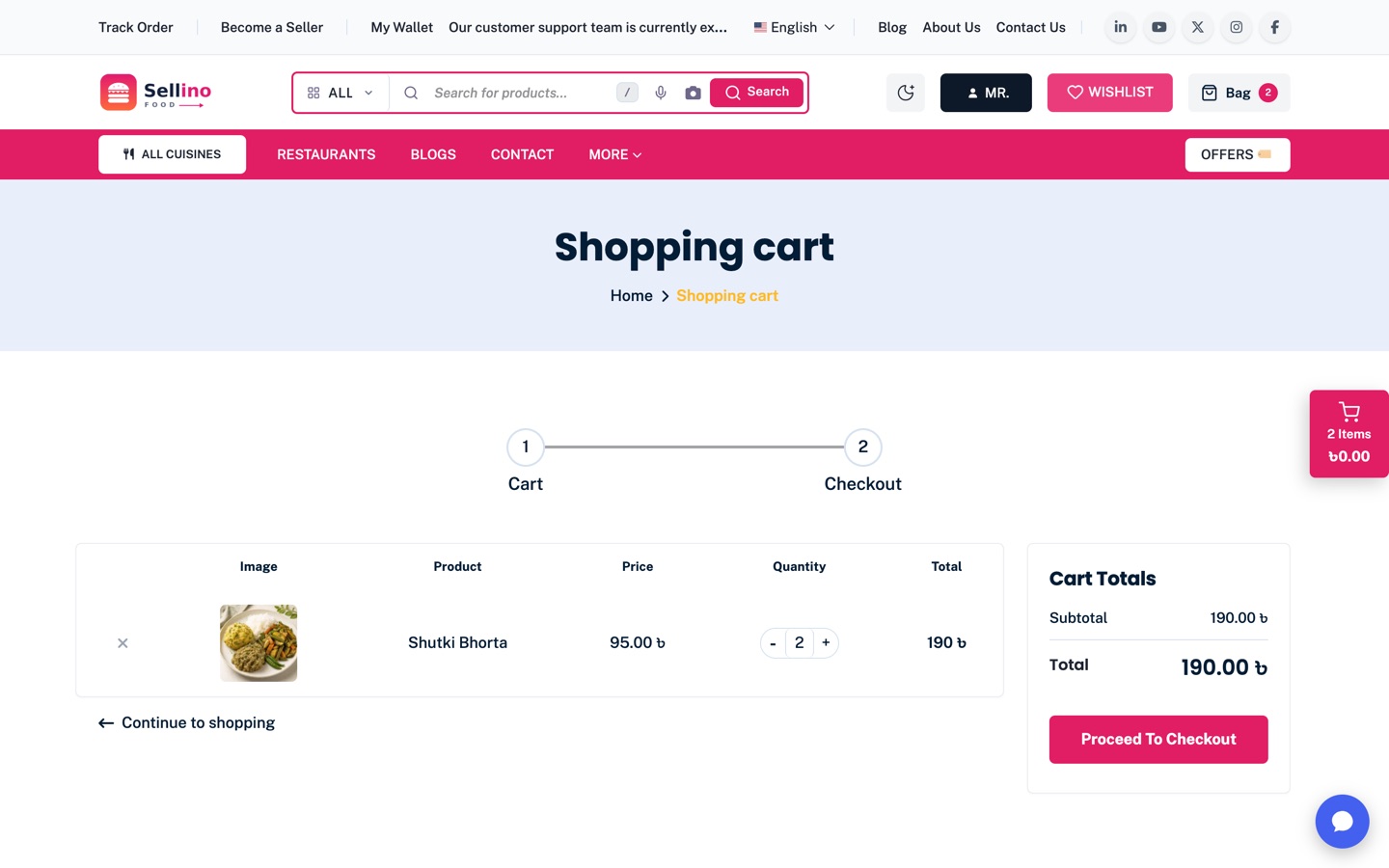
- Floating cart bar — a bottom pill with the item count and food subtotal follows the customer on the home, discovery and dish pages.
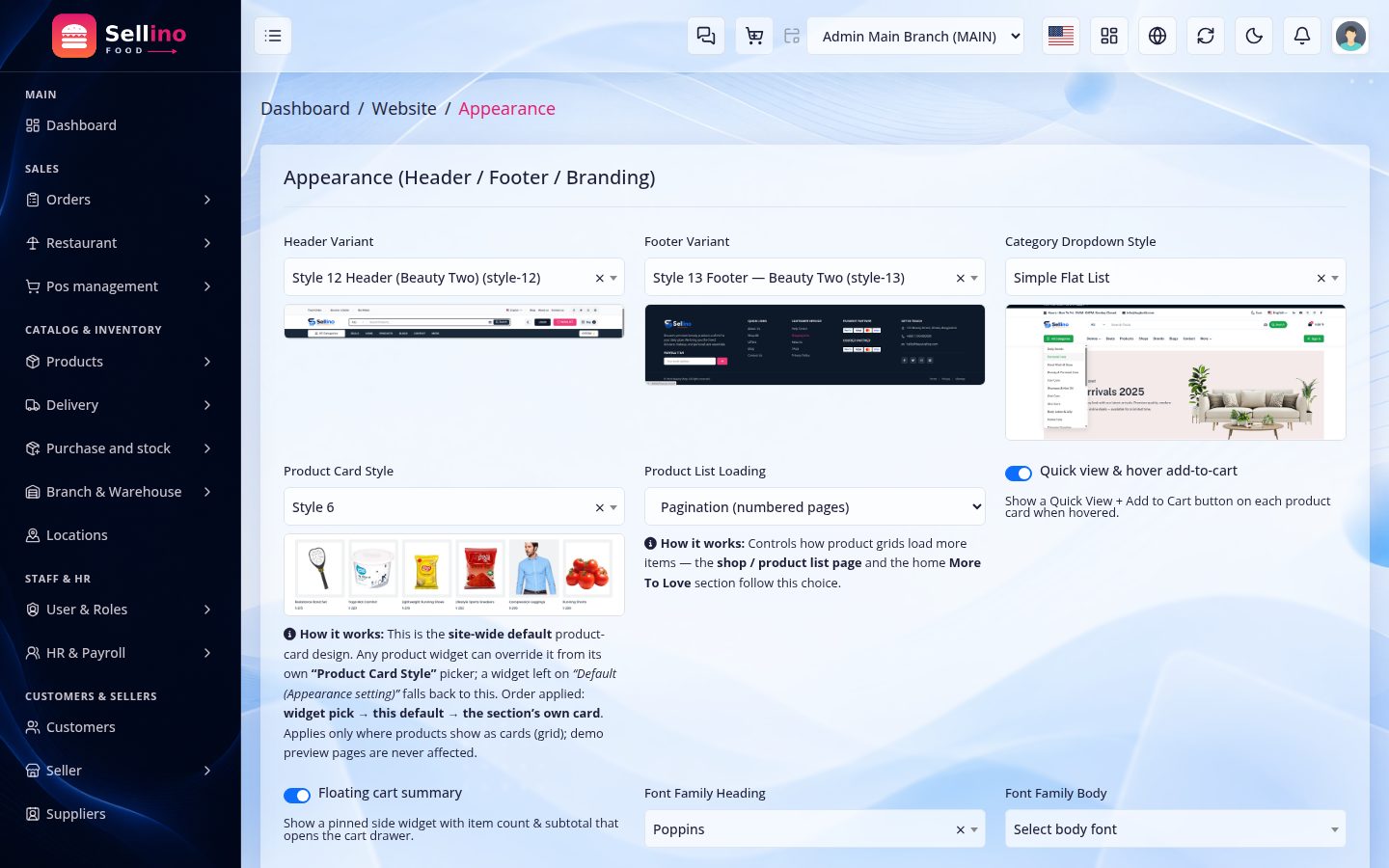
- Food header & footer — Settings → Appearance: the Style 13 header is one sticky bar with a Deliver to pill, restaurant search, cart and a cuisine rail; the Style 14 footer links the food pages, app badges and cuisines. The nav's category menu becomes a cuisine dropdown and the Offers button jumps to the deals strip.
- Food-only builder — in the food edition Website → Widgets, the section picker and the Appearance dropdowns list only what a food site can use: the two heroes, the food sections, a full-width banner and a newsletter block, the food header and footer. Nothing is deleted — switching
SITE_MODEbrings the retail set straight back. - Branding — the Sellino Food logo, favicon and pink accent apply automatically in food modes (storefront, admin, sign-in screens). To use your own marks set
FOOD_BRAND_LOCK=falsein.envand upload logos under Settings; the admin accent is Appearance → Dashboard Primary Color. - Location first — until a customer sets a delivery point, the page asks for one. That is deliberate: showing restaurants that cannot reach them is worse than asking. With Let customers choose the outlet on (Settings → Food Delivery) a branch chip sits beside the pin.
The Restaurant Module (Dine-In)
Everything from here down — floors, tables, KOT, the kitchen display, the waiter screen, QR ordering, reservations and recipes — lives in an optional module. Delivery works perfectly without it; switch it on when you also serve people sitting down.
- Turn it on: Settings → Food Delivery → Dine-in. A Restaurant group then appears in the sidebar.
- Per outlet: each outlet has its own has dine-in switch and service-charge percentage, so a delivery-only cloud kitchen and a sit-down branch can live in one account.
- Permissions: floors, tables, kitchen stations, tickets, recipes, reservations and restaurant reports are separate rights — a waiter gets the floor, a cashier gets the till, a chef gets the board.
- Delivery-only? Leave it off and none of these screens exist. Nothing else in the system changes.
The module is genuinely removable — deleting its folder closes every dine-in screen and the install falls back to plain delivery, with no broken pages and no orphaned menu items.
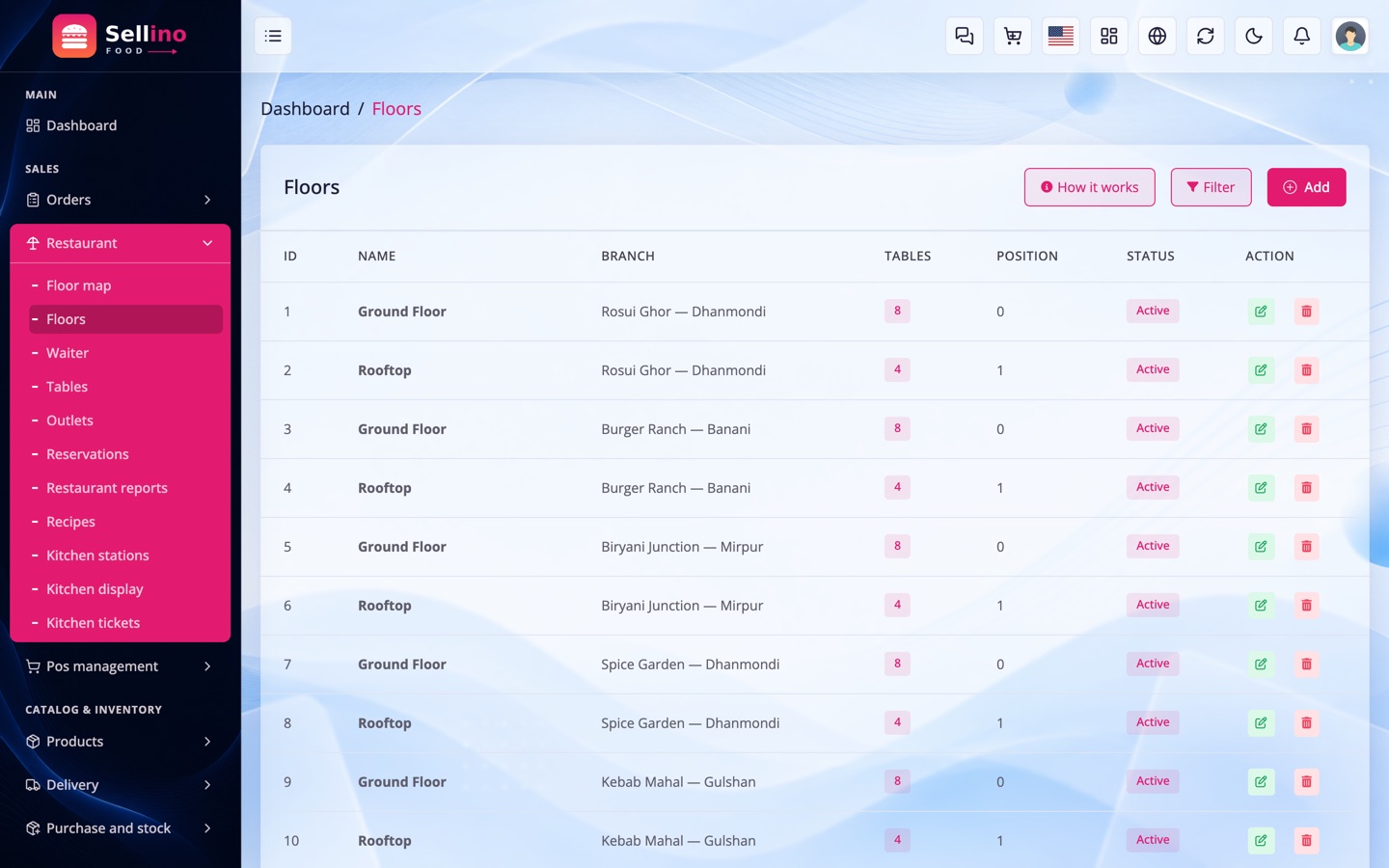
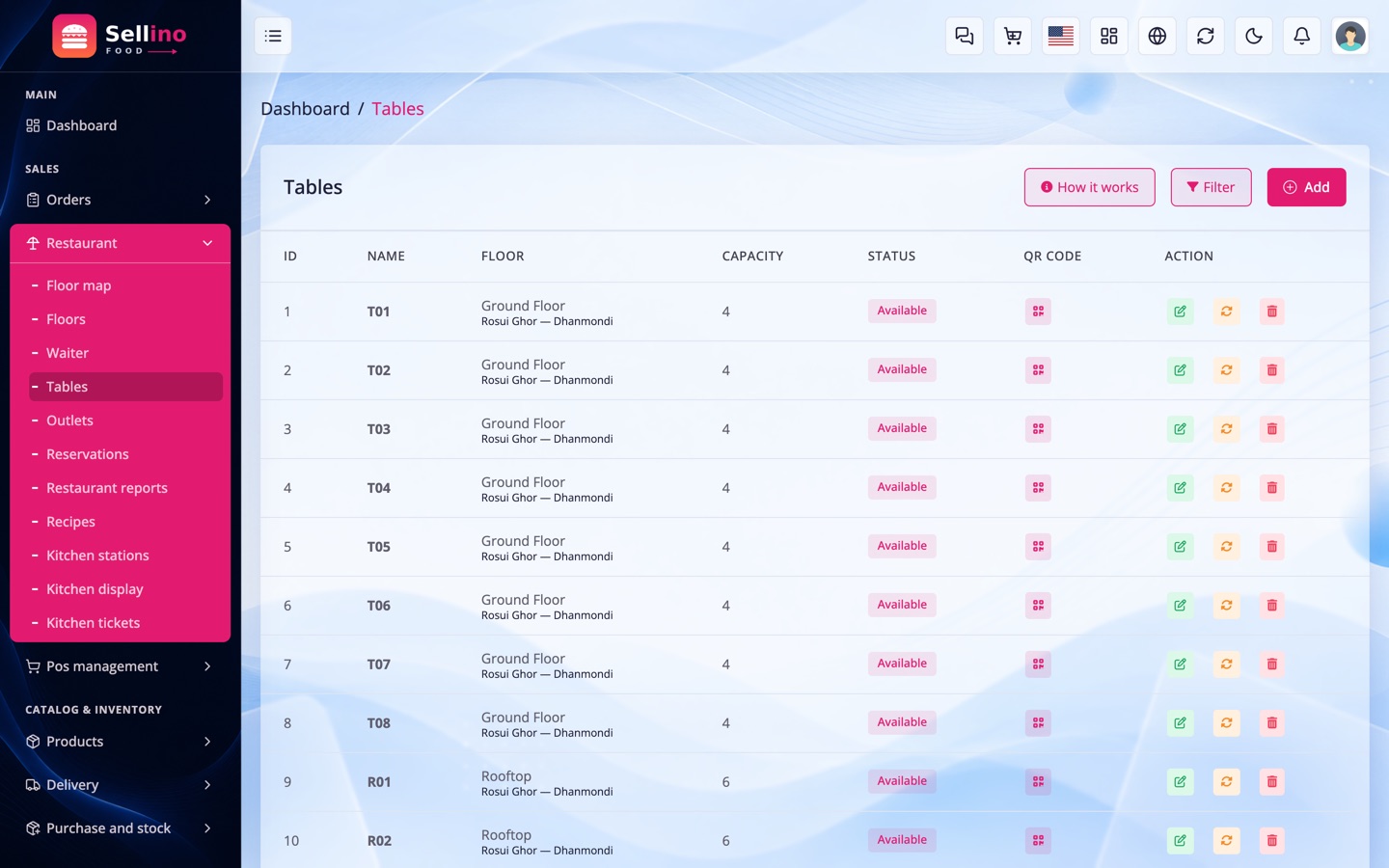
Floors, Tables & the Floor Map
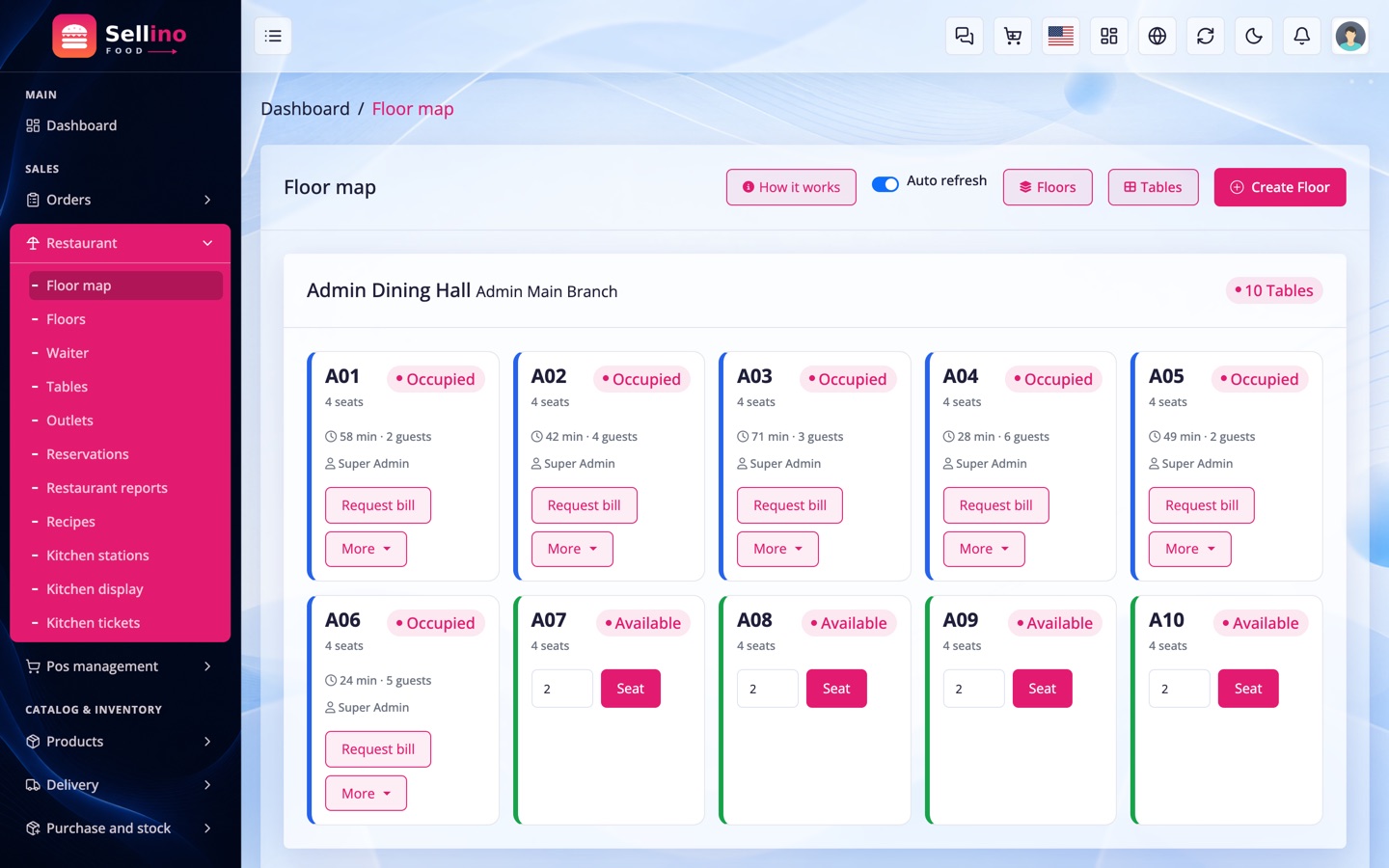
Restaurant → Floors / Tables / Floor map. Lay the room out once, then run service from the map.
- Floors — Ground Floor, Rooftop Terrace, Family Zone. Each belongs to one outlet.
- Tables — a name (A01), a seat count and a QR token generated for you. Print the QR and stick it on the table.
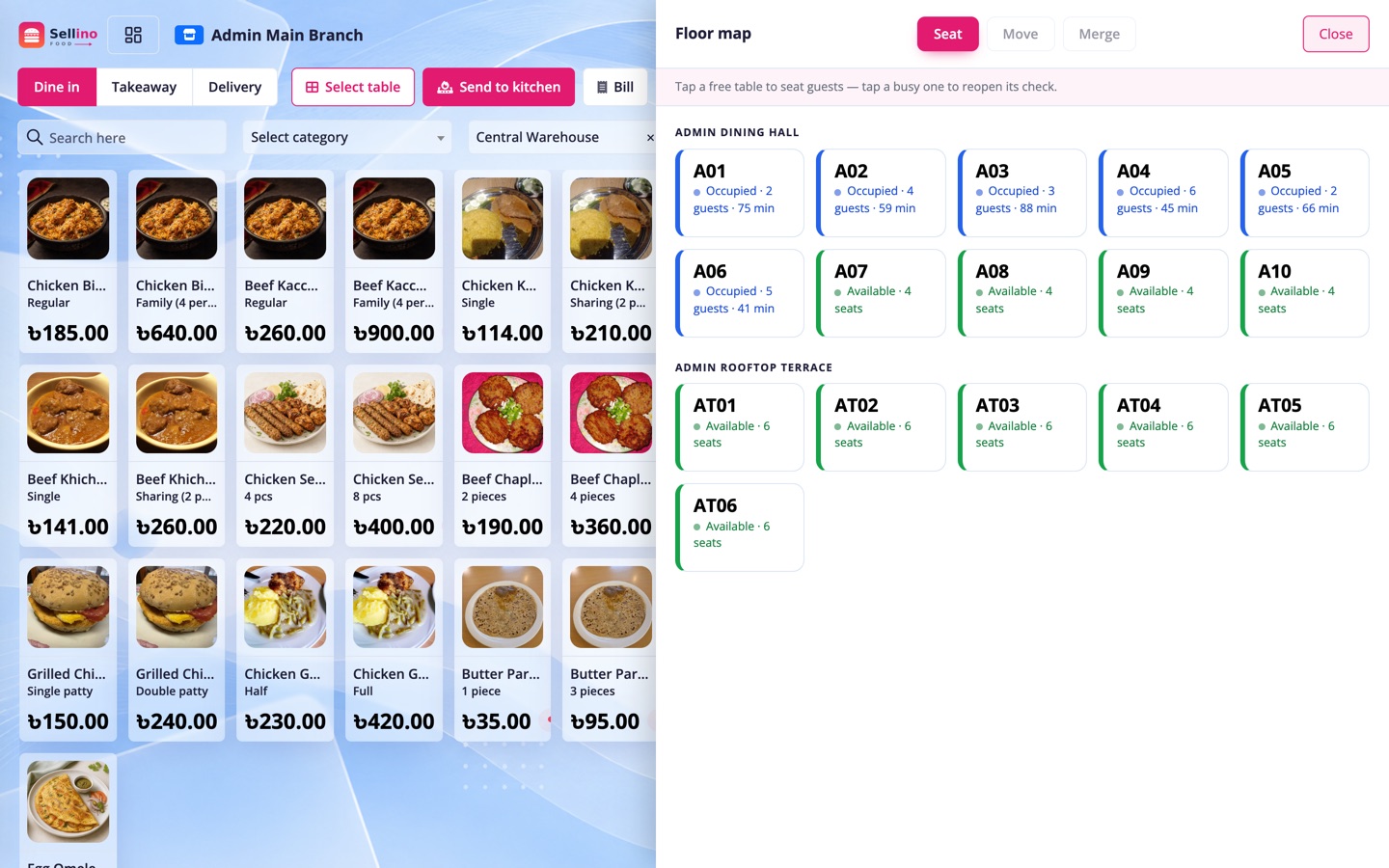
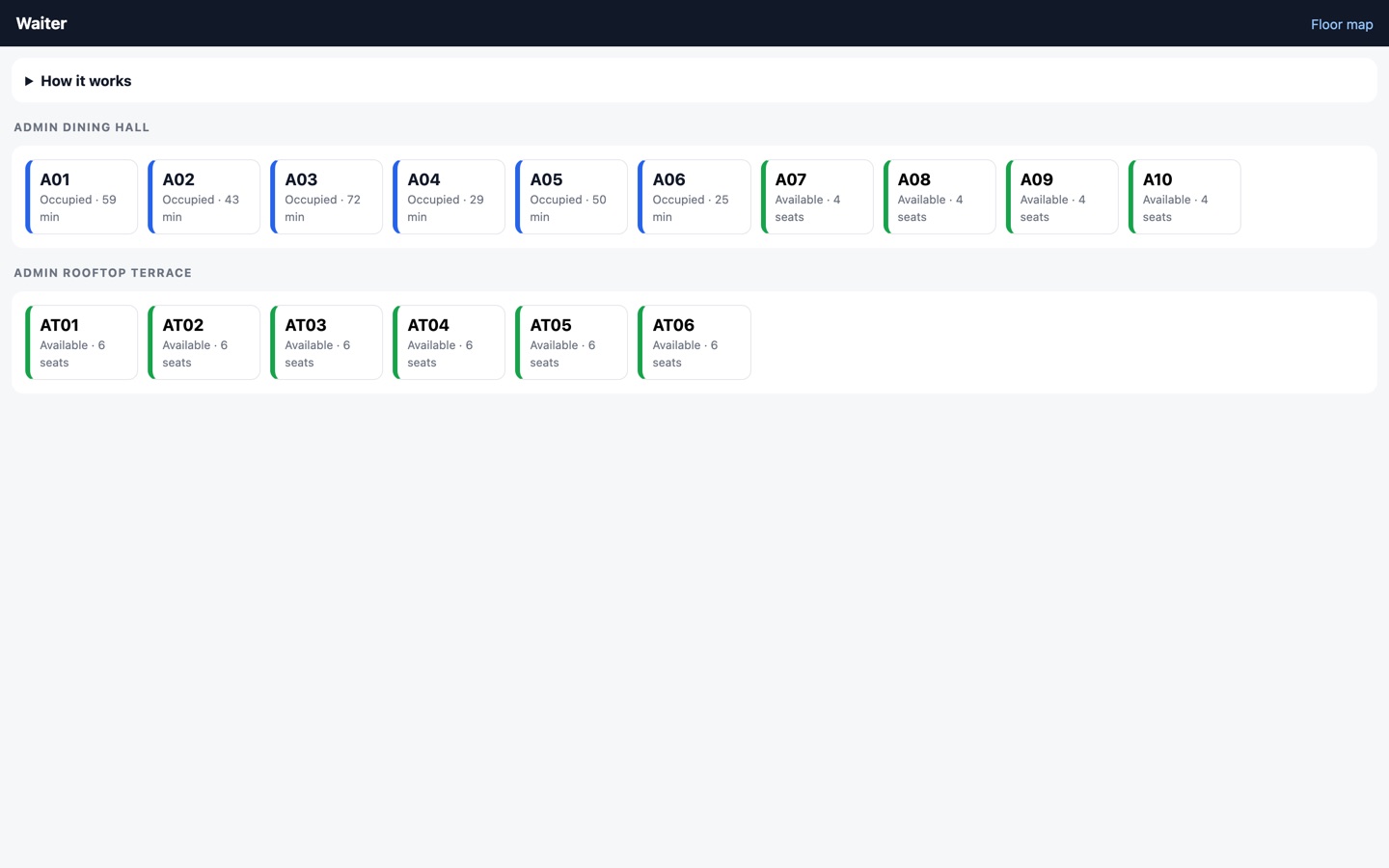
- Floor map — every table as a tile: Available Occupied with its age and guest count, billed, or waiting to be cleaned. It refreshes itself.
- Seat — type the guest count and tap Seat. That opens a check: the running bill for that table.
- Move a check to a different table, or merge two tables into one bill when a group joins up.
- Clean — after a check closes the table waits to be cleaned, so nobody seats guests at a dirty table.
The Restaurant POS
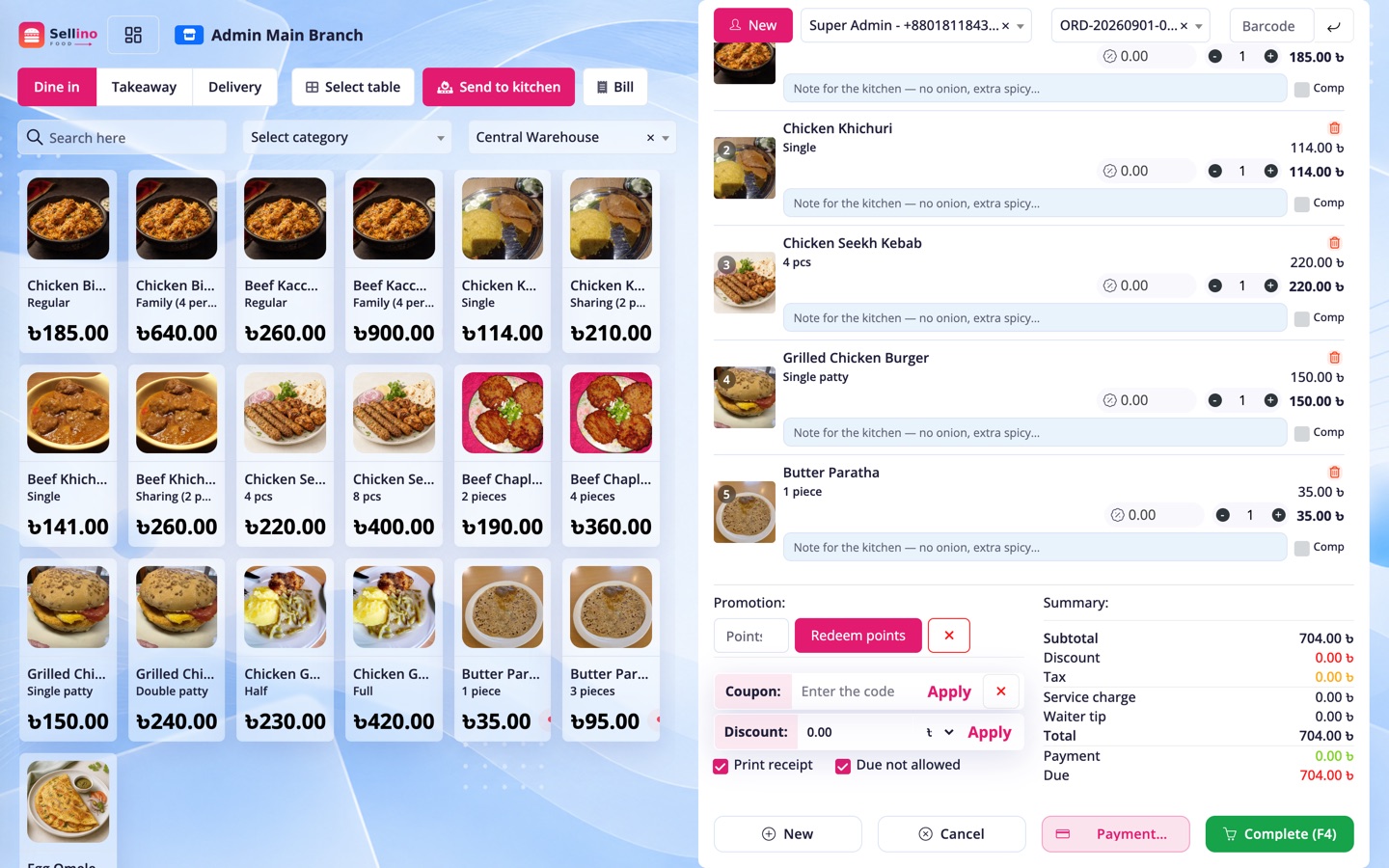
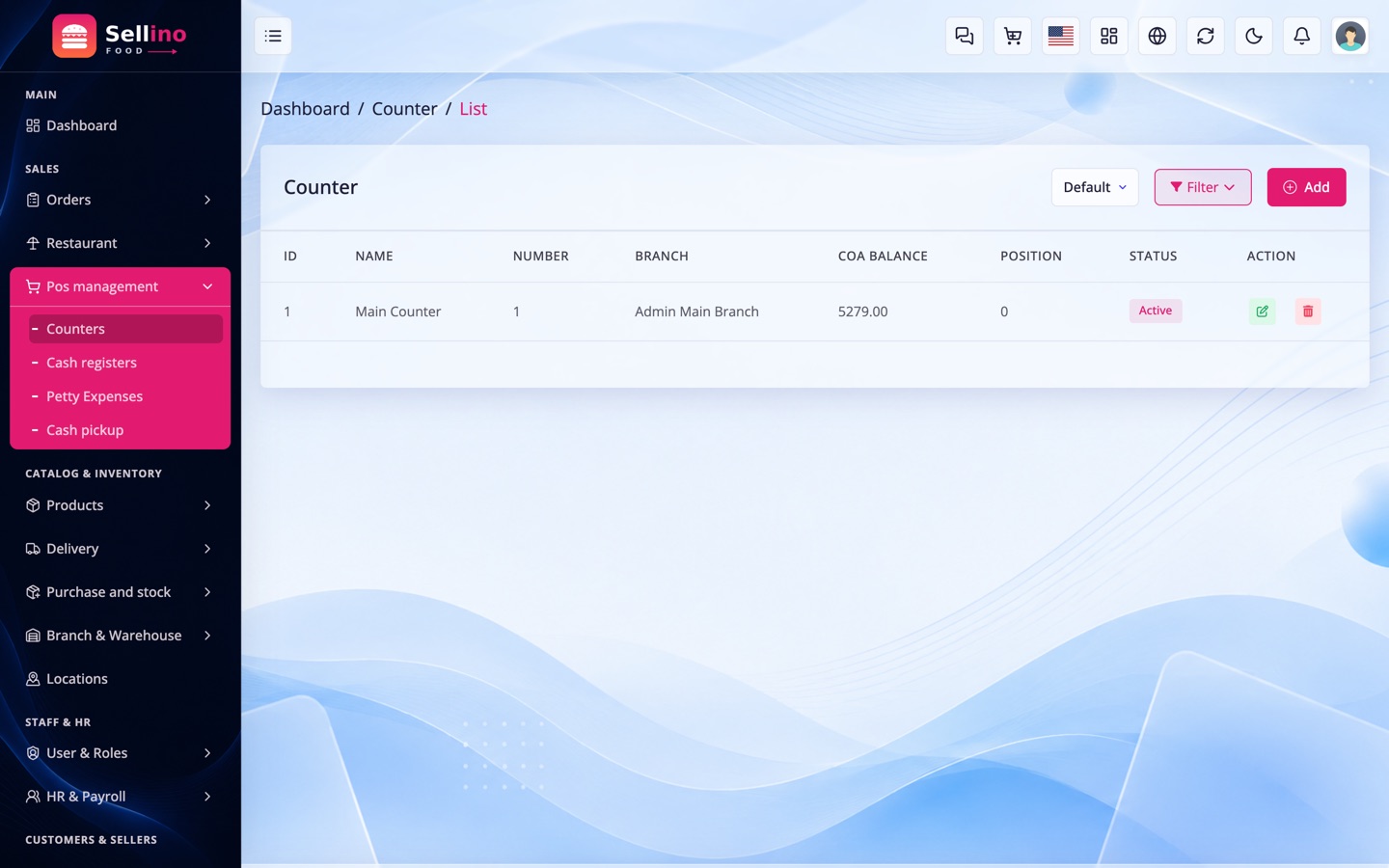
Pos management → POS. The same till you would use at any counter, with the restaurant pieces added on top — not a separate screen to learn.
- Order type bar — Dine in · Takeaway · Delivery. Dine in asks for a table, delivery asks for an address.
- Select table — opens the floor panel; tapping a tile seats it or resumes the check already running there, and hands the till that bill.
- Add-on picker — a dish with modifiers opens its groups as you ring it up, so "no onion, extra cheese" is on the ticket before it reaches the kitchen.
- Item note, void with a reason and complimentary — per line, on the check.
- Send to kitchen — fires a KOT. Add three more dishes later and fire again; each fire is its own ticket.
- Bill — adds service charge and waiter tip, then takes payment: cash, card, mobile money, or split across several at once.
- Everything the retail till has is still here — customer search, discounts with permission, coupons, loyalty points, wallet, drafts, cash register, receipt printing and the branch switcher.
KOT & Kitchen Stations
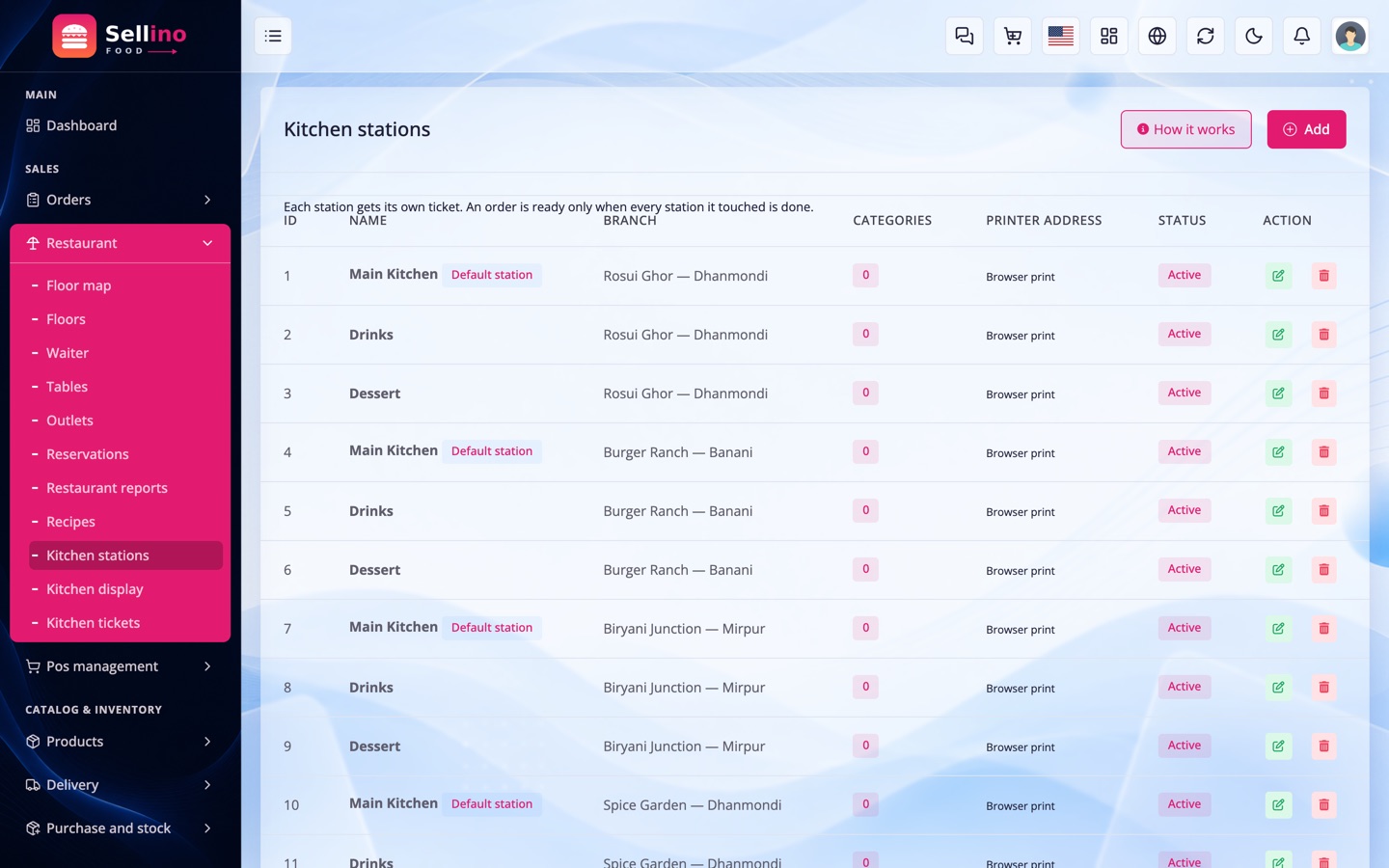
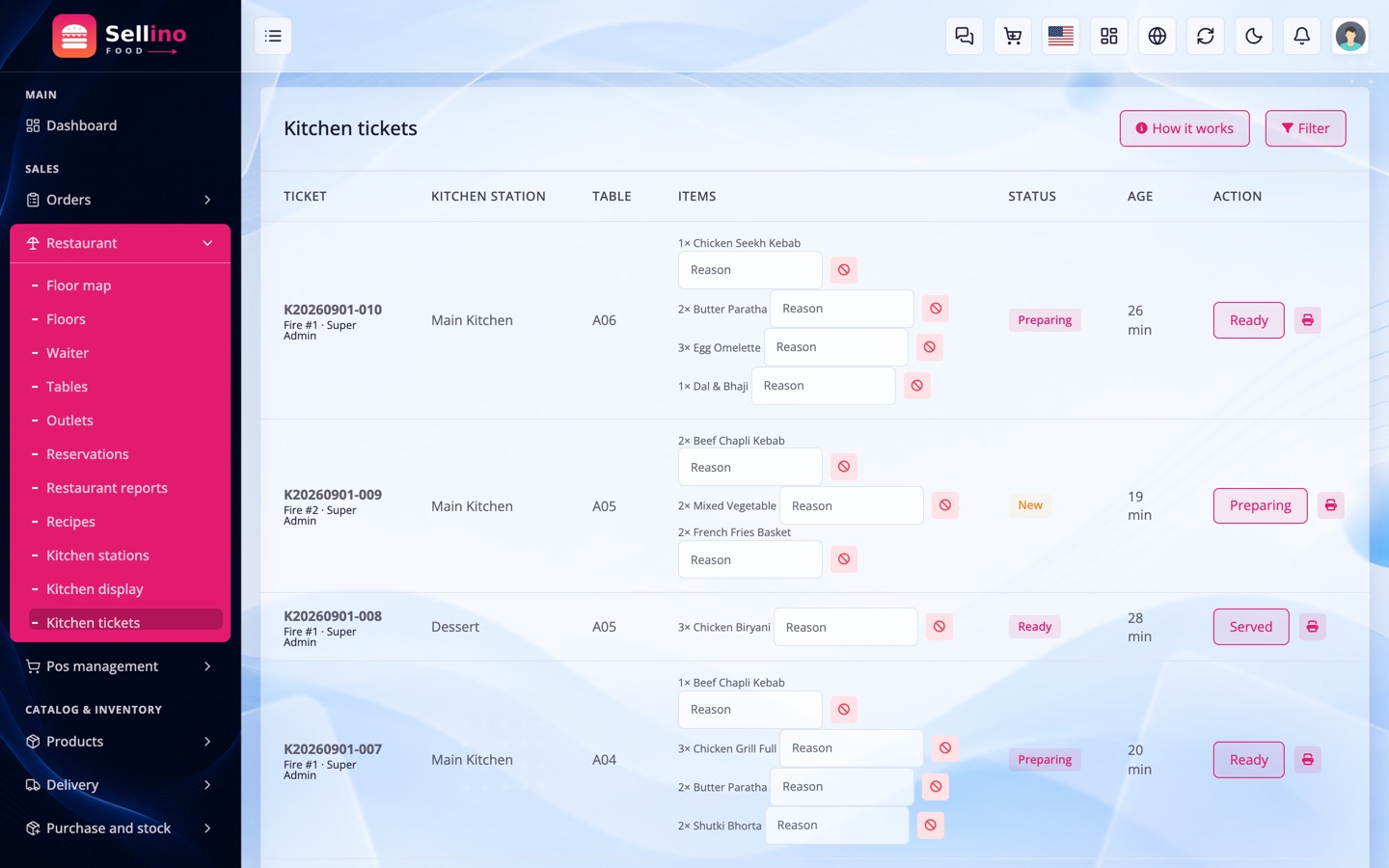
Restaurant → Kitchen stations / Kitchen tickets. A station is a place where food is made — Main Kitchen, Drinks, Dessert — and a KOT is one ticket sent to one station.
- Routing — map a category (Drinks → the bar) or a single dish (a dessert that the grill actually makes). Dish routes beat category routes.
- One fire, several tickets — a check with a burger and two lassis produces a Main Kitchen ticket and a Drinks ticket, each with only its own lines.
- Printer target — give a station a network printer address and its tickets print there automatically. Leave it blank and you print from the browser. A dead printer is reported and ignored; it never stops the order reaching the screen.
- Reprint — the count is recorded, so a "we never got it" is answerable.
- Void an item — with a reason, which lands on the void report.
Kitchen Display (KDS)
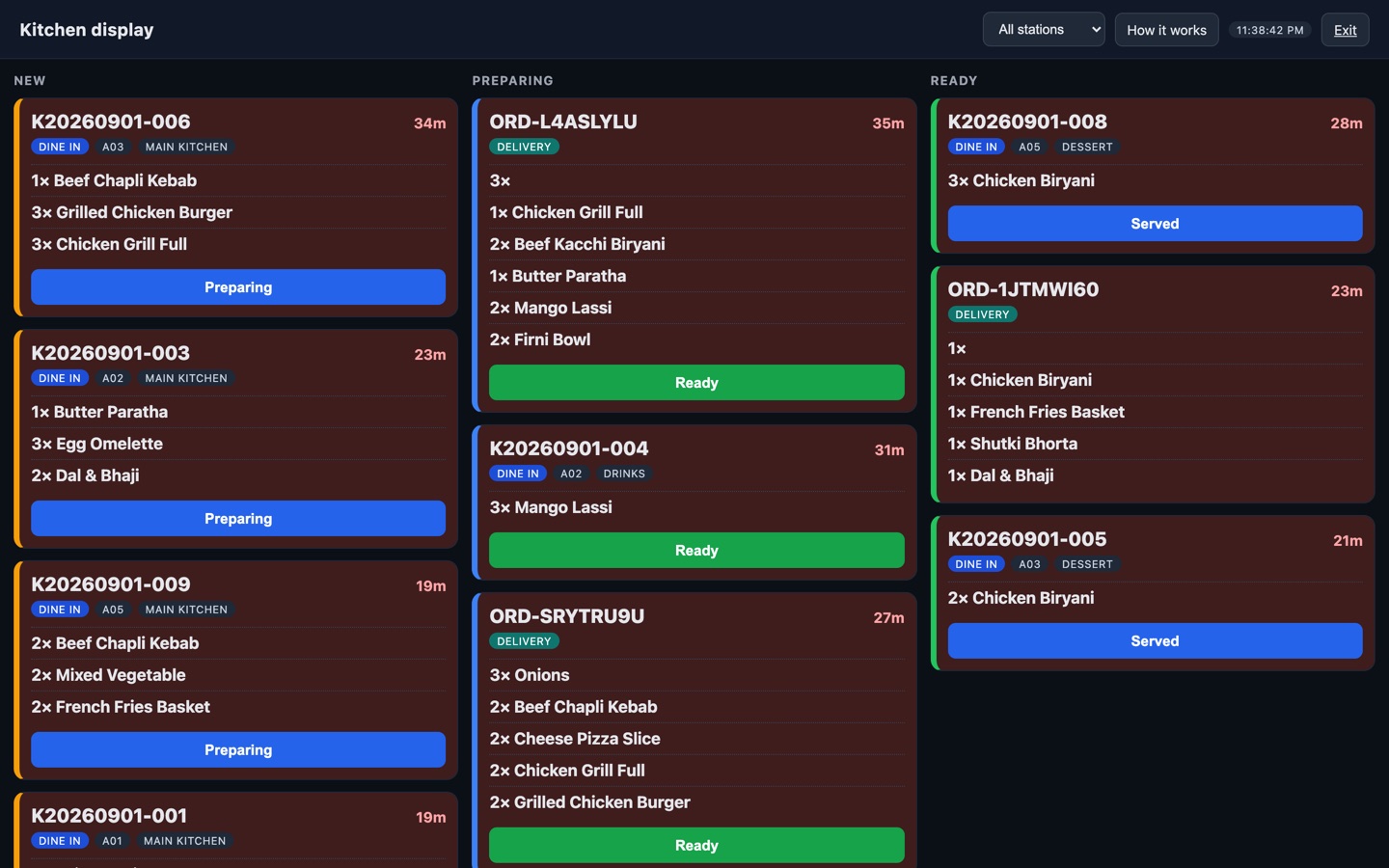
Restaurant → Kitchen display. A fullscreen dark board for the pass. It is a web page — open it on a TV, a tablet or a spare laptop; there is nothing to install and no app store to wait for.
- Three columns — New, Preparing, Ready. One button per card moves it along; the chef never hunts for a control.
- Age timer on every ticket, turning red and pulsing when it is late.
- Station filter — the grill screen shows grill tickets only.
- Two sources, one board — dine-in KOTs from the till and delivery orders that never passed a counter. The badge tells them apart; bumping either works.
- Polling pauses when the tab is hidden, so an idle screen costs nothing.
Live surfaces poll on a timer by default, which is what makes this run on ordinary shared hosting. Tune the interval in the module settings if you want it snappier.
Waiter Screen
Restaurant → Waiter. A phone-sized layout on the same login — not a separate app to install and update on ten devices.
- Floor list — which tables are free, which are running and for how long.
- Guest requests — "call waiter" and "bill please" from the QR menu land here.
- One check at a time — type-ahead add item, item note, fire to kitchen, request bill.
- Move / merge straight from the check.
- Items go through the same code the cashier's till uses, so a waiter's order and a counter order are identical in every report.
QR Table Ordering
A guest scans the sticker on the table and the menu opens in their browser. No app, no login, no download — that is the whole point of a QR menu.
- Setup — Settings → Food Delivery → QR ordering, then print each table's QR from the Tables screen.
- Scanning an empty table seats it — the check opens by itself.
- Waiter approval (recommended, on by default) — a guest order queues until a waiter accepts it, so nobody can push food onto a bill from the car park. Turn it off and orders go straight to the kitchen.
- Call waiter and Request bill buttons raise the same requests the waiter screen answers.
- Add-on rules are enforced server-side, so a scan cannot dodge a required group or an item's maximum.
- The public routes are rate-limited per IP.
Billing: Service Charge, Tips & Split Payment
When guests ask for the bill, the check is closed off with the restaurant's own charges.
- Service charge — a percentage from the outlet, falling back to the global setting. It is income, and it is inside the order total, so every payment, due and journal picks it up with no special handling.
- Waiter tip — added at billing and held as a liability until the staff are paid, exactly like a rider tip. It is never counted as revenue.
- Split payment — add as many payment rows as the table needs: 500 cash, 800 card, the rest on mobile money. Each row carries its own account and register.
- Due — a partly paid check leaves a balance against the customer and shows in the dues report.
- Close — the check ends, the table moves to "needs cleaning", and the revenue is recognised.
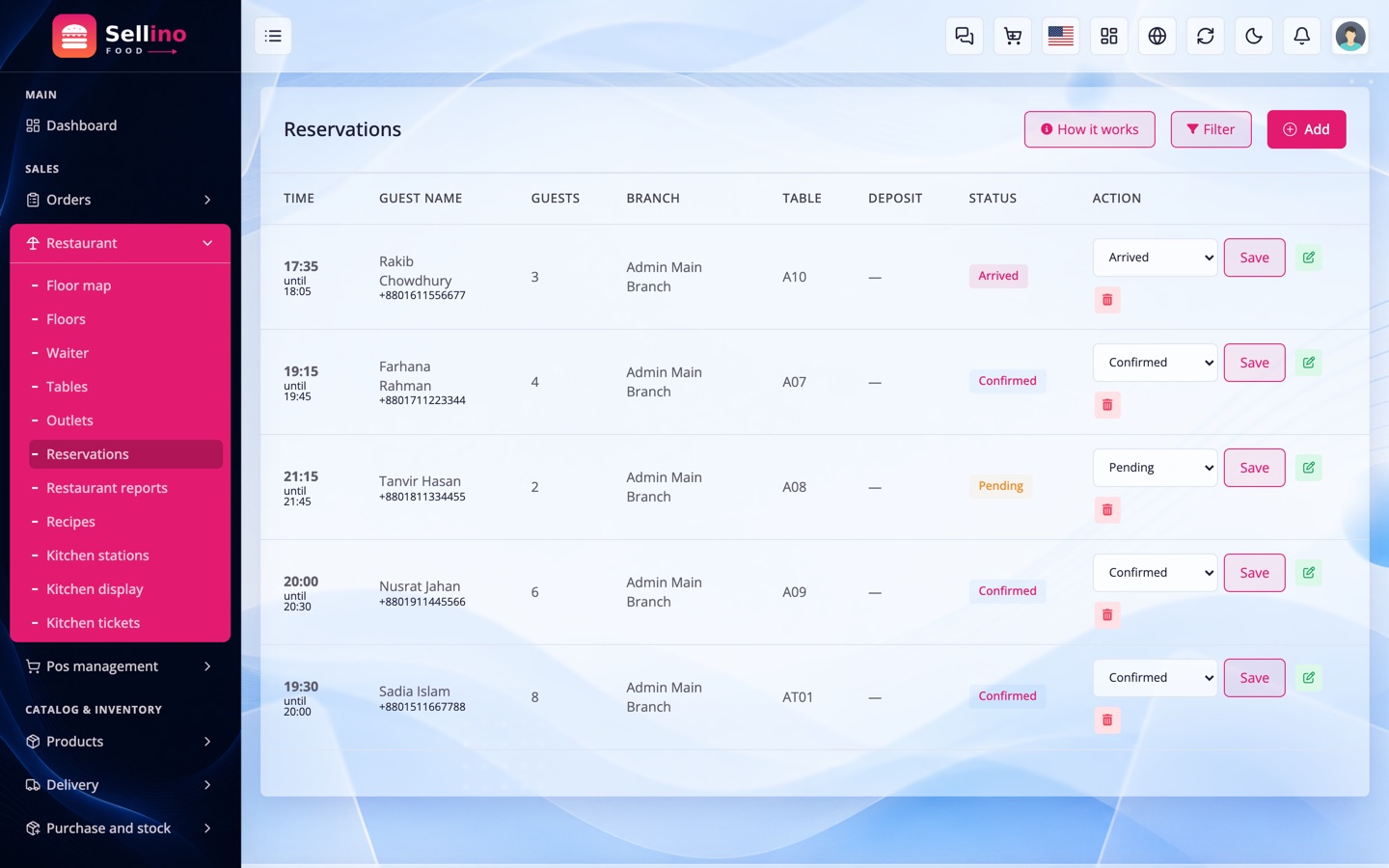
Table Reservations
Restaurant → Reservations. Take a booking on the phone, hold a table, and seat the guests when they arrive.
- Booking — guest name, phone, party size, date and time, an optional table and a note ("window table if possible").
- Hold window — how long the table is kept past the booking time before it is released.
- Lifecycle — Pending → Confirmed → Arrived → Seated → Completed, plus No-show and Cancelled.
- Deposit — take one and it is recorded as a payment against the check when the party is seated, so their bill is already part paid and every report reads correctly.
- Seating a booking opens an ordinary check — from that moment it is the same running bill as a walk-in.
Recipes & Food Cost
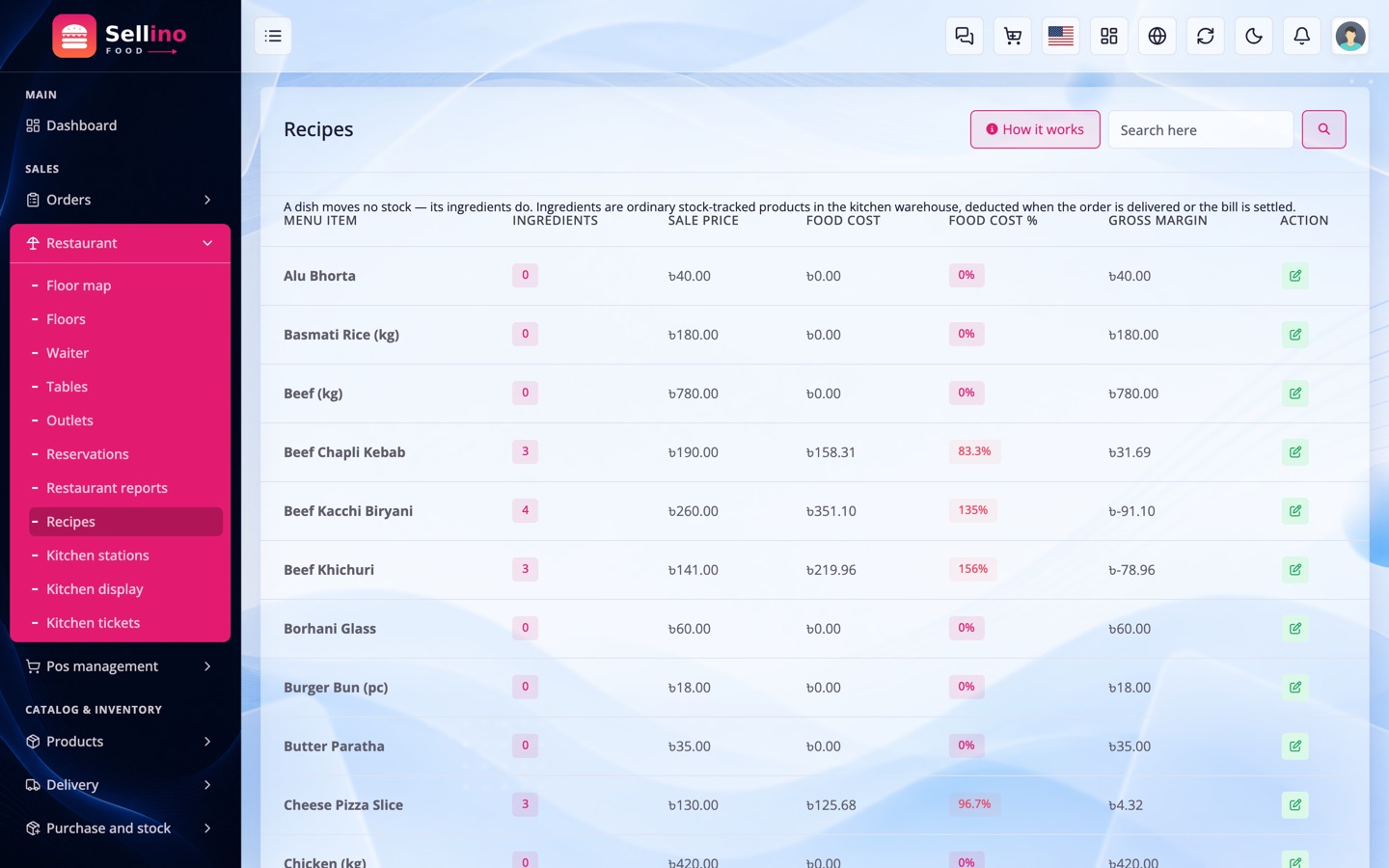
Restaurant → Recipes. A recipe says what a dish is made of, which is what turns a menu price into a margin you can defend.
- Ingredients — ordinary stock-tracked products (Chicken kg, Basmati Rice kg, Burger Bun pc) bought through purchase orders from your suppliers.
- Recipe lines — ingredient, quantity per portion, and a wastage % for trim and spoilage.
- Food cost — cost per portion and cost as a percentage of the selling price, flagged red above your target (35% by default).
- Consumption — selling a dish deducts its ingredients through the normal stock movement, so FIFO layers, average cost, lots and low-stock alerts all stay correct. It runs once per order and cannot double-deduct.
- Complimentary items still consume ingredients and still post their cost — otherwise your food-cost percentage would lie.
You do not have to do this on day one. Skip recipes and the system runs exactly as before; add them when you want to know which dish is actually making money.
Restaurant Reports
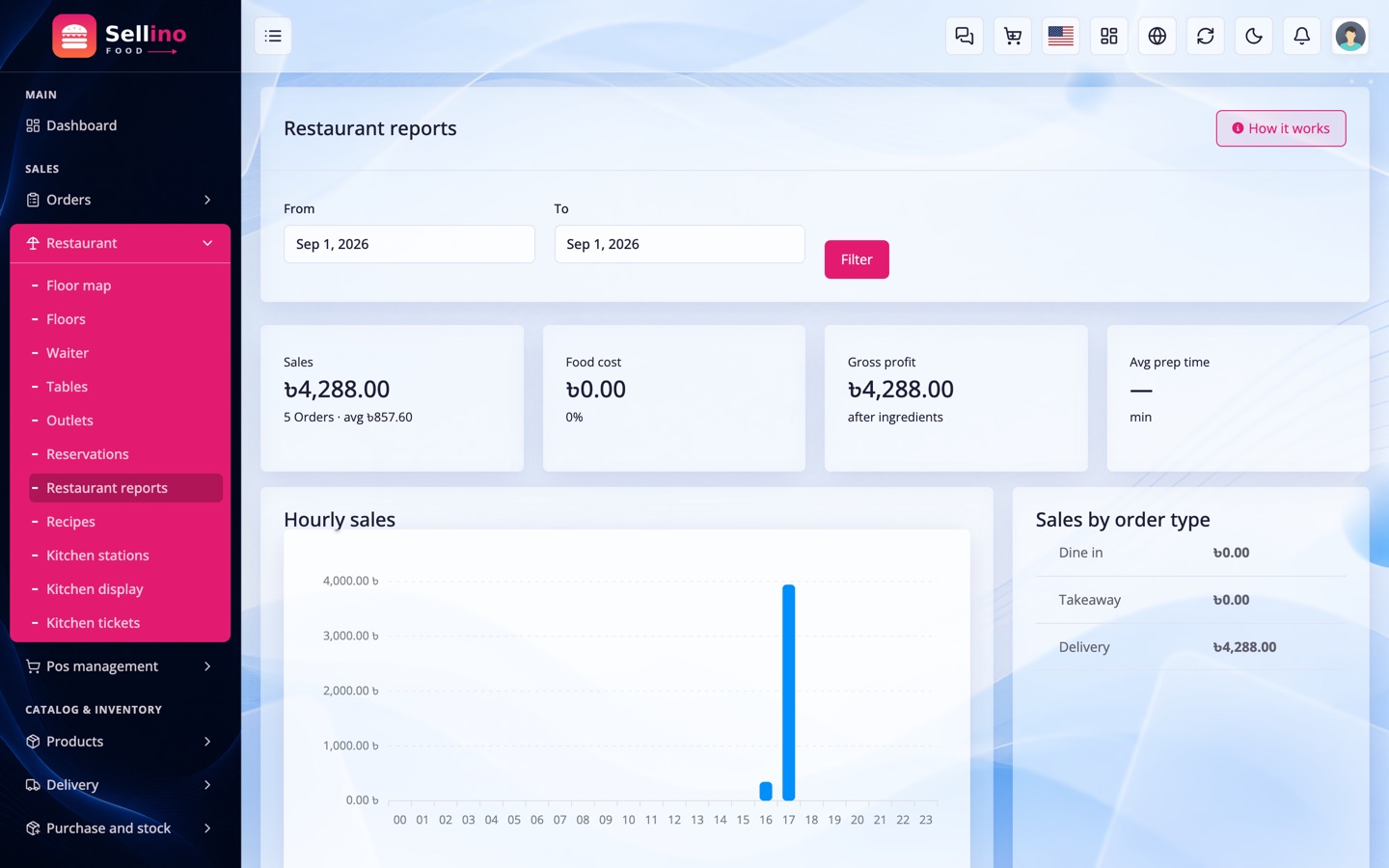
Restaurant → Restaurant reports. The numbers a restaurant actually argues about, all derived from rows the system already writes.
- Sales by order type — dine-in vs takeaway vs delivery, side by side.
- Food cost & gross profit — from the ingredient movements themselves, not an estimate.
- Best & worst sellers — what to push and what to cut.
- Hourly sales — where the rush actually is, so you roster against it.
- Table turnover — how long a table is held and how many covers it produced.
- Average prep time — fired to ready, per station. The single most useful kitchen number.
- Waiter covers and a void report with reasons.
Purchasing & Ingredient Stock
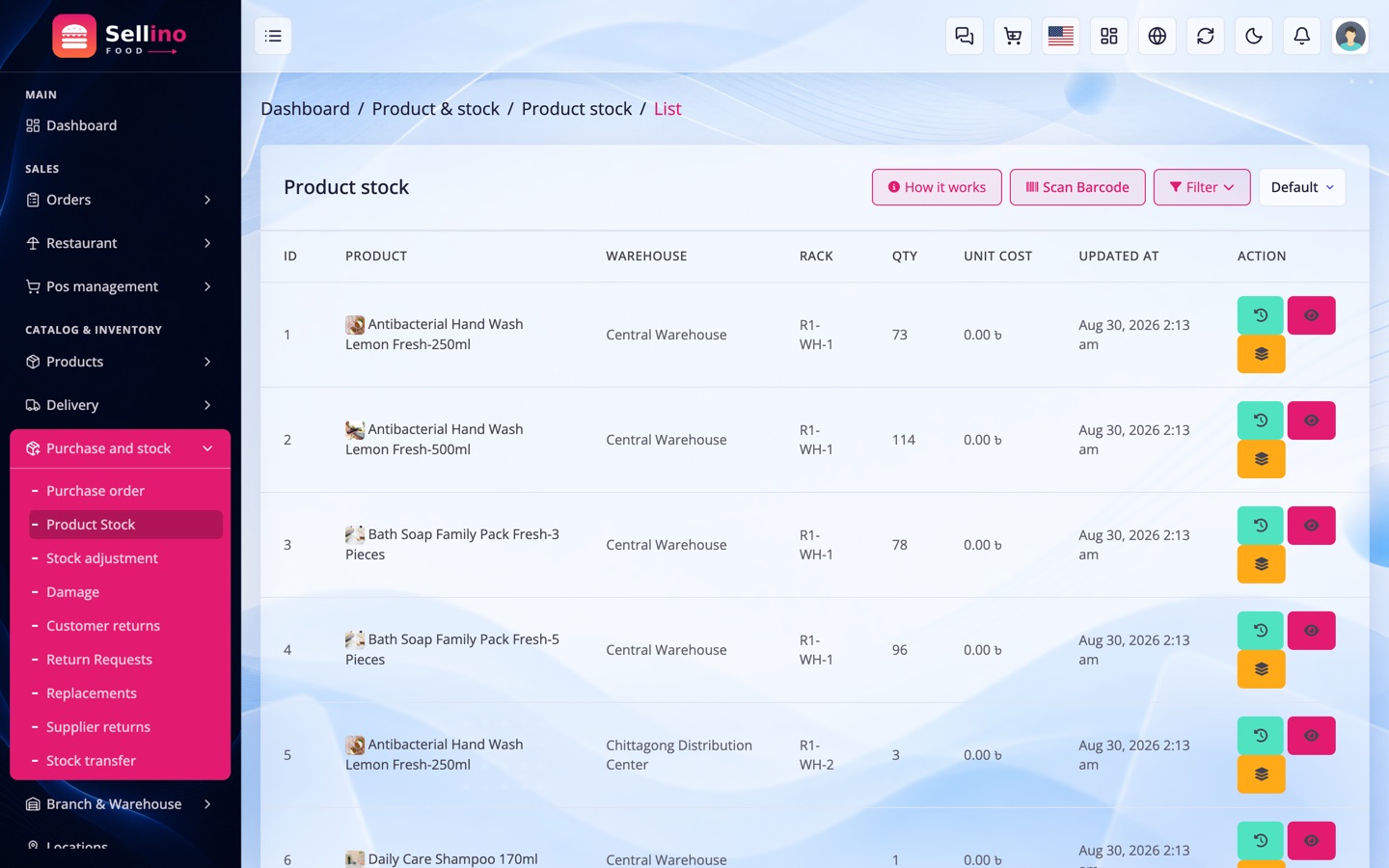
Dishes are not stocked; ingredients are. This is the ordinary inventory system, used for the store room.
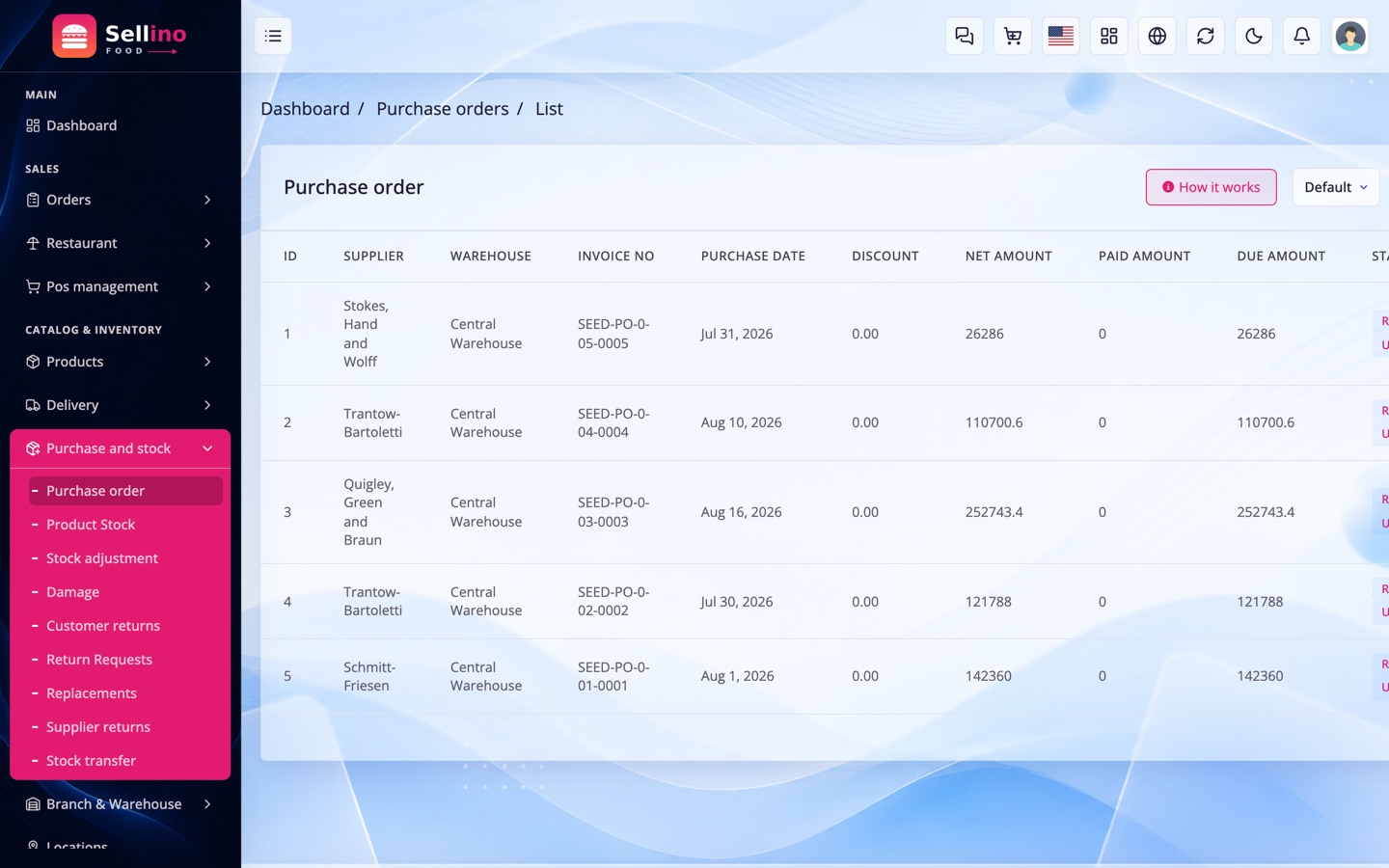
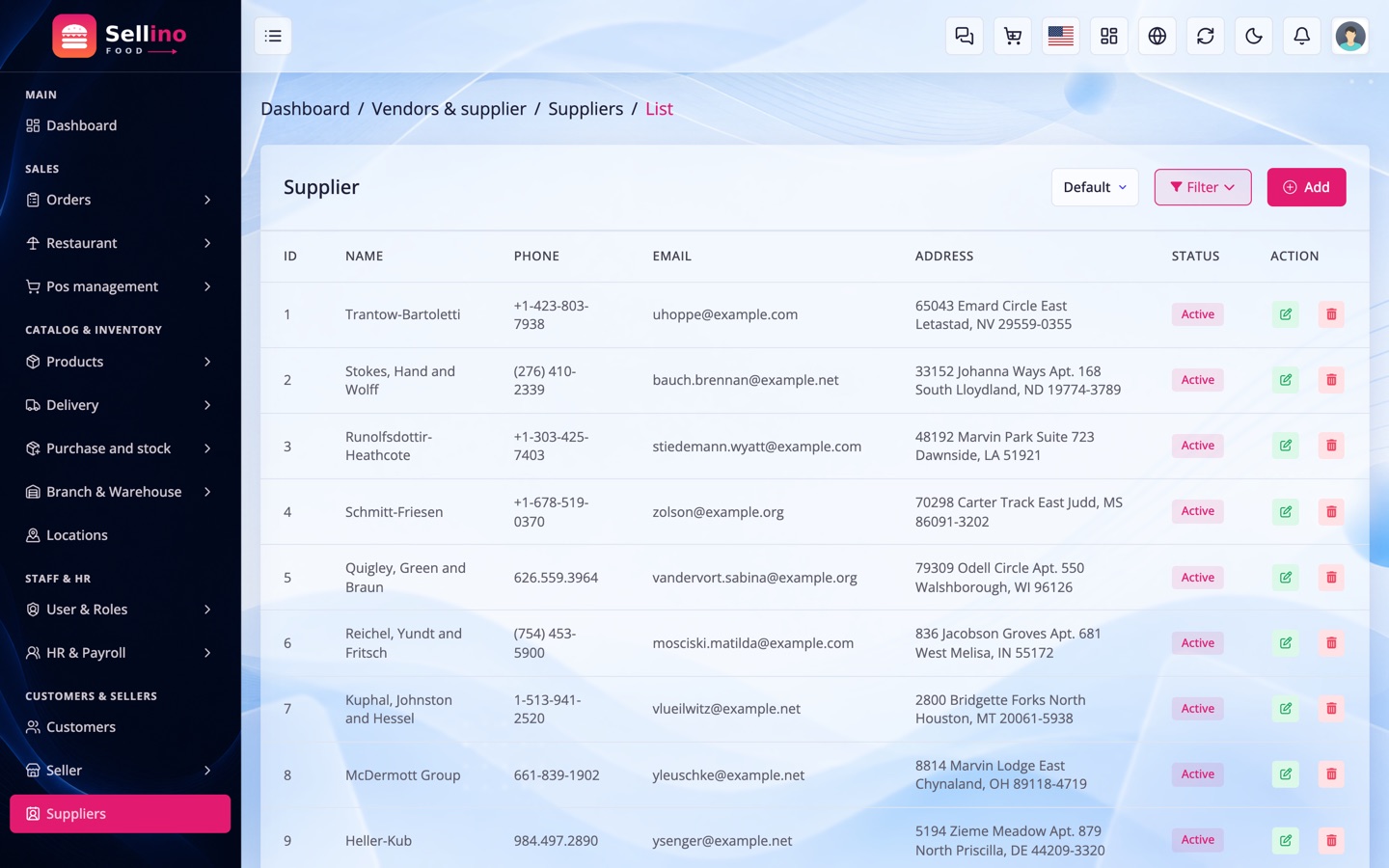
- Suppliers (Purchase and stock → Suppliers) — who you buy from, with their dues and payment history.
- Purchase orders — order, receive, and pay. Receiving raises stock at cost, which is what feeds food cost.
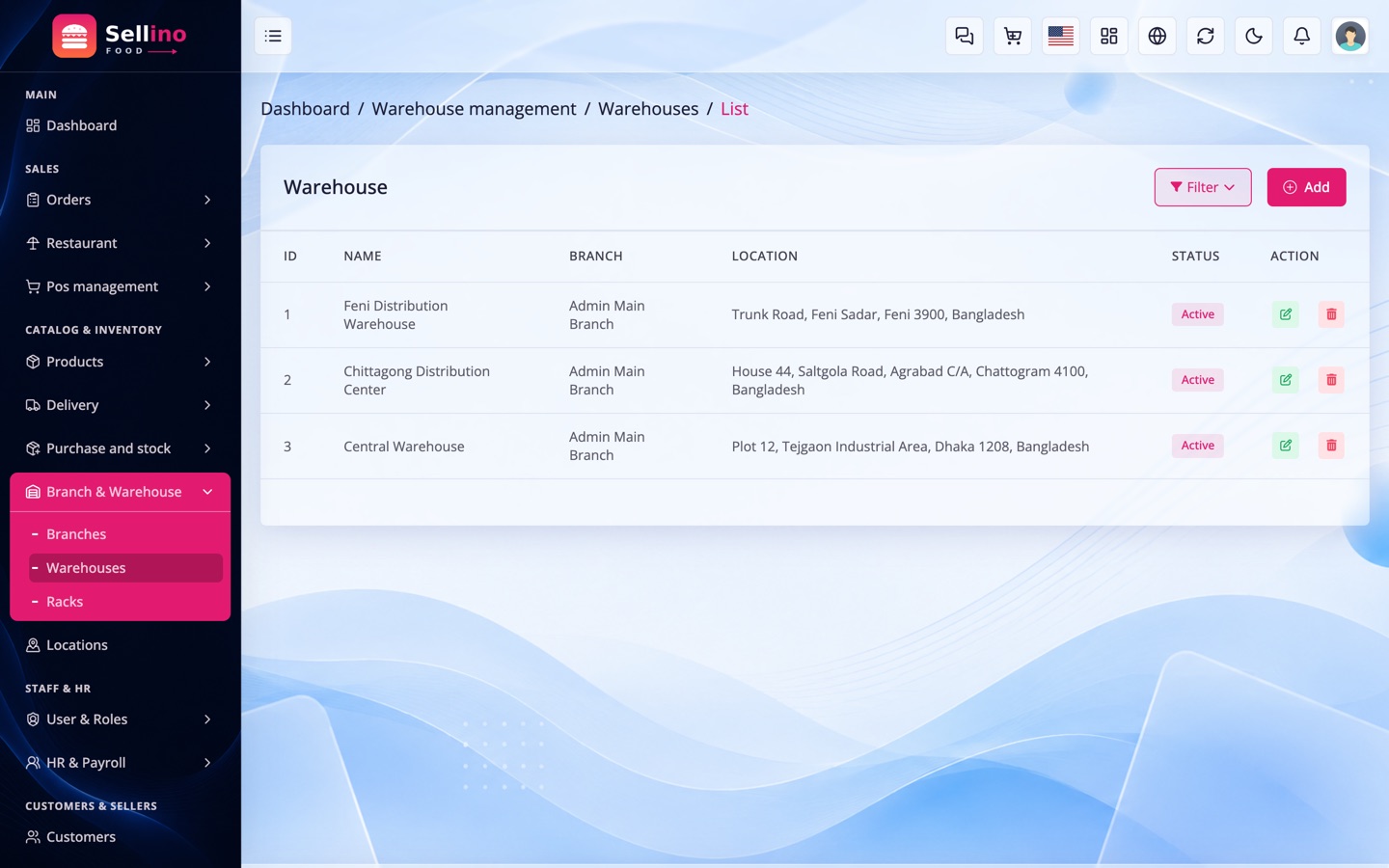
- Warehouses — the store room, the cold room, a central depot. Each outlet has its own.
- Product stock — quantity on hand per warehouse, with lots, layers and full movement history.
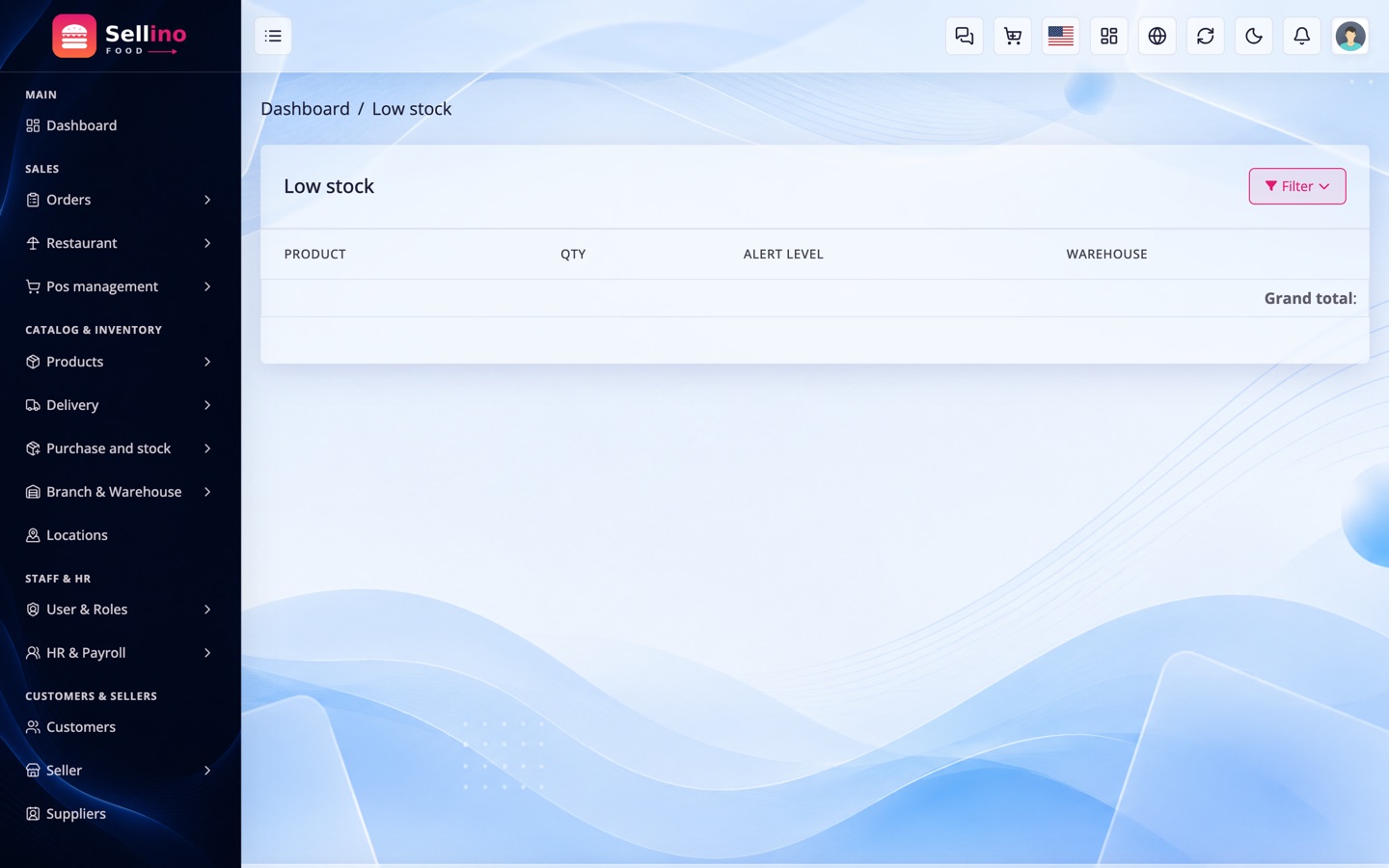
- Low stock & expiry alerts — the two things that close a kitchen.
Adjustment, Wastage & Transfer
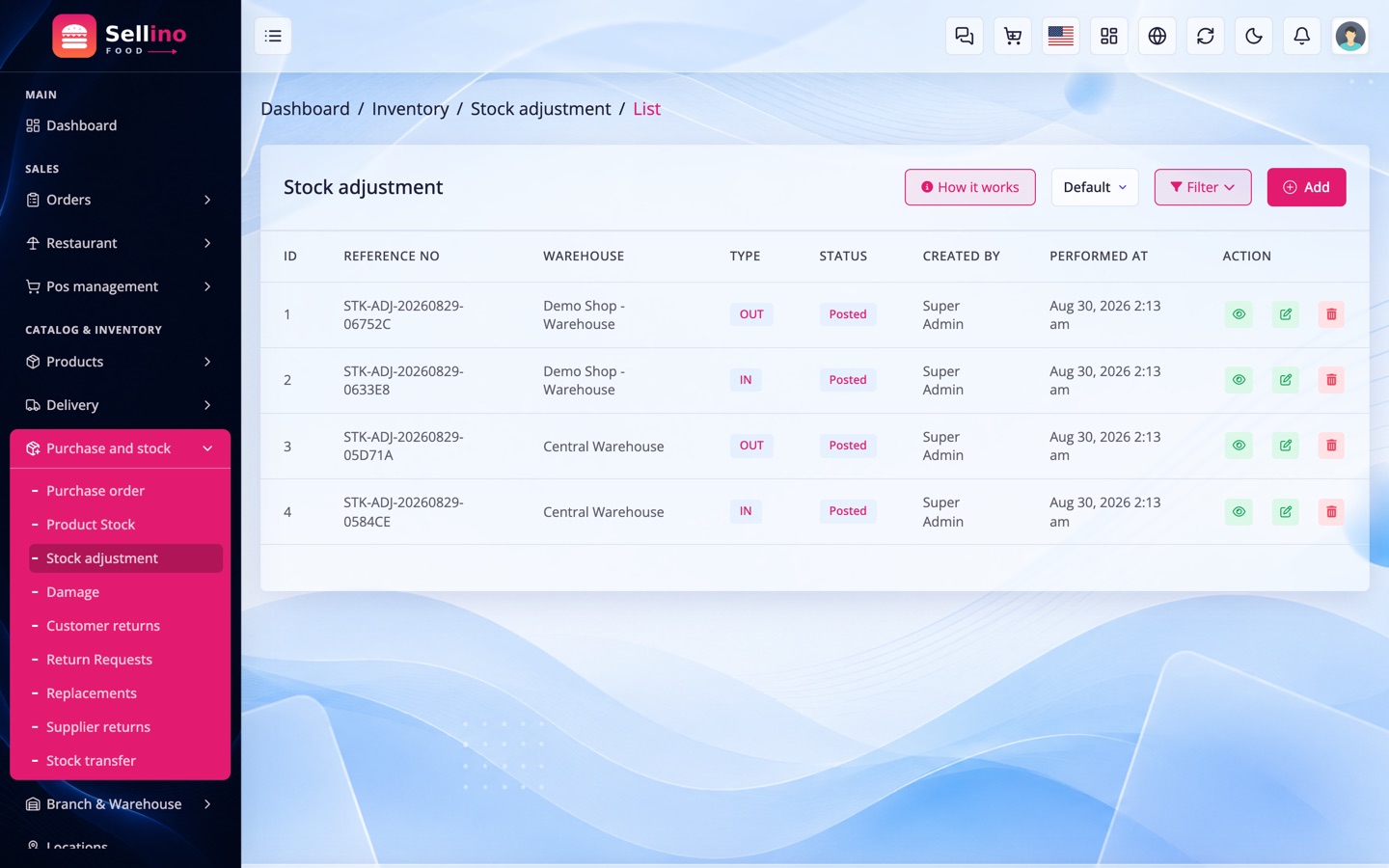
- Stock adjustment — after a stock take, correct the number and give a reason.
- Damage / wastage — spoiled produce, a dropped tray, an expired batch. Recorded with a reason and posted as a cost, which is where your wastage reporting comes from.
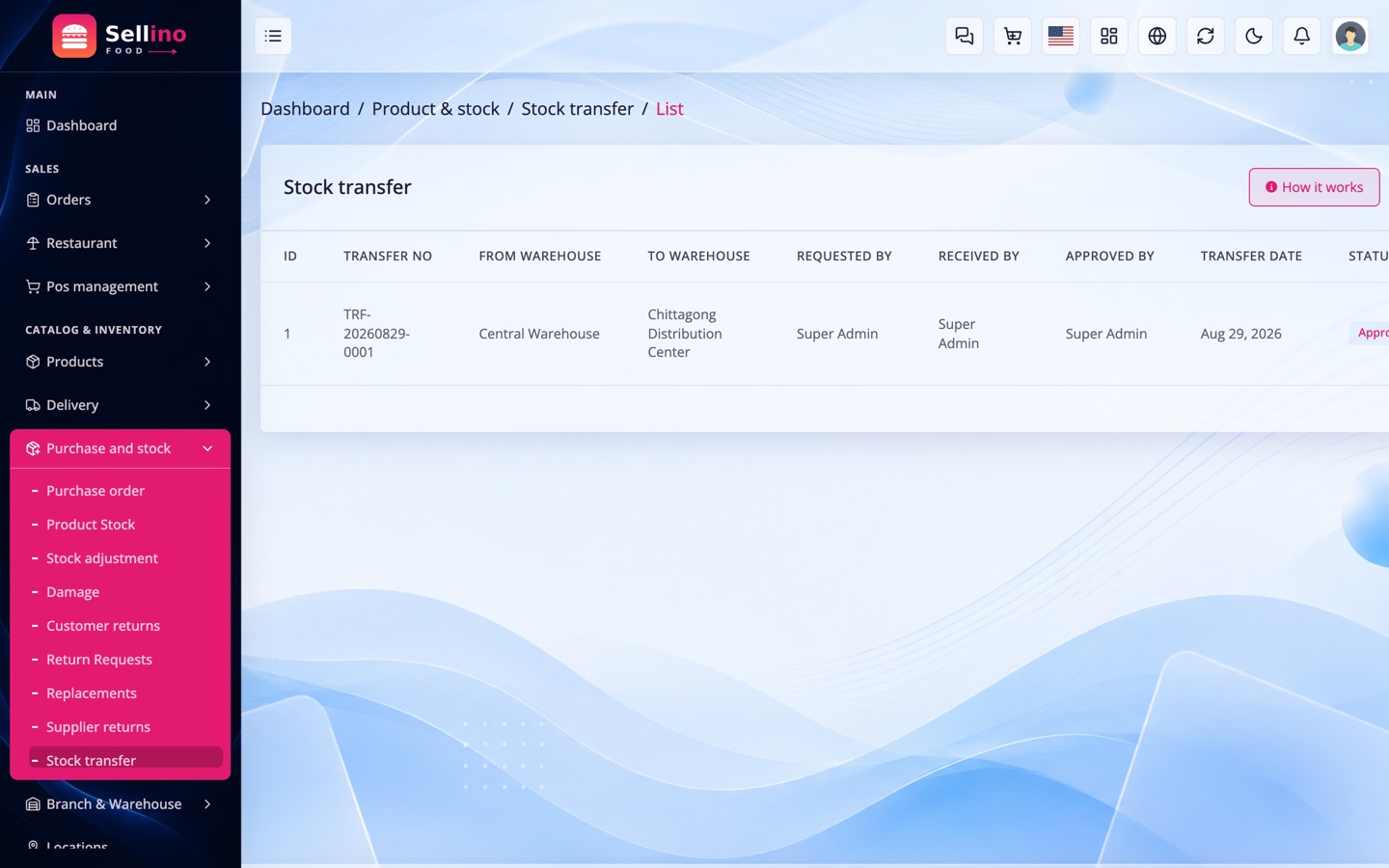
- Transfer — move ingredients between warehouses or between outlets, with request, approve and receive steps so nothing disappears in transit.
- Supplier returns — send bad goods back and clear the due.
- Costing — FIFO or weighted average, chosen once in settings; cost of goods is posted on every sale and every recipe consumption.
Customers & Cash
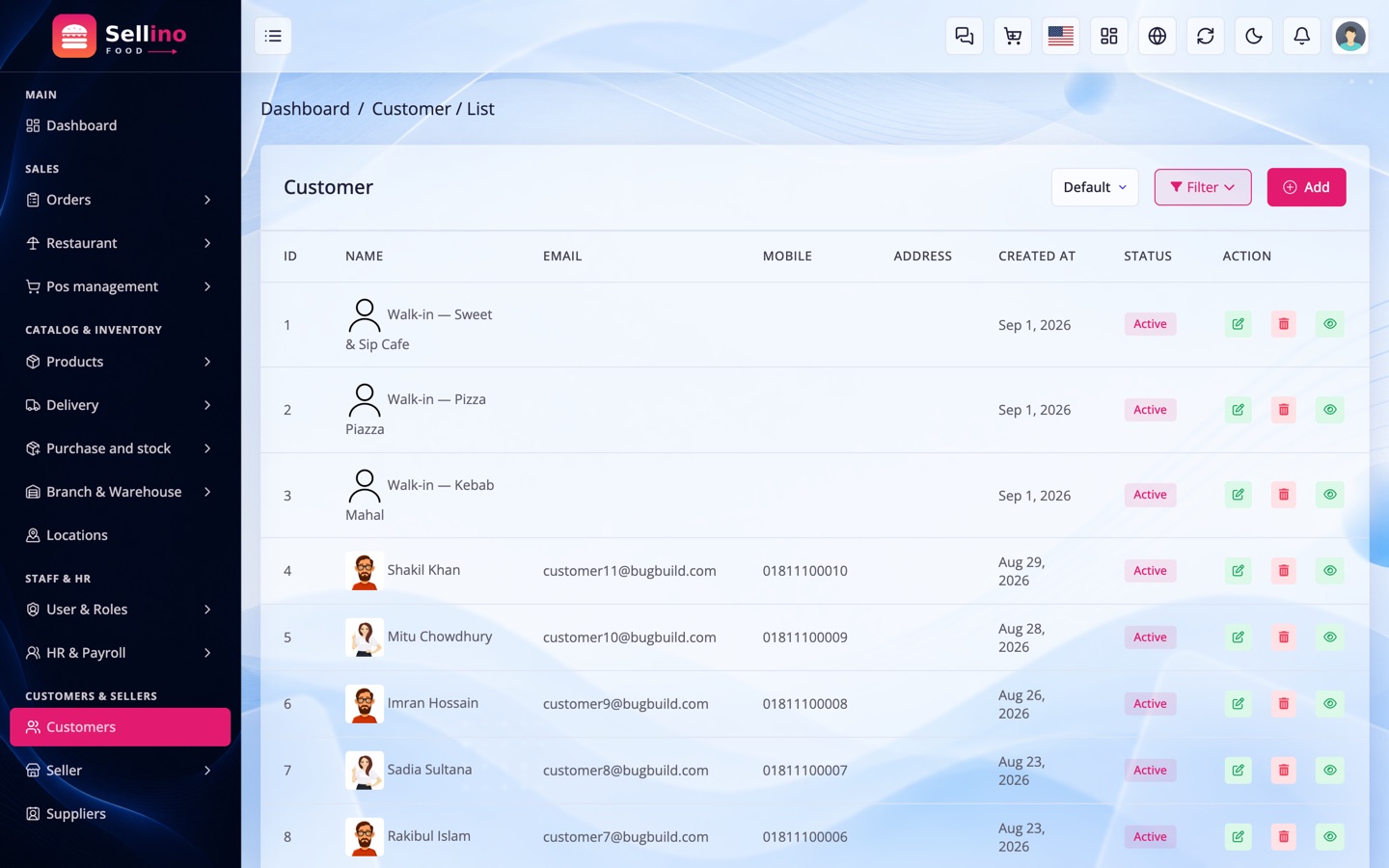
- Customers (Customers) — orders, addresses with their map pins, wallet, points, dues and full history. A customer created at the till and one who registered online are the same record.
- Wallet — refunds land here instantly, which is why most food operators refund to wallet.
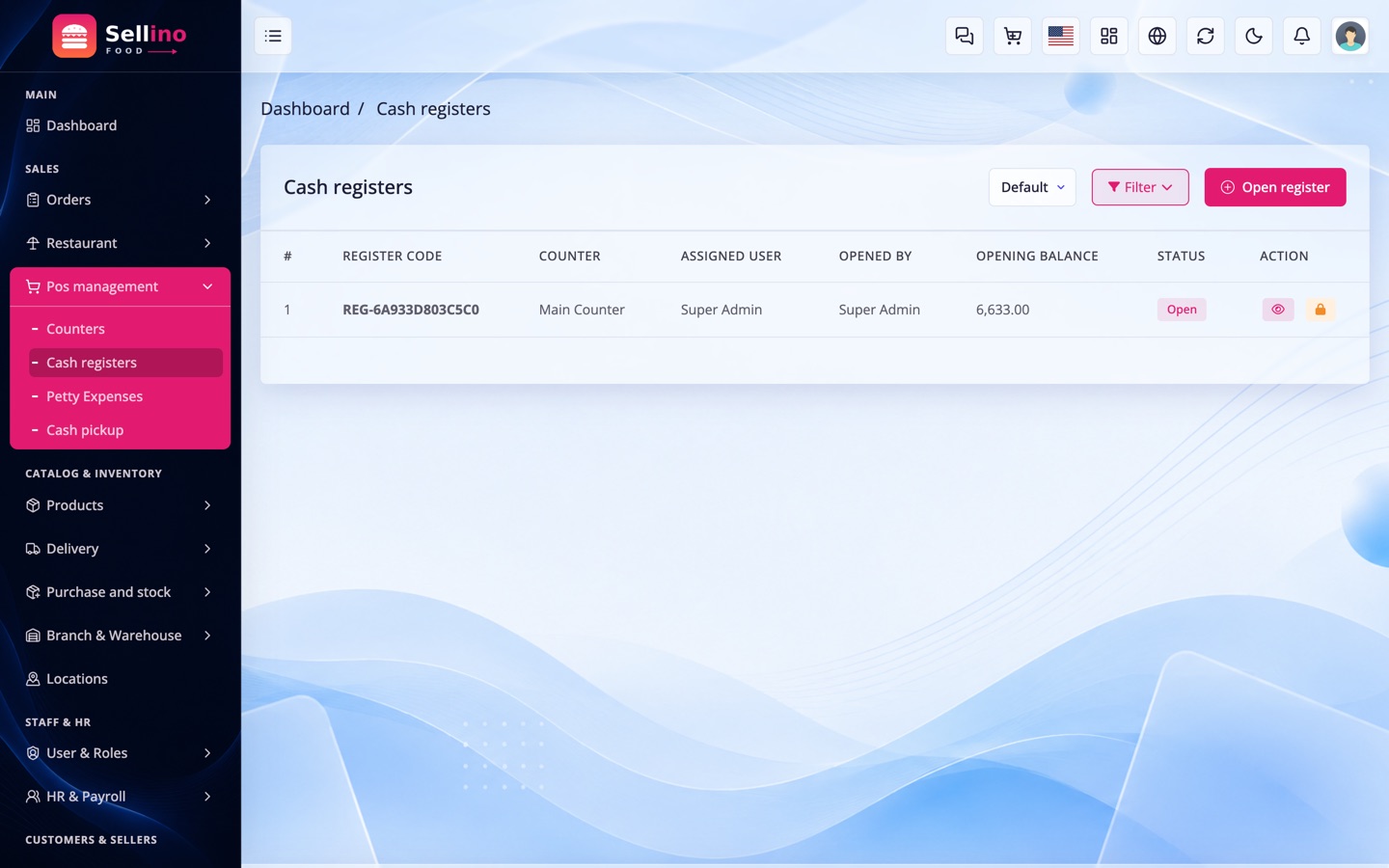
- Cash registers (Pos management) — open a shift with a float, pay in and out, close with a counted balance and a variance reason.
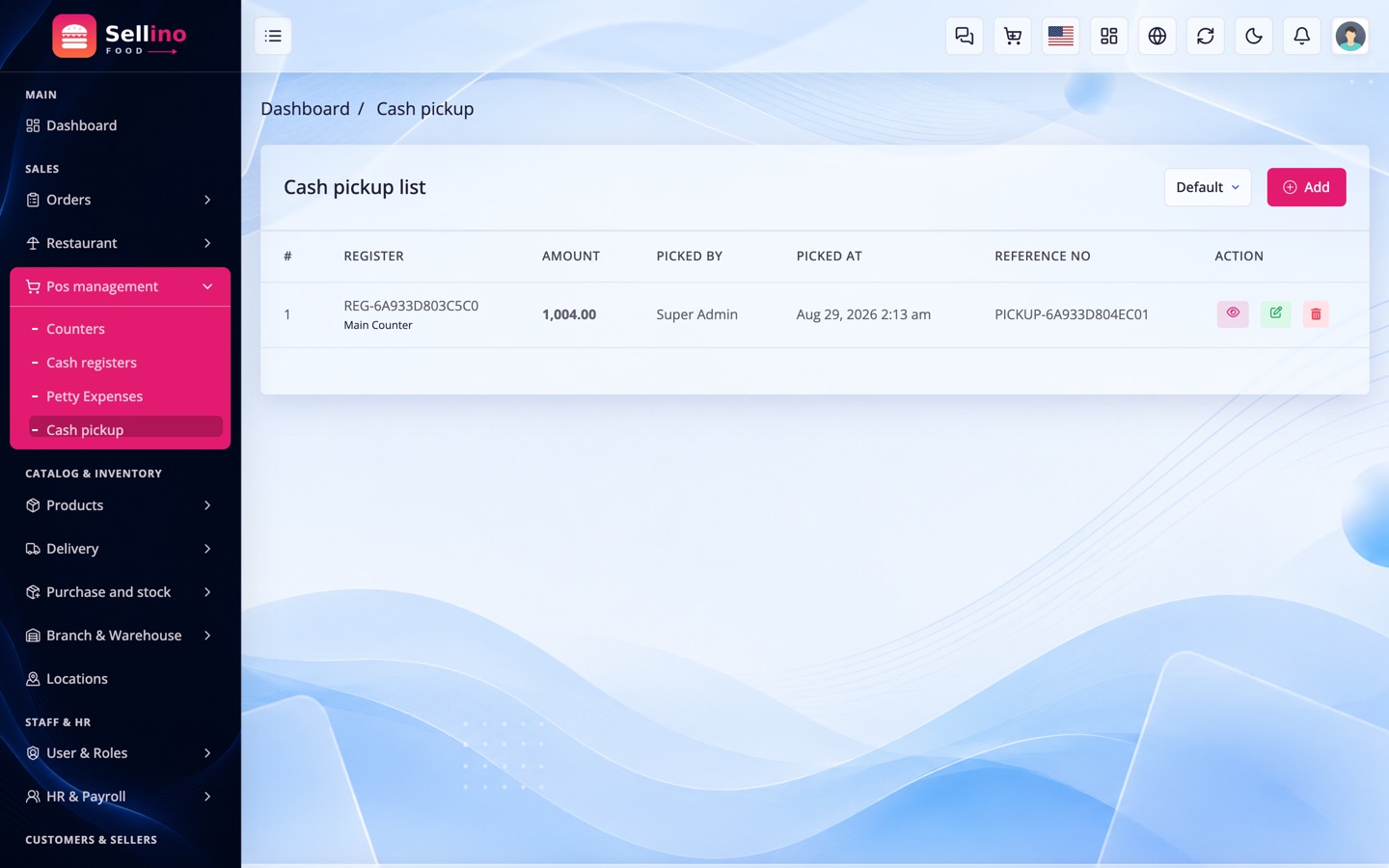
- Cash pickup — move cash from the drawer to the safe or the bank, on the record.
- Petty expenses — a gas cylinder, a delivery bag, paid straight out of the drawer and posted to the books.
Coupons, Campaigns & Loyalty
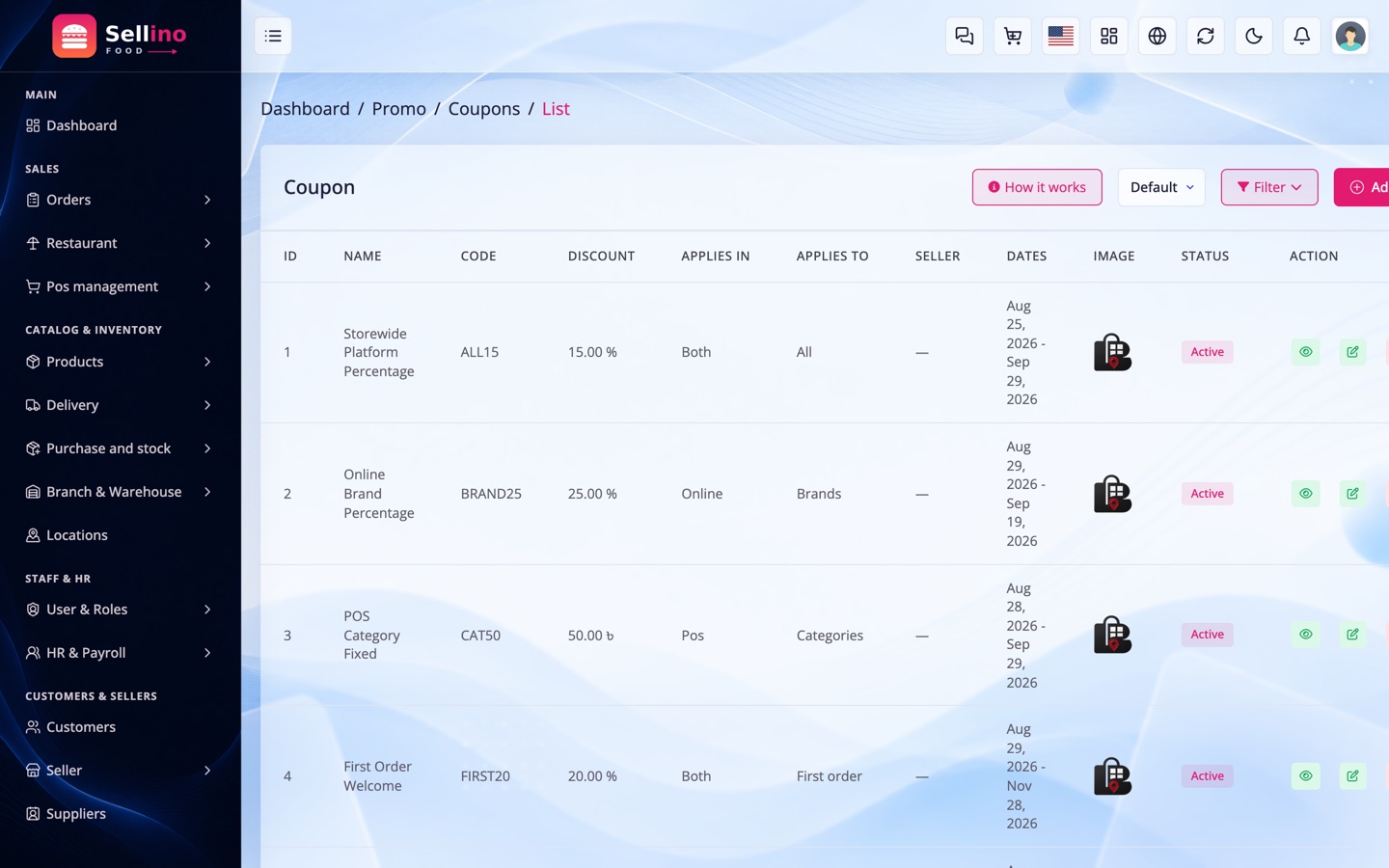
- Coupons — percentage or fixed, minimum spend, usage caps, date windows. A platform coupon is funded by you; a restaurant coupon by the restaurant, and the split is worked out on the order. Active coupons also surface on the food home as the Deals & offers strip (tap to copy) and in the Customer App.
- Flash sales & campaigns — a time-boxed price on chosen dishes, with a countdown on the storefront.
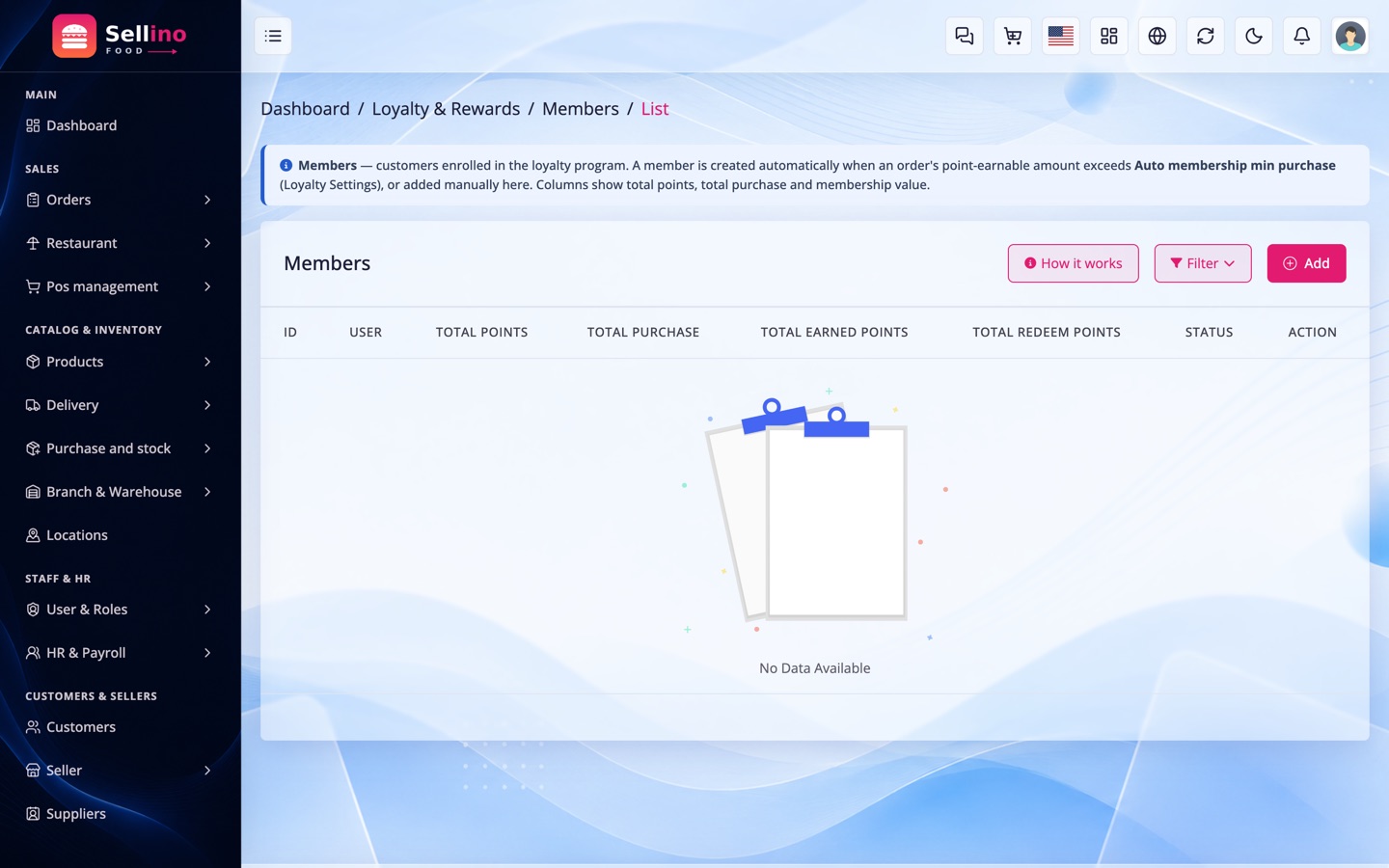
- Loyalty points — earned on delivered orders and redeemed at checkout or at the till.
- Membership tiers — recurring plans with their own benefits for regulars.
- Reviews — customers rate a dish or the restaurant; you approve before they show.
- Messaging — a unified inbox (site widget, WhatsApp, Facebook) with rule-based and AI auto-reply for the questions that repeat all night.
Accounting
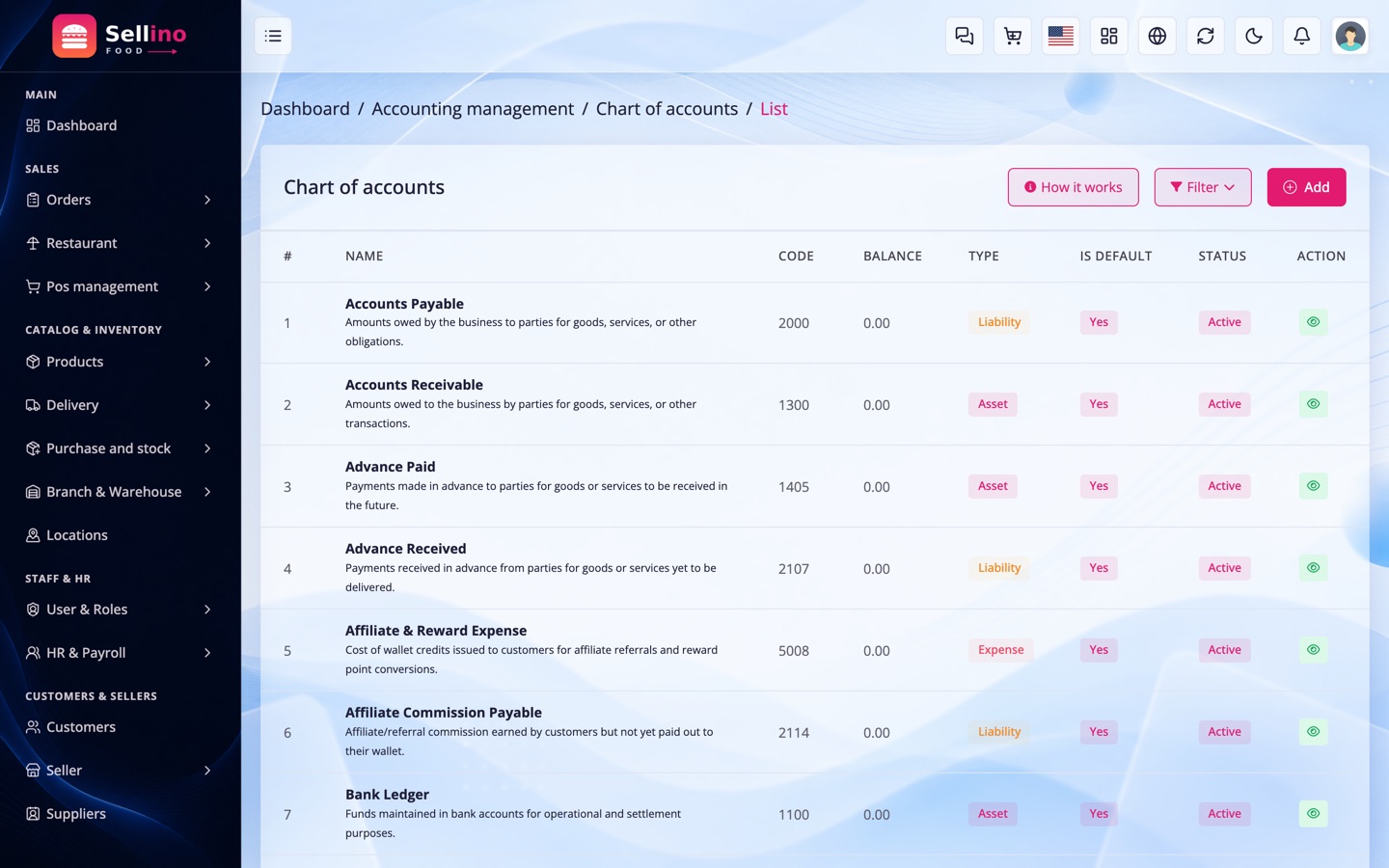
Sellino Food includes a real double-entry accounting system. Sales, purchases, returns, expenses, cash movements and payroll post journal entries automatically against your Chart of Accounts (COA) — you do not book anything twice.
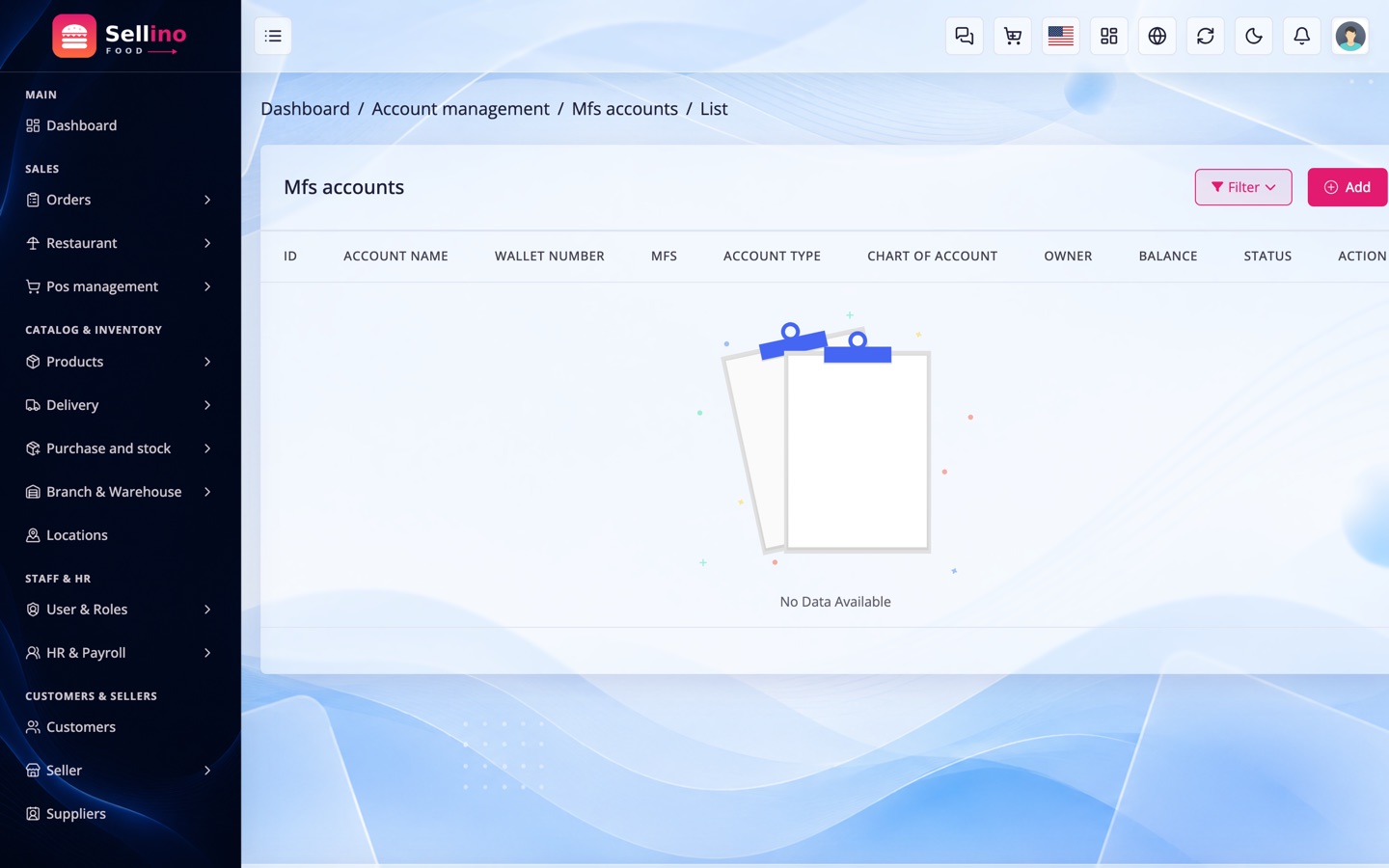
- Accounts & Banks — set up your COA, cash-in-hand, bank and mobile-money (MFS) accounts. Each counter gets its own cash account, which is why a drawer can be reconciled at all.
- Expenses, Transfers & Owner Money — record expenses, move money between accounts, and handle owner draw or investment.
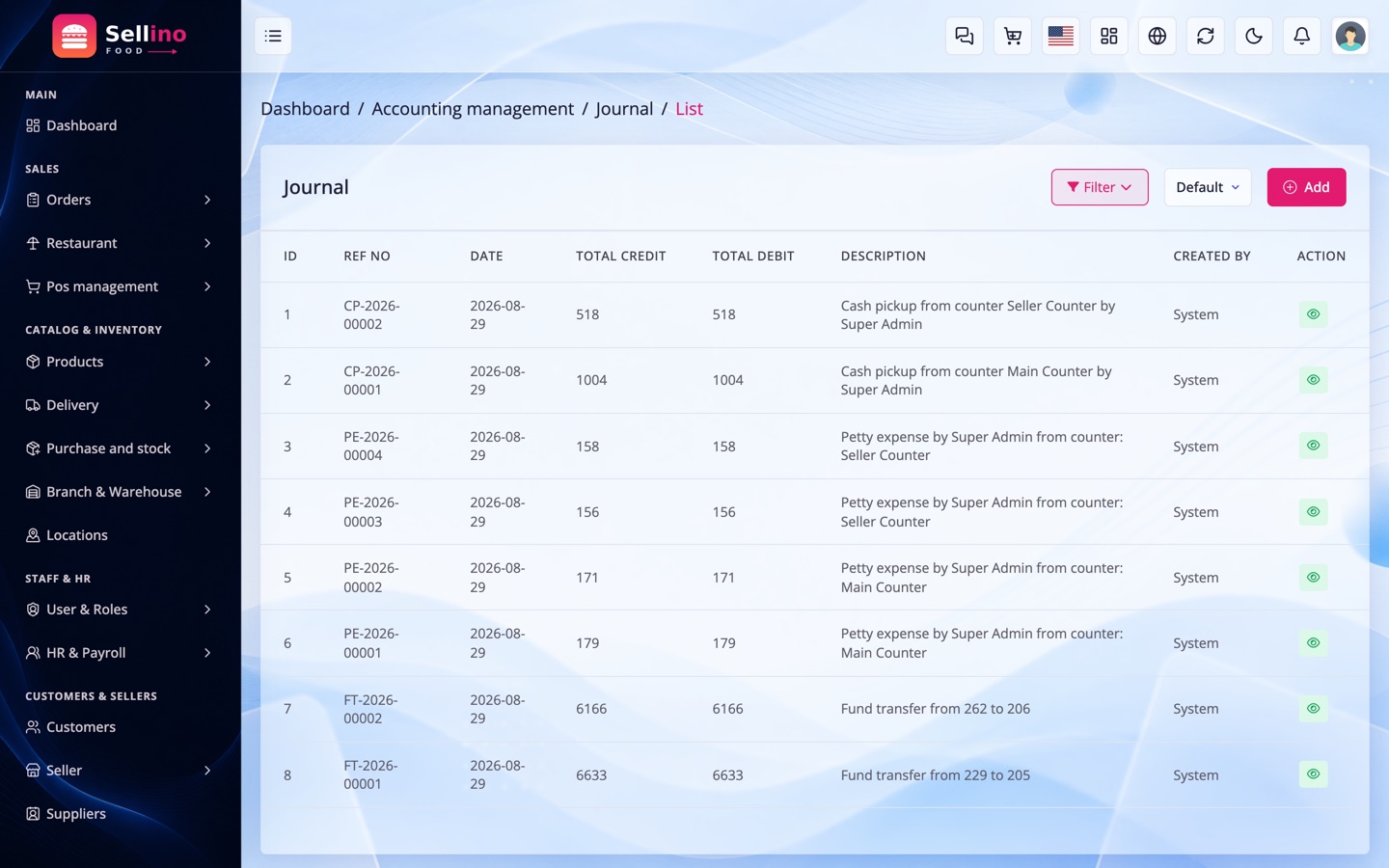
- Journals, Transactions & Reconciliation — every journal entry, the transaction ledger, and bank reconciliation against an imported statement.
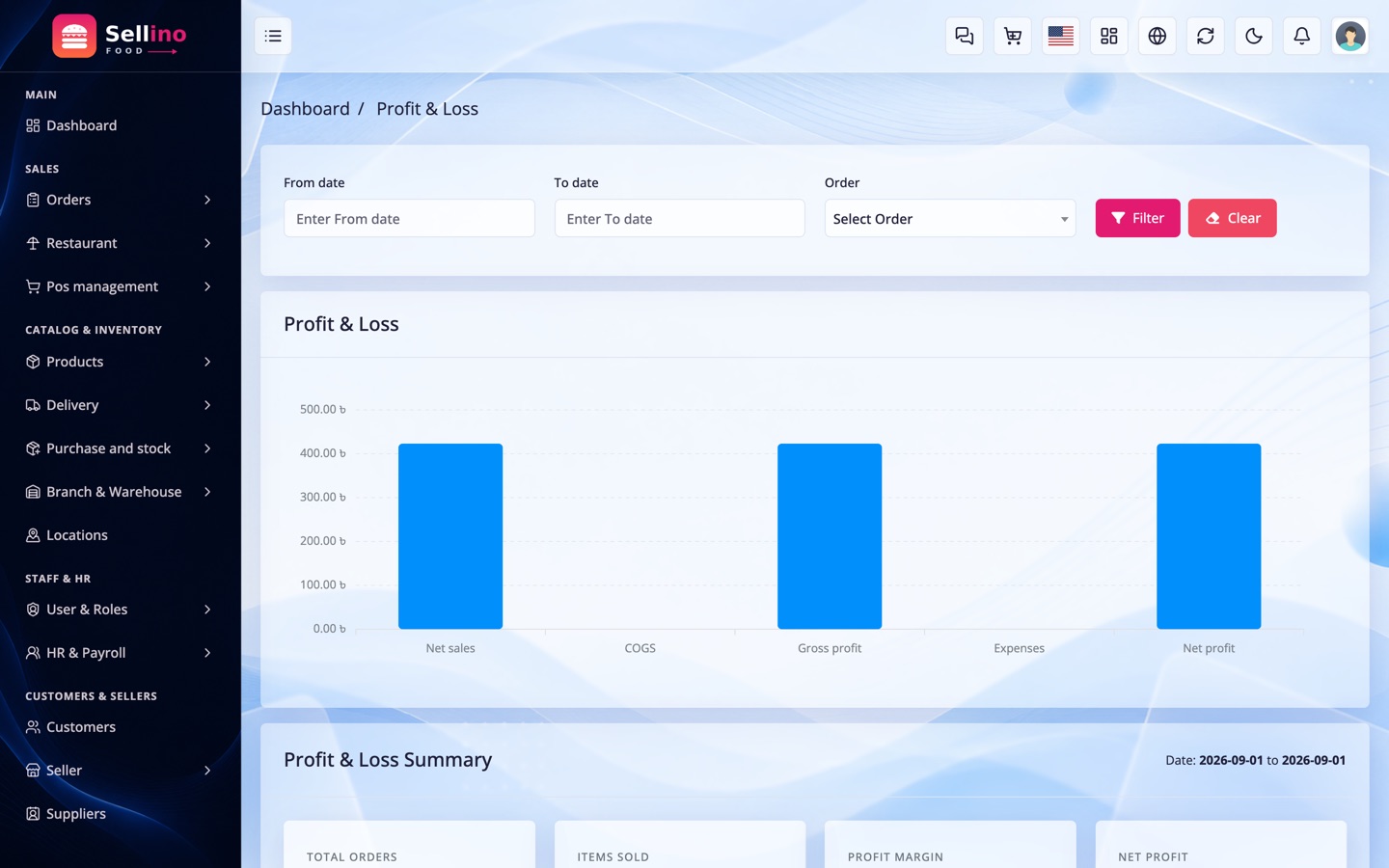
- Financial statements — Trial Balance, Income Statement (Profit & Loss) and Balance Sheet, built straight from the general ledger for any date range — and filterable per outlet.
- Cost of goods sold — posted from the inventory costing layer, so gross profit is real cost, not an estimate.
- Stock adjustments post journals — an IN adjustment books an inventory gain, an OUT adjustment a loss, both valued at cost.
- Membership points are a liability — points you issue are carried until they are spent, so profit is not overstated by a discount you still owe.
Reference: see docs/wiki/ in the source for the journal mapping of each module, including returns and payroll.
HR & Payroll
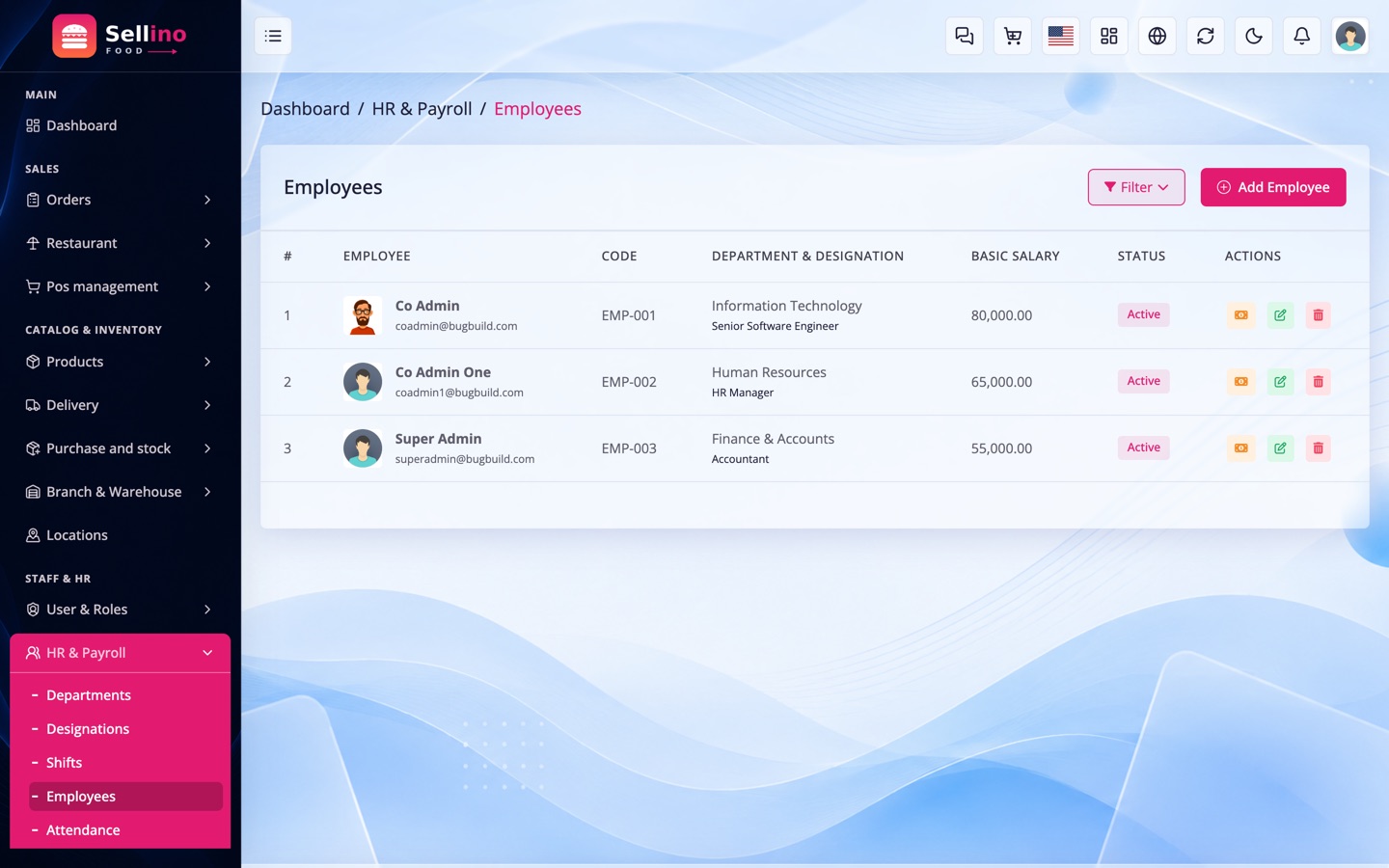
Manage your staff from the same panel (HumanResource module).
- Employees & Structure — staff records, departments and designations.
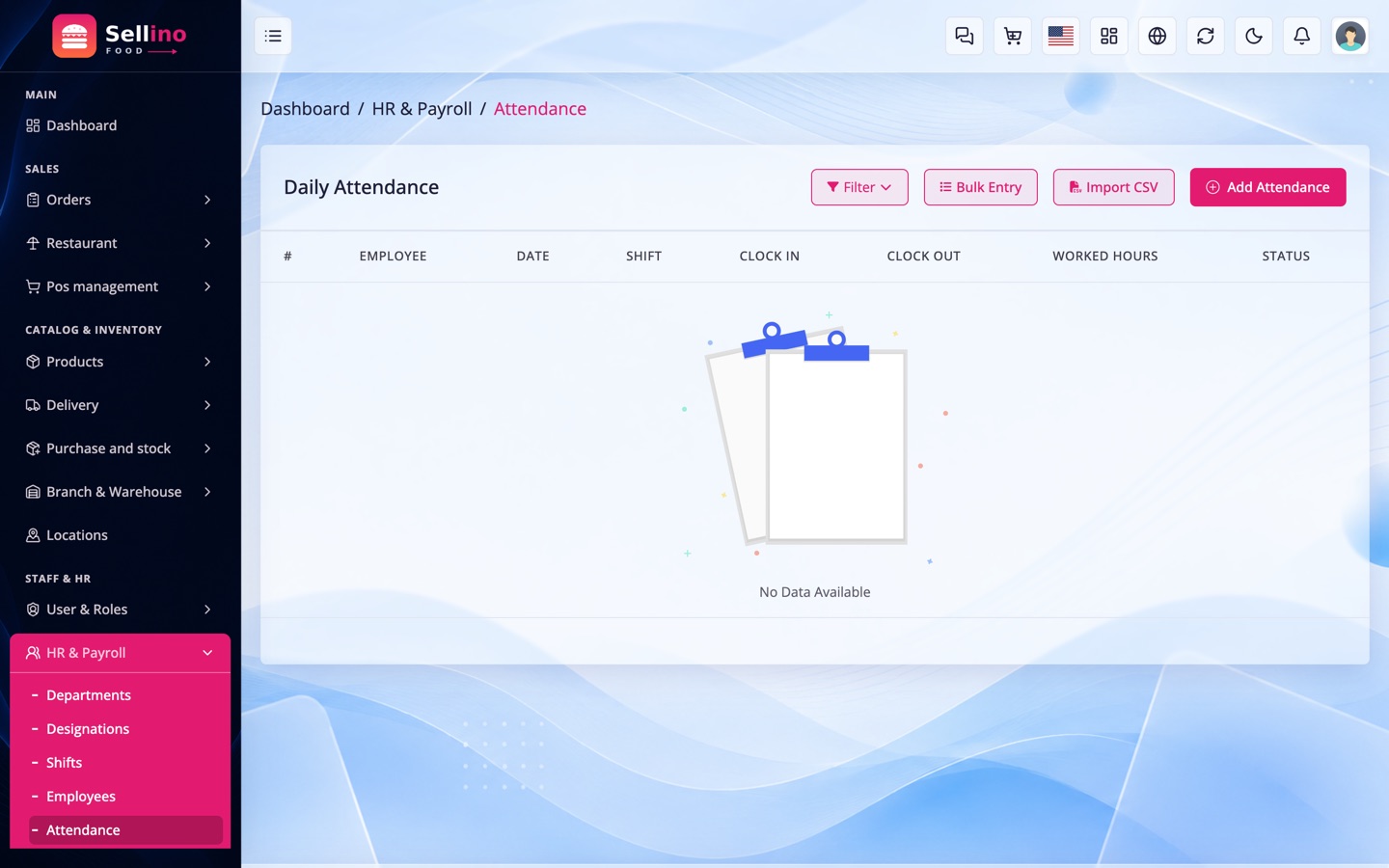
- Attendance & Leave — daily attendance and leave requests/approvals.
- Payroll — monthly payroll generation, posted to accounting automatically. Loans and advances given to staff are tracked and recovered from payroll automatically, each with its own journal.
- Employee Loans — create a loan (status Pending, terms still editable), then Approve & Disburse from a cash/bank account to make it Active. Repayment happens automatically as a monthly installment inside payroll, or manually as an off-payroll cash repayment; when fully repaid it becomes Paid. Every step posts its journal to Accounting (employee-loan receivable account).
- Salary Advances — a one-shot advance disbursed from cash/bank and recovered in full from the salary of the month you choose; the payroll run deducts it and marks it Deducted. Journaled the same way on its own receivable account.
Good to know: only disbursed (Active) loans and advances are picked up by payroll — a pending request never touches anyone's salary. Cancelling an active, un-recovered loan/advance reverses its journal cleanly.
Reports
Decision-ready reports across the business, most exportable.
- Sales Reports — sales summary, by product, by category, by customer, profit and more.
- Inventory Reports — stock value, low-stock, movement, expiry and damage.
- Accounting & Cash Reports — trial balance, profit & loss, balance sheet, cash flow, day book and account ledgers.
Media Library & Picker
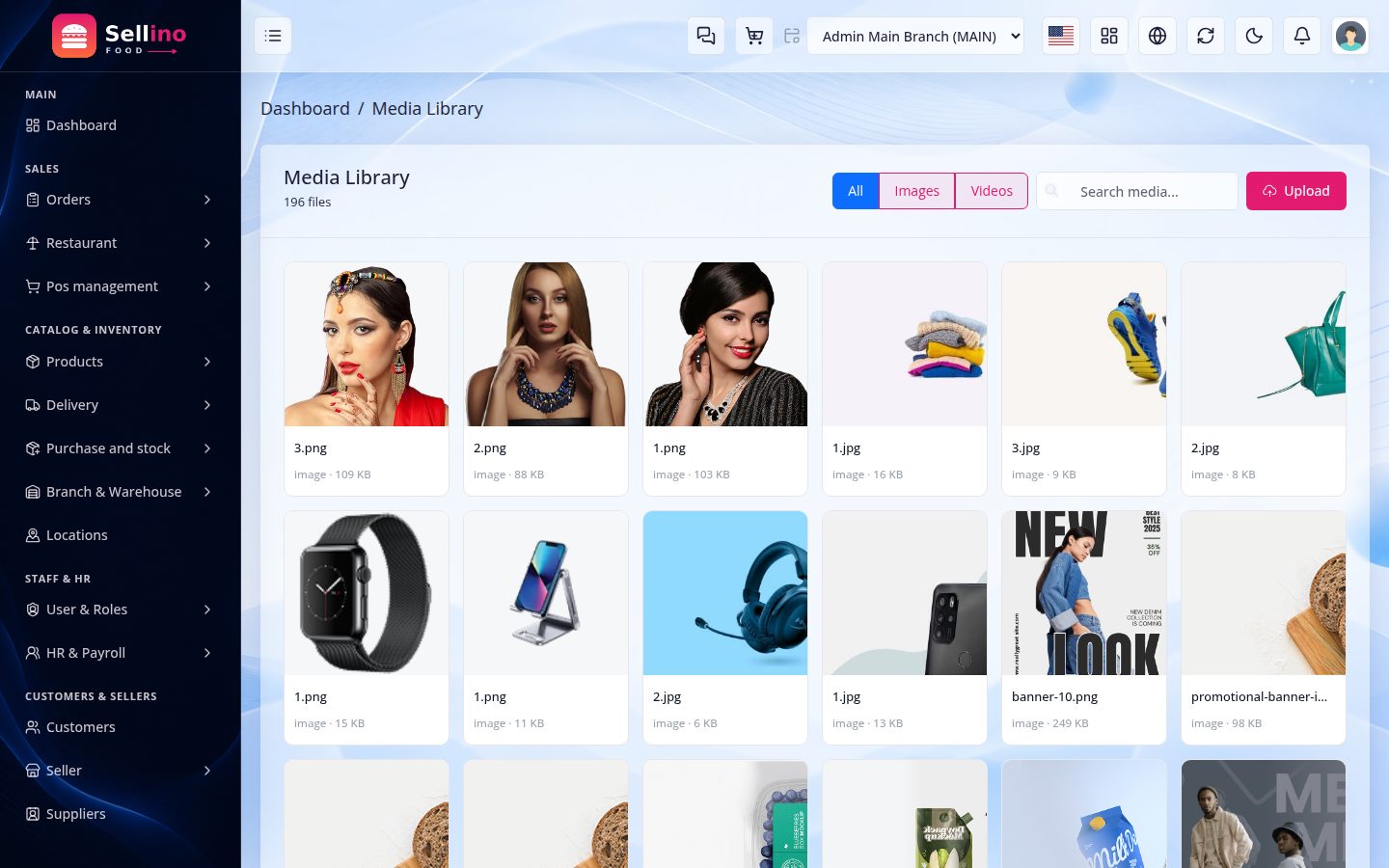
All uploaded images and videos live in one Media Library. Every image field in the panel — products, sliders, widgets, blogs, brands, categories — opens the same media picker, so you upload once and reuse everywhere.
- Browse & search — grid view with type filter and search over file name, title and alt text.
- Upload — single or multiple files, drag-and-drop. An identical file (same checksum) reuses the existing entry instead of storing a second copy.
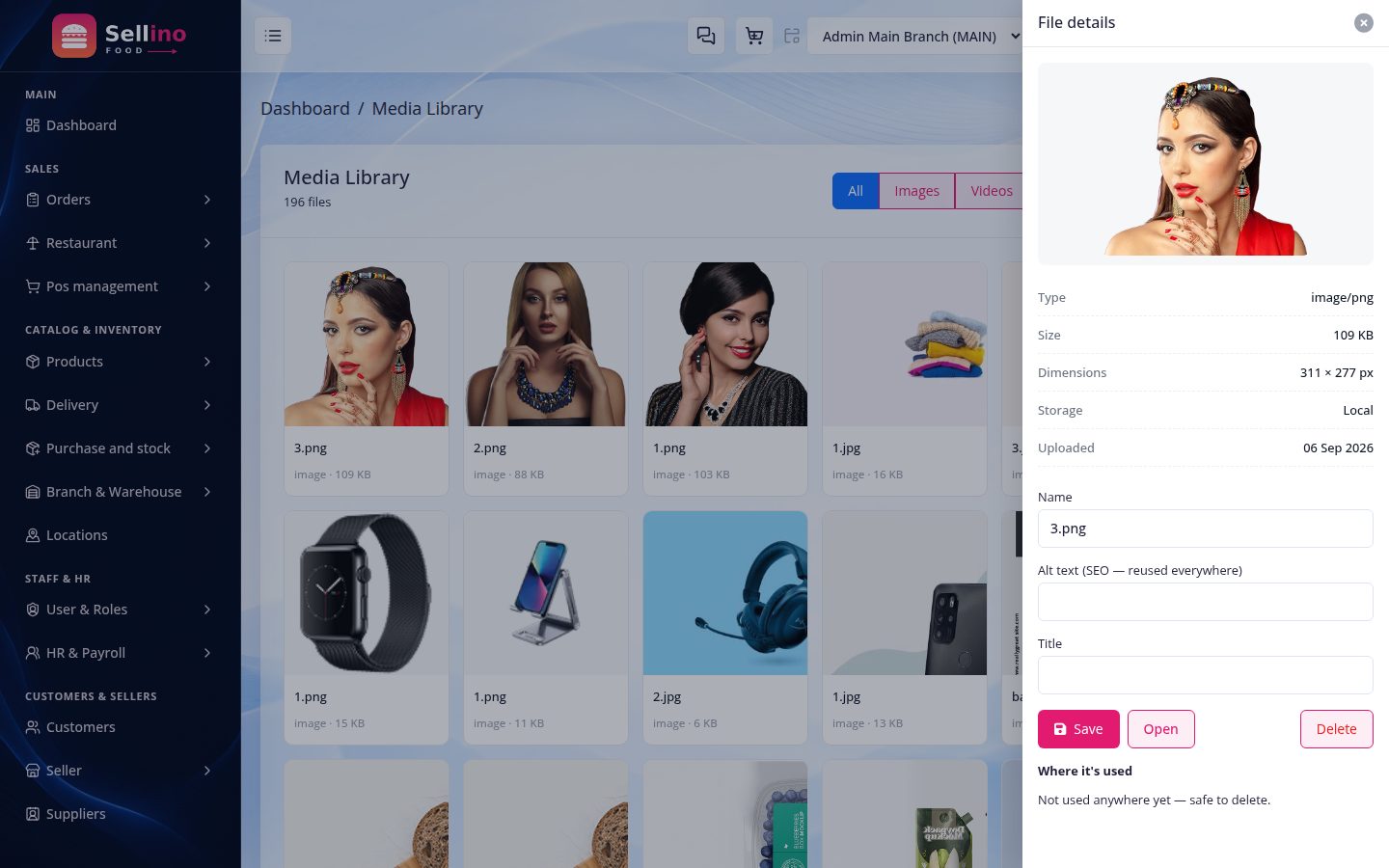
- Edit details — rename, set title and alt text (good for SEO and accessibility).
- Usage — every file shows a used in N place(s) count, and you can list exactly where it is attached.
- Safe delete — a file still in use cannot be deleted; remove it from those places first.
- Automatic sizes — each upload is resized into named presets (thumbnail / medium / large) so lists and the app serve the right size.
- Staff see the shop's one media library; who may upload or delete is a permission.
Videos have their own size cap — set it in settings (media_video_max_mb, default 100 MB).
Website Pages (Privacy, Terms & Custom Pages)
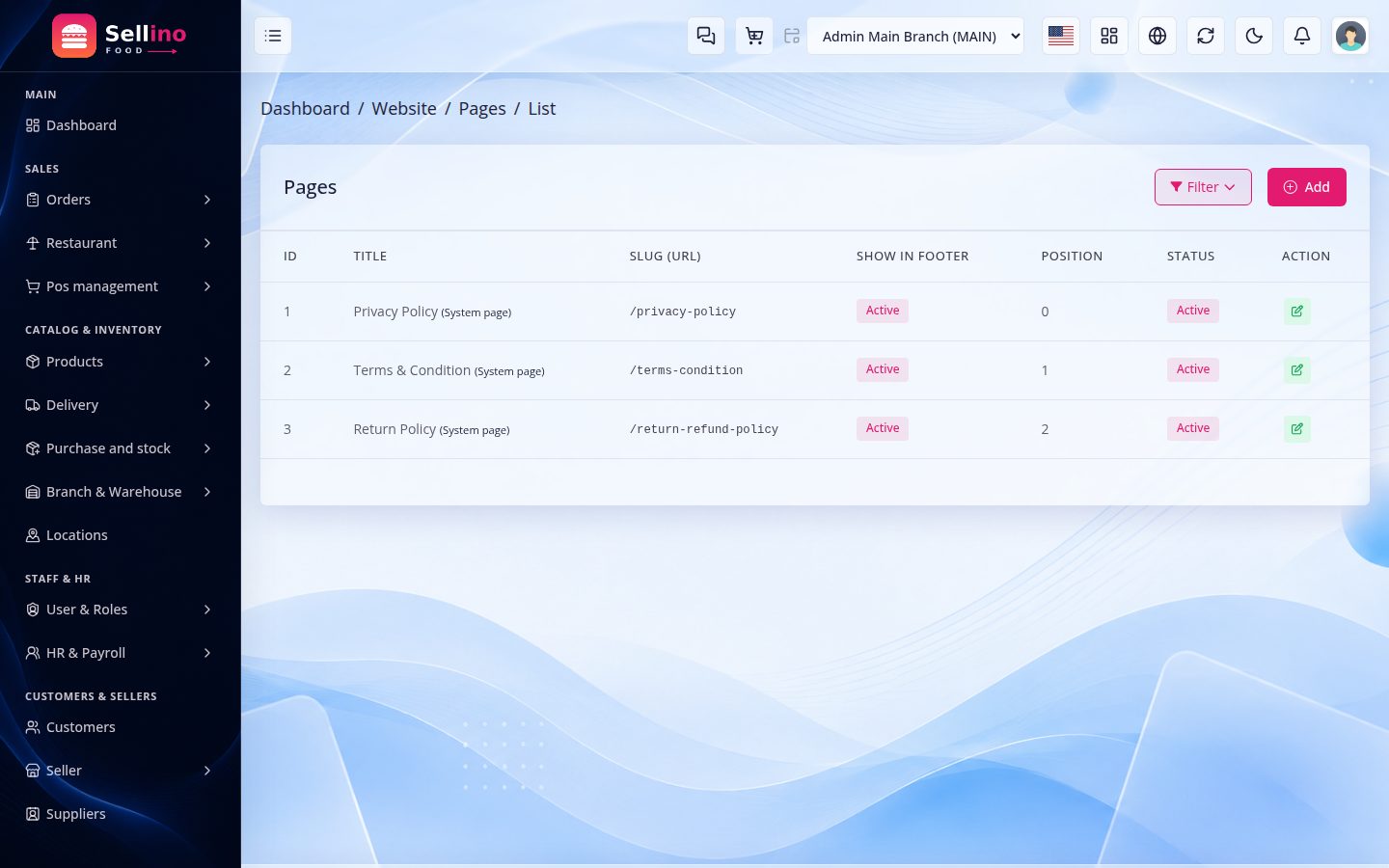
Static content lives under Website → Pages — each page has a title, a slug and rich-text content, and is served on the site at its own URL.
- Legal pages ship ready — Privacy Policy, Terms & Conditions and Return & Refund Policy come with placeholder text. Review and rewrite them before launch — store review teams read them.
- The apps read the same pages — the Customer App's Privacy Policy and Terms screens render this content through the API (unauthenticated, as app stores require), so one edit updates web and app together.
- Custom pages — add any number of extra pages (About, Delivery info…); each is served at its slug automatically.
- Widgets & Page Builder — the website's building blocks under Website → Widgets and Website → Page Builder, for installs that run a customer-facing site.
- Page create/edit/delete are individual permissions, like every other module.
Administration
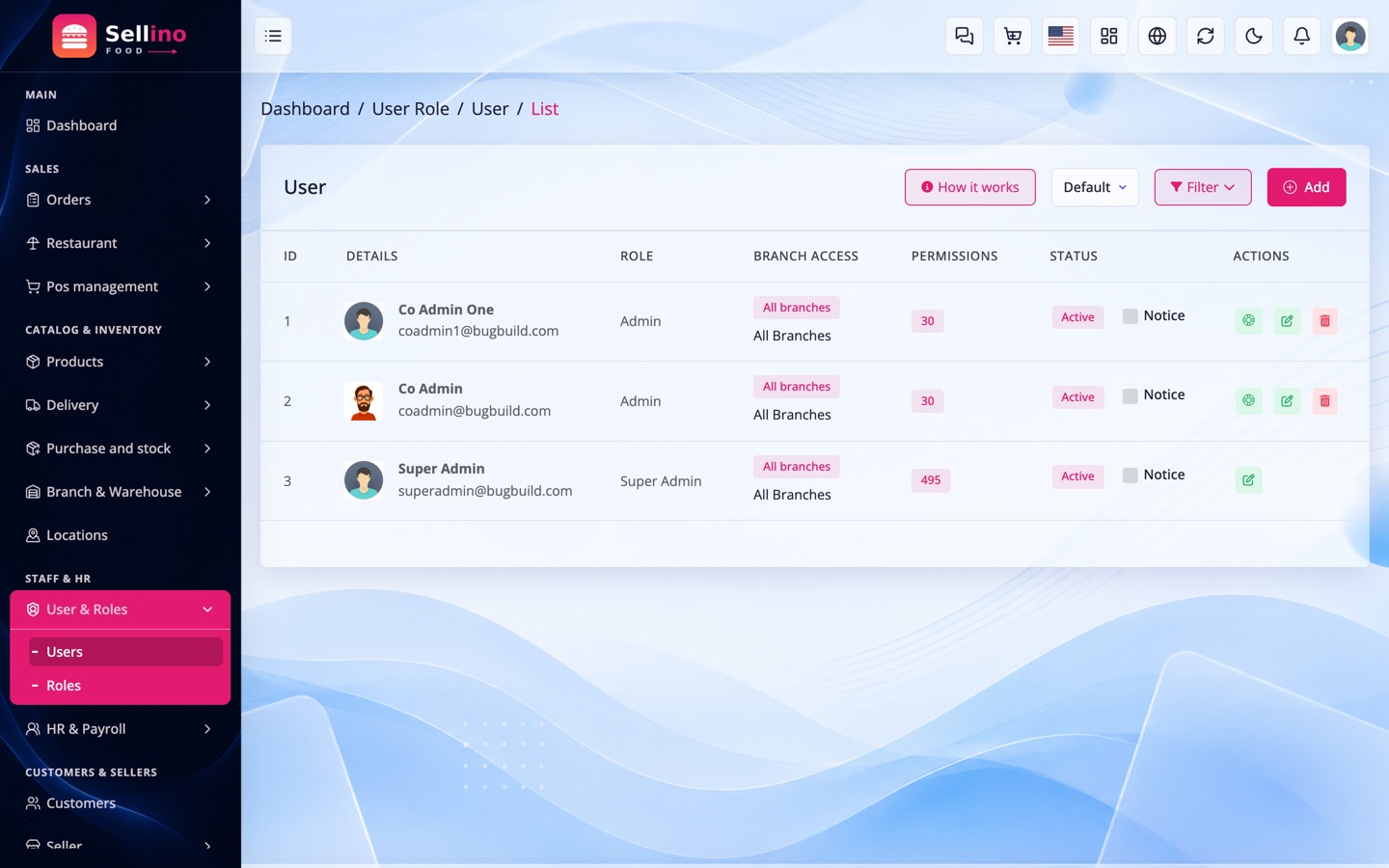
- Users & Roles — role-based access control. Create roles with Read/Create/Update/Delete permissions per module, then assign staff to roles.
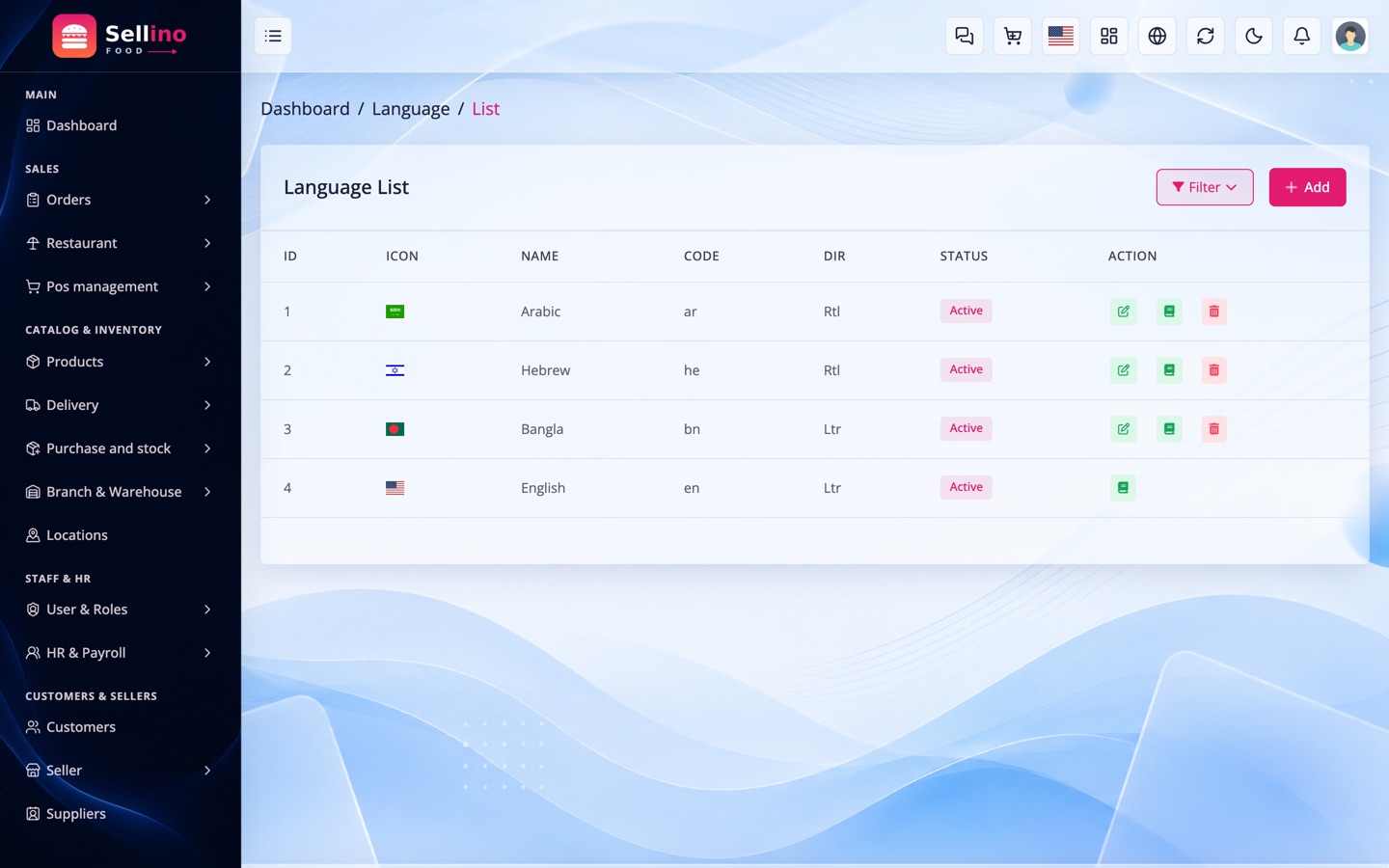
- Languages — add languages (with LTR/RTL), set the default, and translate phrases per module. Four packs ship ready: English, Bengali, Arabic and Hebrew (the last two RTL). The same translations feed the admin panel and the POS app through the API — translate once, everywhere updates. English is the fallback and cannot be deleted.
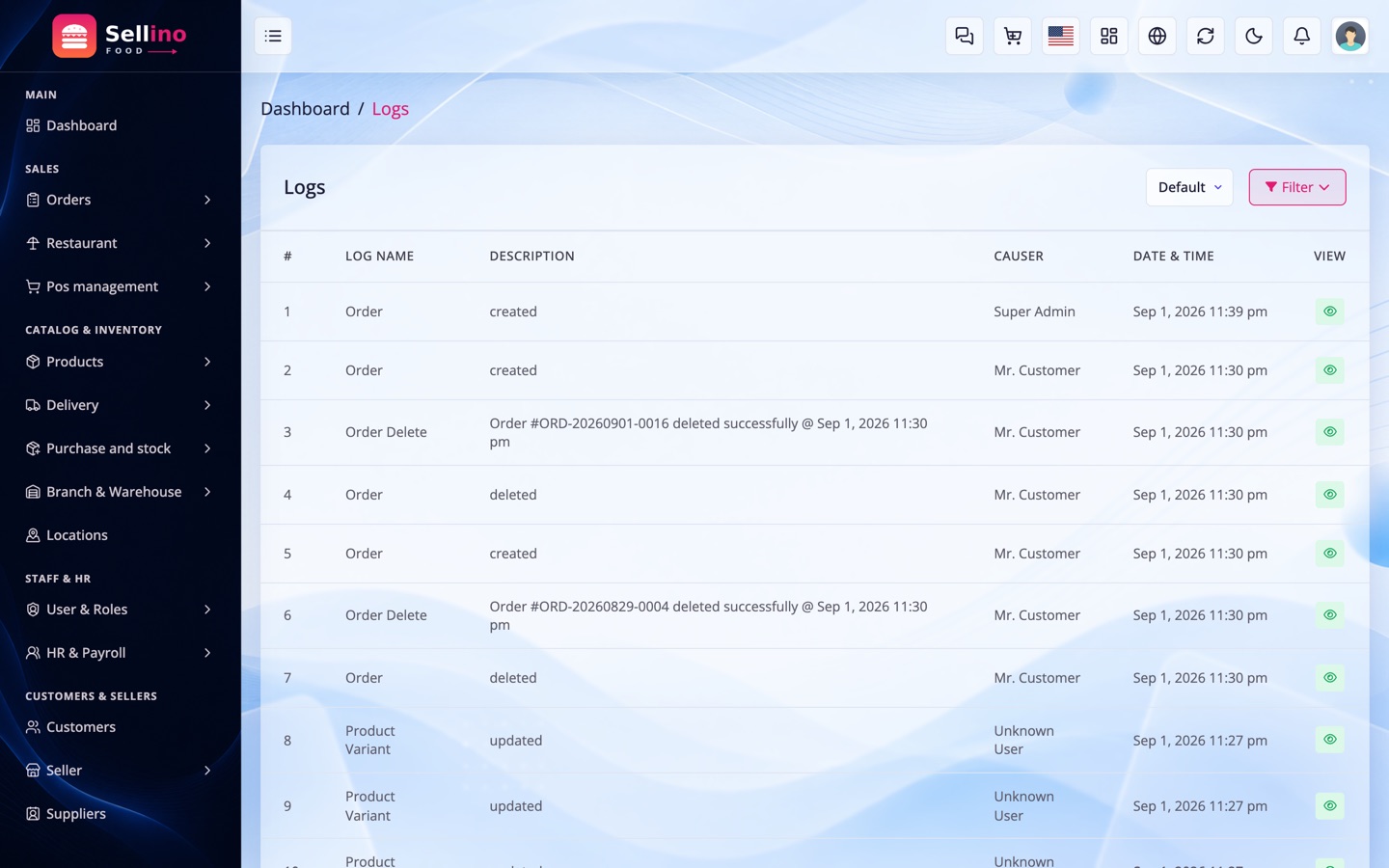
- Activity & Login Logs — audit trail of admin actions and login history.
Settings
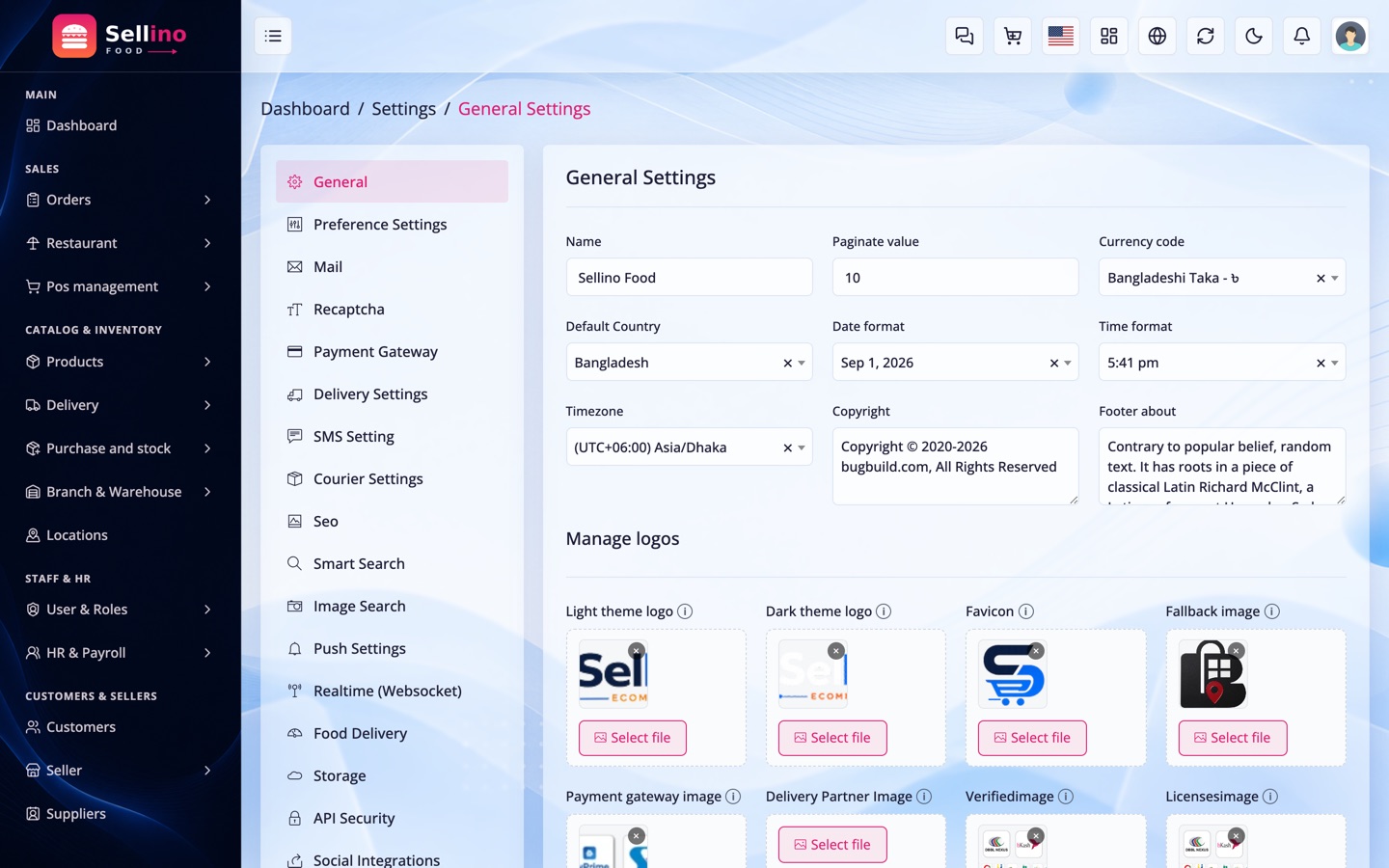
- General — store name, contact, currency, timezone, date/time format, pagination and branding (logo/favicon).
- Appearance & Colors — primary/secondary colors, fonts and button shapes.
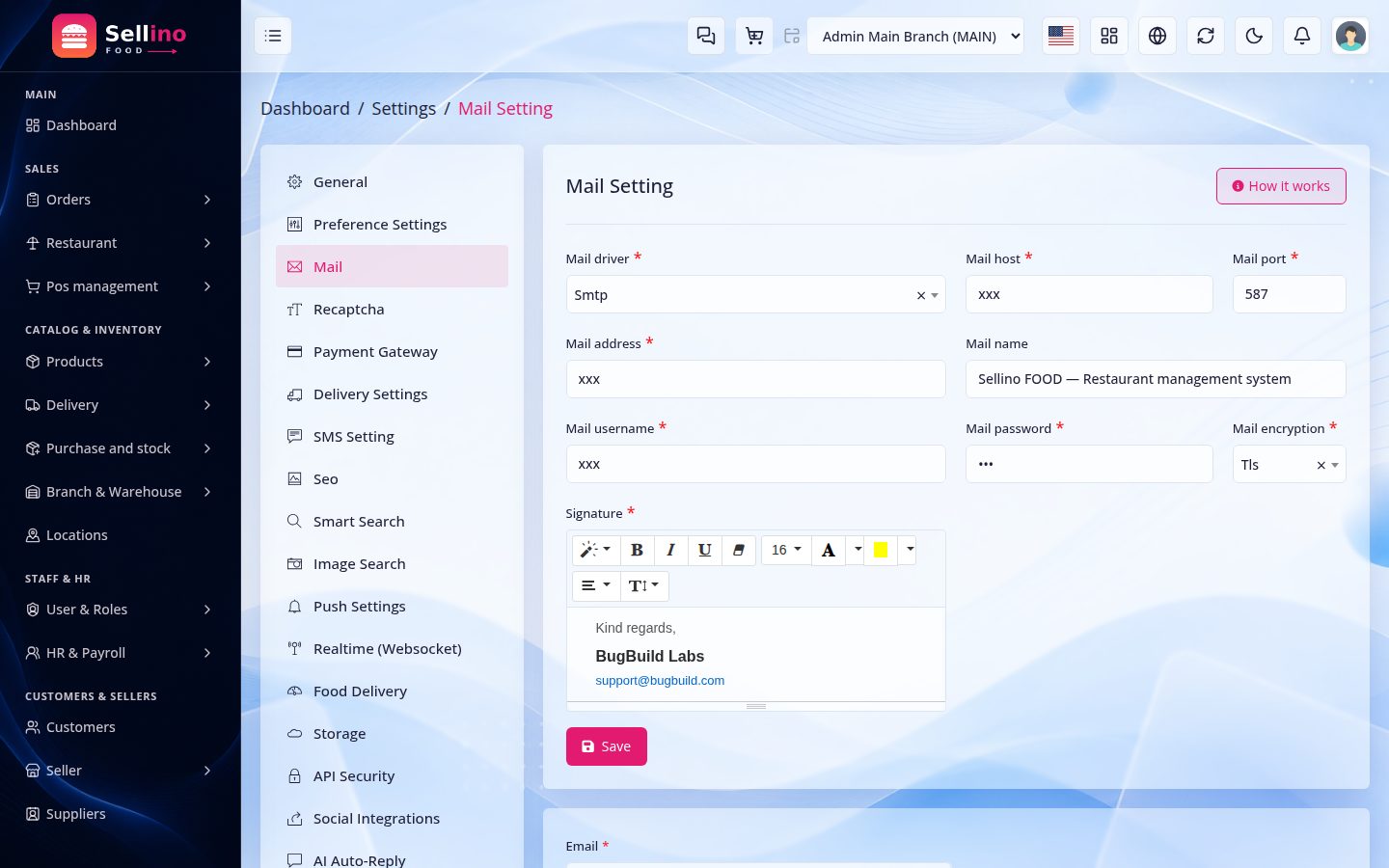
- Mail — standard SMTP, or the Gmail API transport (client ID, client secret, refresh token, from-name/address) when your host blocks SMTP ports 25/465/587 — common on cloud VPS providers. A Test mail button confirms either one.
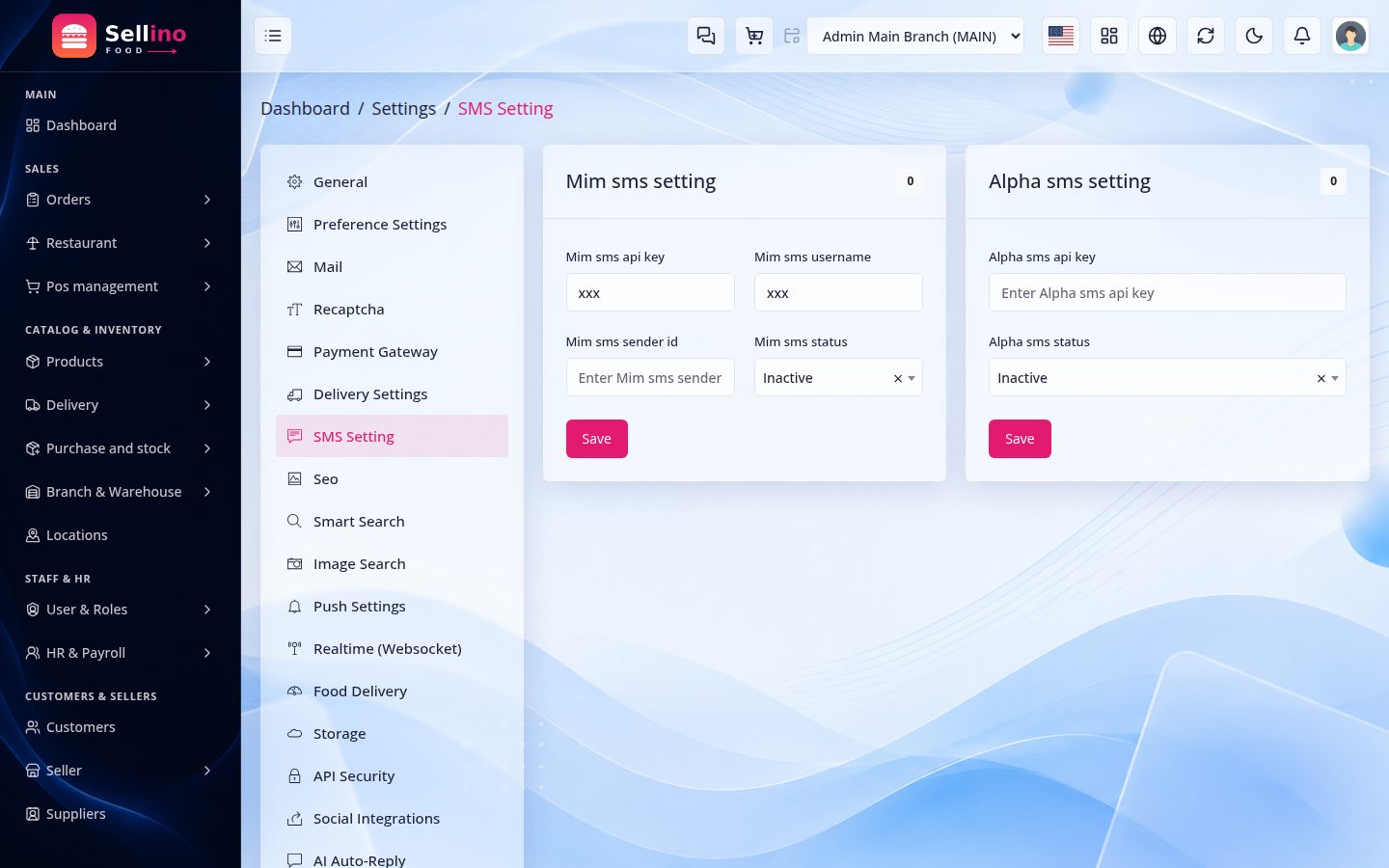
- SMS / Push — SMS gateway, and push notifications used by the mobile apps.
- Media & Themes — see Media Library and Web / App Theme.
- Security — reCAPTCHA & API key; OTP channels & social login; backups.
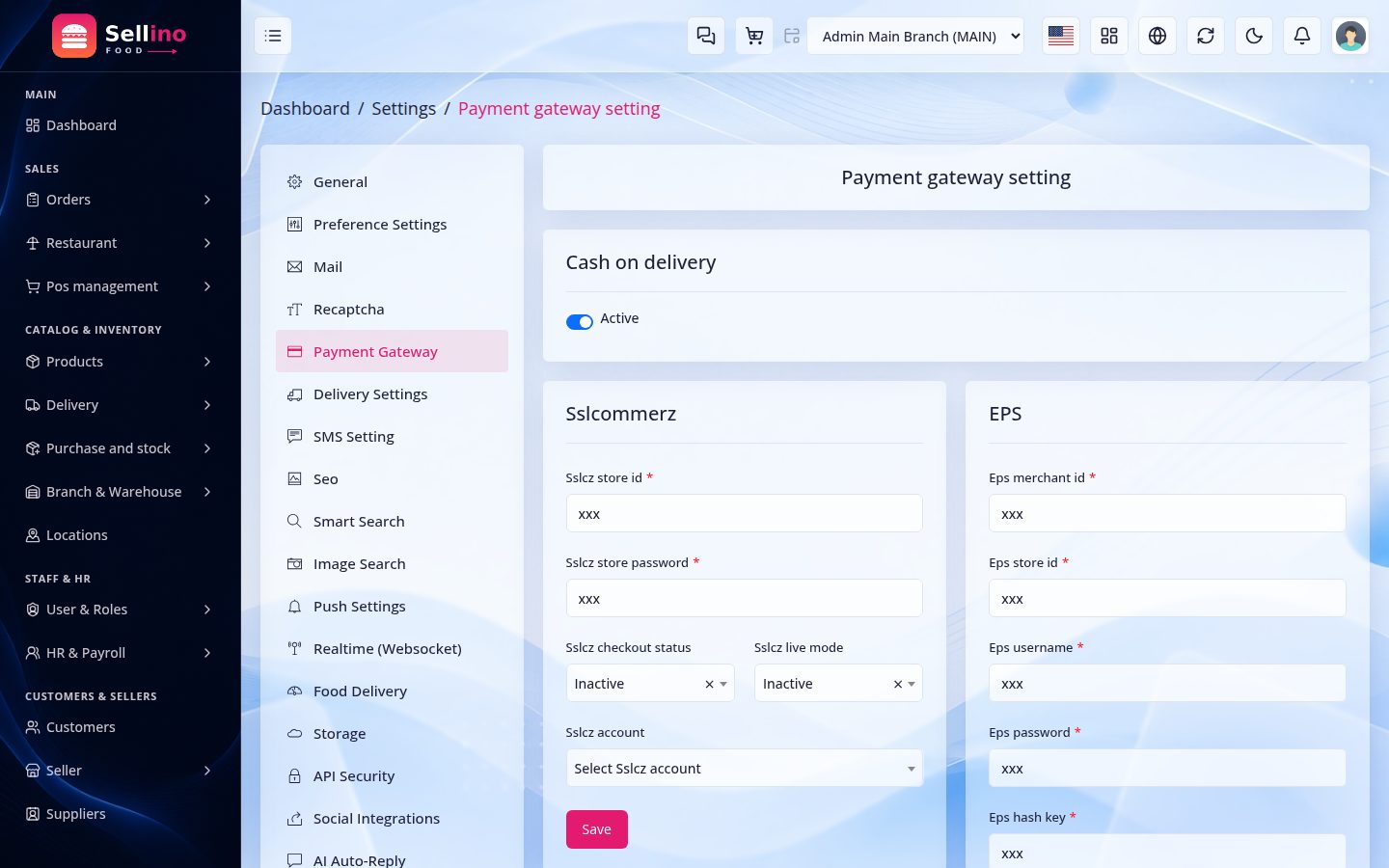
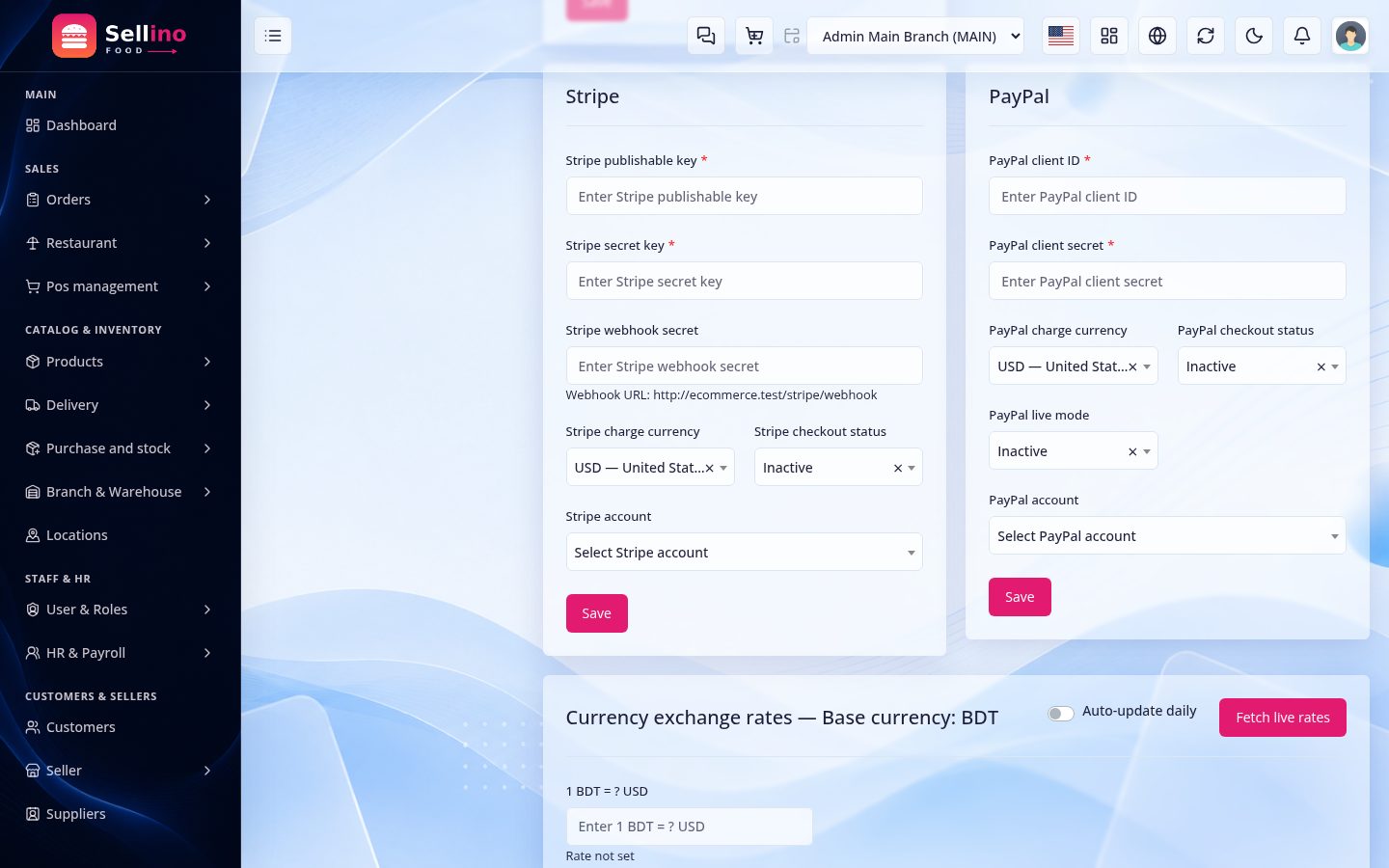
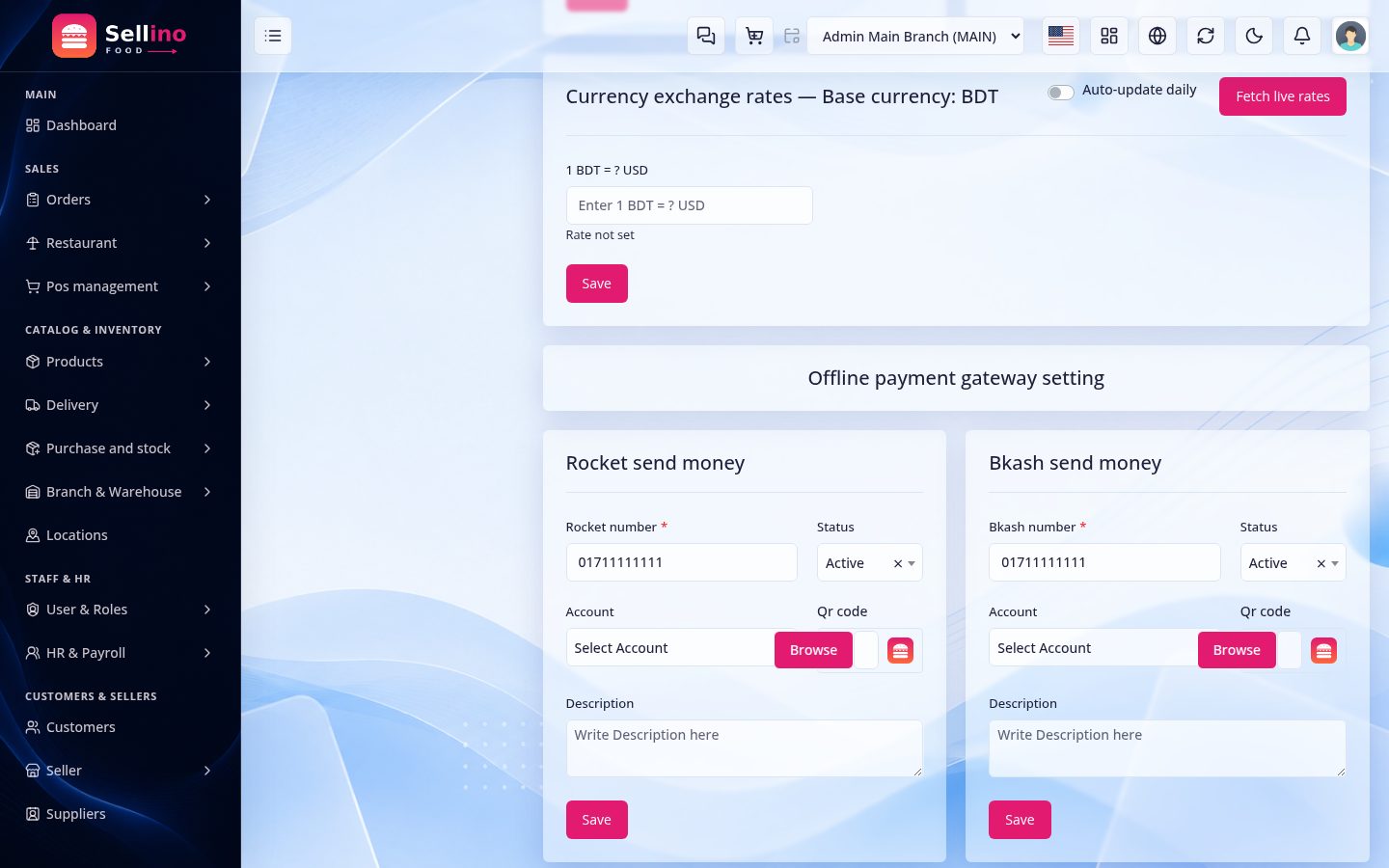
- Payment Gateways — enable and key your gateways: SSLCommerz, bKash, Nagad, EPS for local payments and Stripe / PayPal for international cards — see Stripe, PayPal & Currency Rates. Use live keys over HTTPS.
- SEO, Menus, Login — meta/SEO defaults, navigation menus, and the admin login slug.
- Storage — keep uploads on local disk or point them at an S3-compatible bucket (see below).
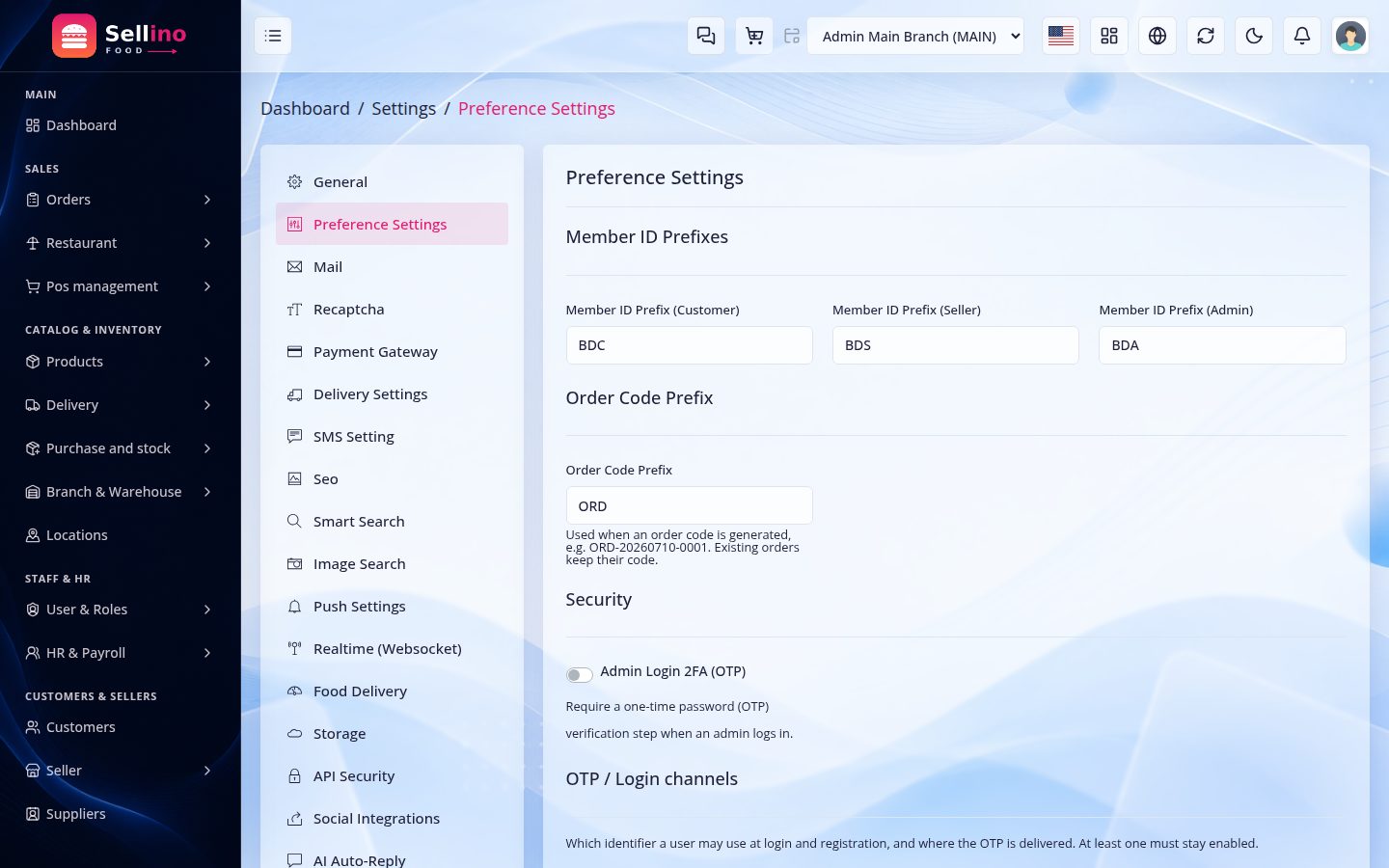
- Preference Settings — feature switches for the modules you use.
Payment keys: test keys only process test transactions. Switch to live keys on an HTTPS domain before going live.
Web Theme / App Theme
Two theme pages style what your customers see — separate from the admin panel's own look (that is Dashboard Styles):
- Settings → Web Theme — colors and styling for the customer-facing website, on installs that run one.
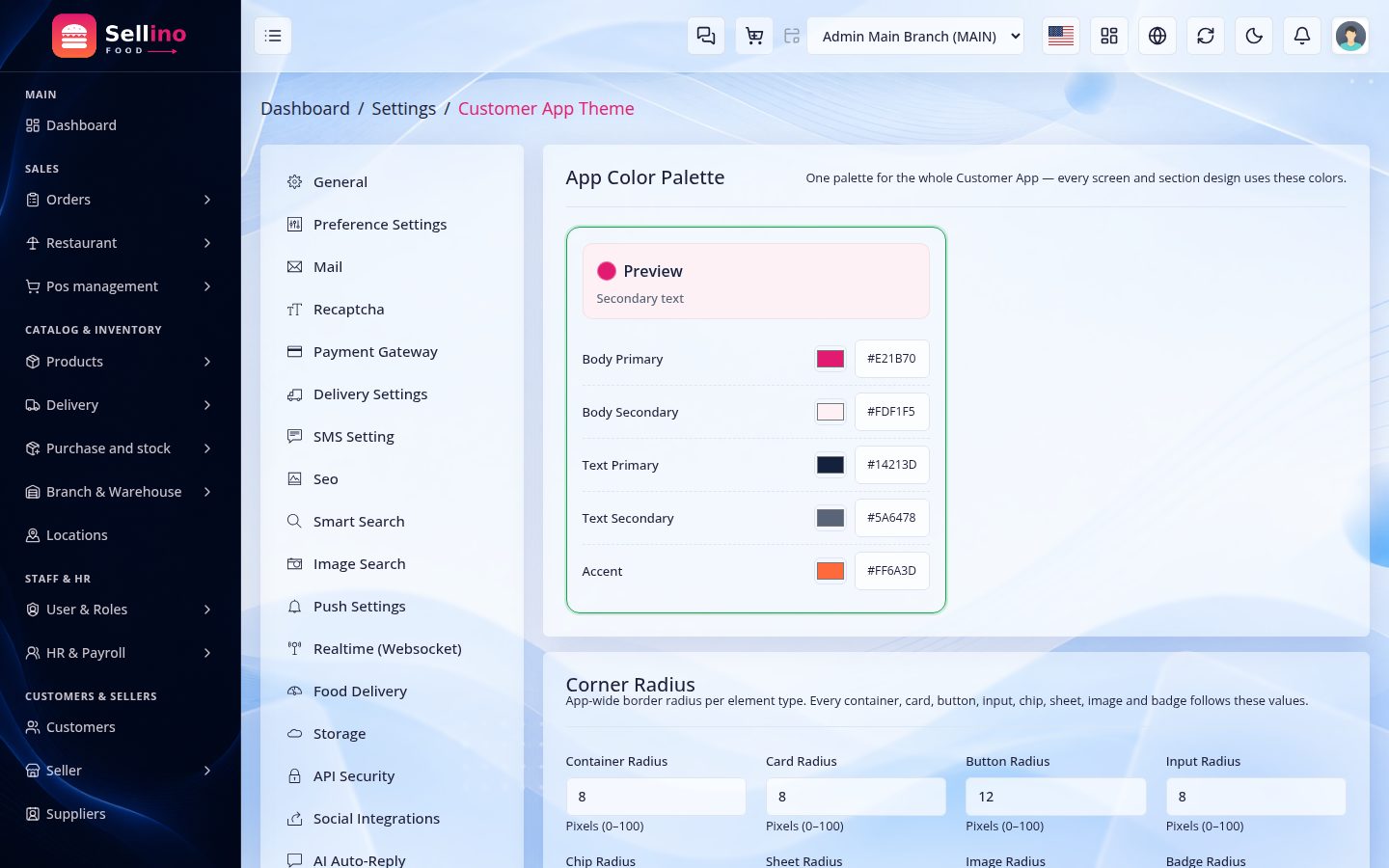
- Settings → App Theme — how the mobile apps look, delivered live through the settings API: change a color here and the apps restyle on their next launch, no rebuild, no store update.
The App Theme page controls:
- Brand colors — primary/secondary body, text colors and the accent.
- Corner radii — per component: cards, buttons, inputs, chips, sheets, images, badges.
- Screen styles — pick a variant per screen (home, cart, product details, checkout, account) and per section (deals slider, category list, brand list, promo strip), with on/off toggles.
- Preset styles — start from a preset (e.g. classic / modern) and override its tokens.
- Food screens — the food home, restaurant page and order tracking screens, and the home sections (restaurant list, cuisines, popular dishes) each have their own style entry and toggle. The form only lists screens the running edition can render.
In a food edition both pages are seeded with the Sellino Food palette (pink accent on a soft blush surface), and Settings → Appearance → Dashboard Primary Color re-tints the admin panel and its sign-in screens to match — one hex value, no CSS.
Stripe, PayPal & Currency Rates
Local gateways (SSLCommerz, bKash, Nagad, EPS) charge in your store currency. Stripe and PayPal serve international cards — and card networks cannot charge BDT, so the system converts for you:
- The bill amount is converted from the store currency to the gateway currency (default USD, configurable) using your FX rates, and the customer's card is charged that amount.
- The charged amount and the exchange rate used are stored on the payment, so accounting always knows both sides of the conversion.
- Keys live in Settings → Payment Gateways — one on/off switch and key pair per gateway. Test keys only process test transactions; go live with live keys over HTTPS.
Third-party services. Stripe, PayPal, SSLCommerz, bKash, Nagad and EPS are independent providers: you open and verify your own merchant account with each, and their transaction fees, settlement terms and currency charges are billed by the provider, not included in this item.
Currency Rates (Settings → Currency Rates)
- Per-currency exchange rates with your store currency as base — edit them by hand, or hit Fetch rates to pull live rates.
- Daily auto-update — a toggle that lets the scheduler run
currency:update-ratesnightly, keeping rates fresh without anyone touching the page.
Security (2FA, reCAPTCHA, API Key)
- Two-step verification — when enabled, admin login asks for a one-time code emailed to the user after the password step.
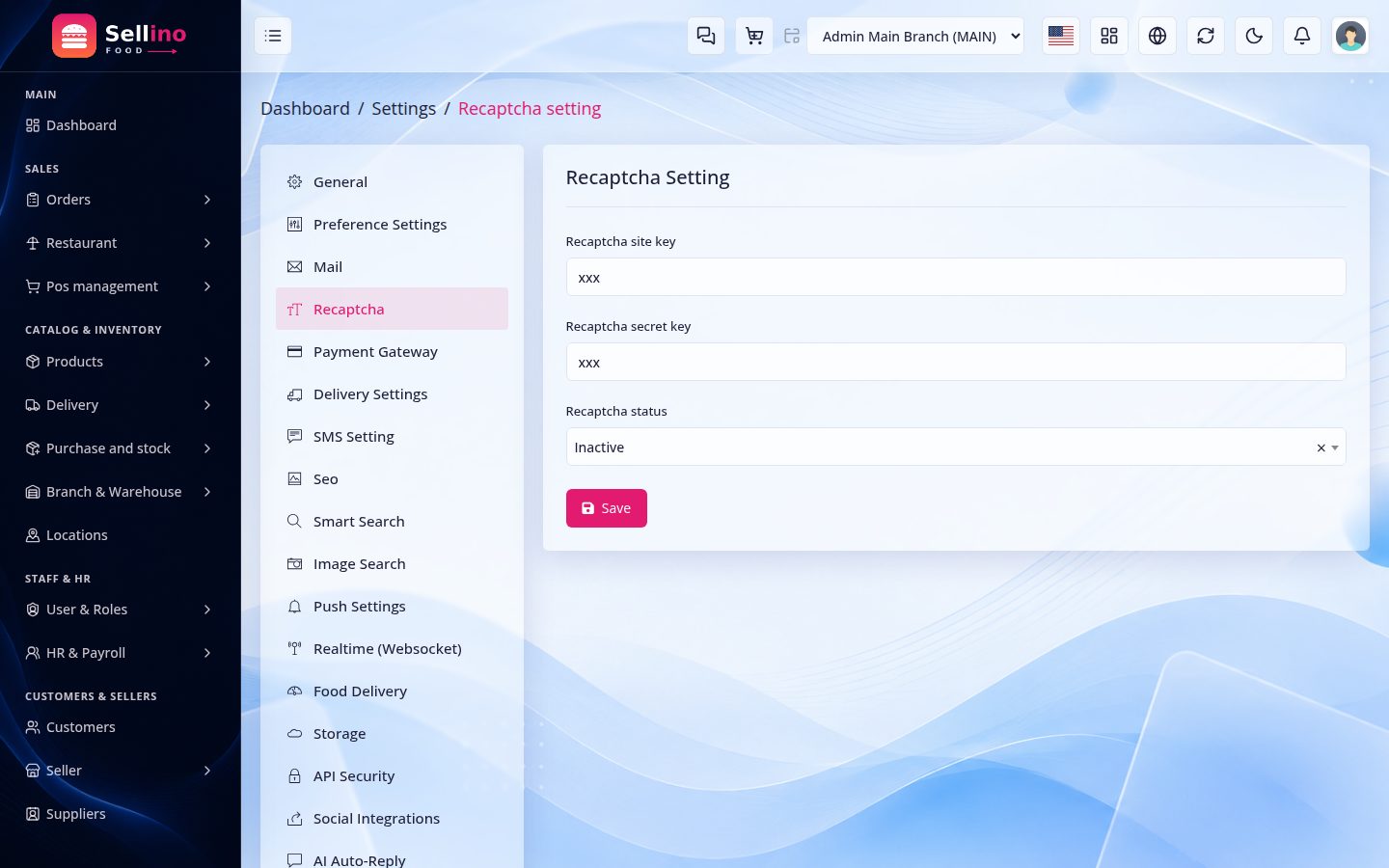
- Google reCAPTCHA (Settings → reCAPTCHA) — on/off switch plus site key and secret key. Protects the login form from bots. Get free keys from Google reCAPTCHA admin.
- Admin login slug — the admin panel URL is randomized, see Login & Security.
App API Key (Settings → API Security)
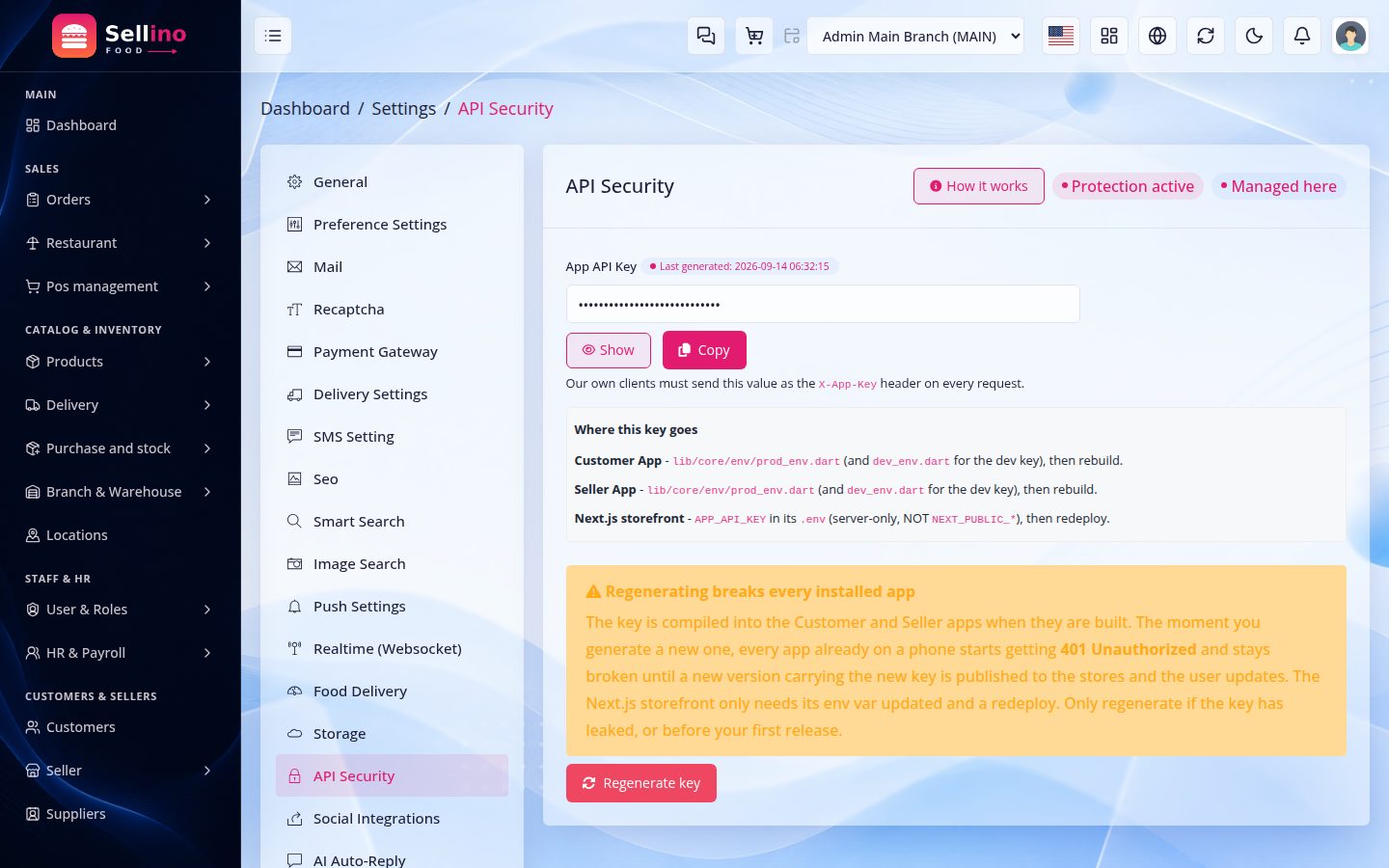
A shared key your own clients send as the X-App-Key header on every API request. Requests without it are rejected with 401, so random scripts hitting your API are turned away. The page shows a Protection active / disabled badge, lets you show / copy the key, tells you when it was last generated, and has a built-in How it works panel.
- Empty = off (fail-open) — with no key configured nothing is enforced, so an install that never opens this page keeps working.
- The blade website is exempt — browser requests from your own domain skip the check (a browser cannot hold a secret header); they are covered by session & CORS. Only non-browser callers need the key.
- Source — the key set here wins;
APP_API_KEYin.envis the fallback. A badge tells you which one is active (Managed here / From .env).
Where the key goes
| Client | Where you paste it |
|---|---|
| Customer App | lib/core/env/prod_env.dart (and dev_env.dart for the dev key) → rebuild |
| Restaurant App | lib/core/env/prod_env.dart → rebuild |
| Rider App | lib/core/env/prod_env.dart → rebuild |
Regenerating breaks every installed app. The key is compiled into each app at build time — the moment you generate a new one, every app already on a phone gets 401 Unauthorized and stays broken until a new version carrying the new key is published to the stores and the user updates. Only regenerate if the key has leaked, or before your first release. The panel makes you tick a confirmation box first.
Scope: this is a casual outer filter, not strong security — a key shipped inside a mobile app can be extracted. Rate limiting is the real protection; the key removes low-effort noise and gives you a rotation kill-switch.
OTP & Social Login
OTP channels (Settings → Preference)
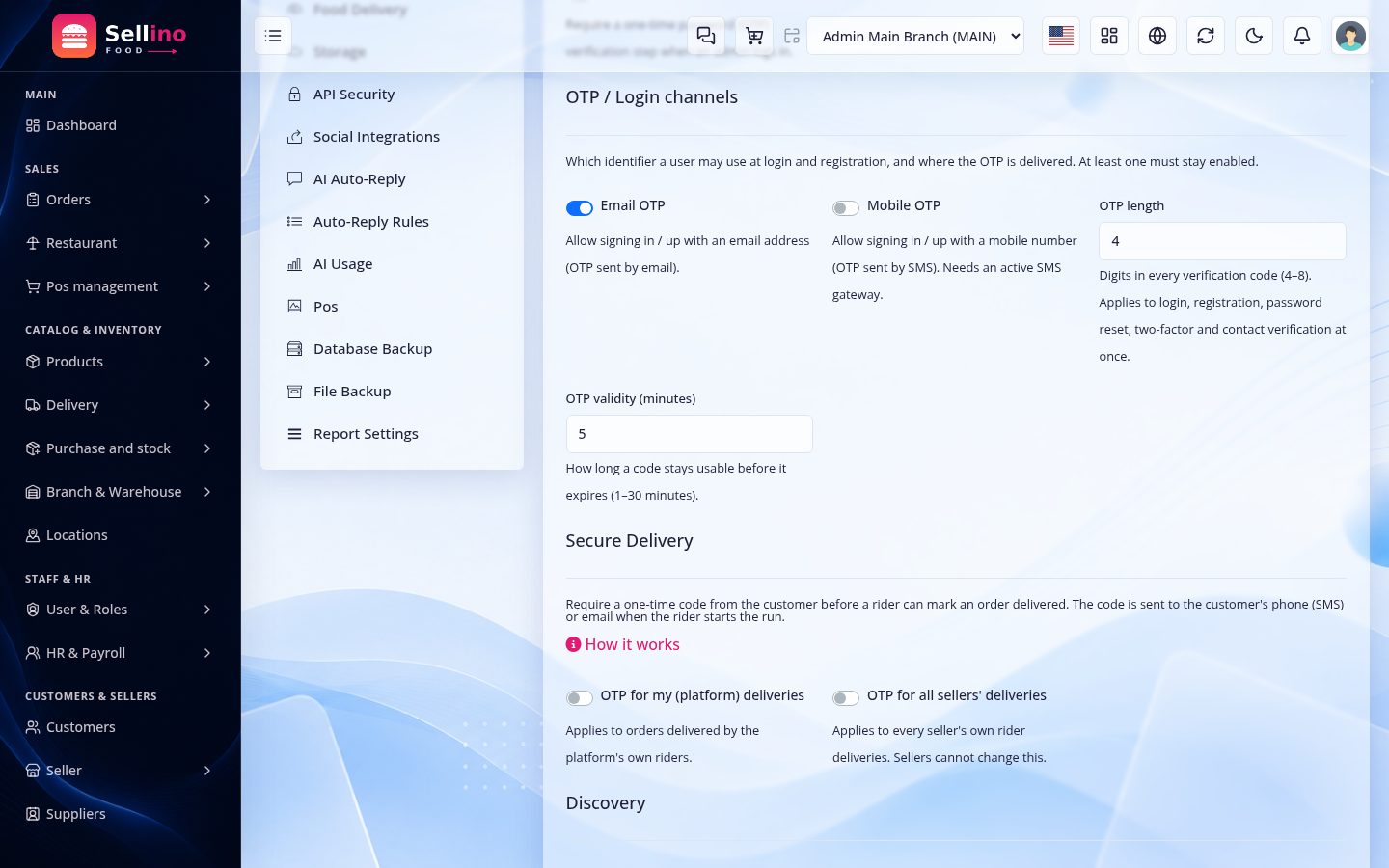
- Email OTP and Mobile OTP have separate on/off switches — run either, both, or neither. Codes are 4 digits.
- Used for customer signup / login verification and for verifying a changed email or phone number.
- Mobile OTP needs an SMS gateway configured in Settings → SMS; email OTP needs working mail.
- One identifier field — login, signup, OTP and password reset all take a single box where the customer types either an email or a phone number. A phone is stored in one canonical international form, so
01811843300,8801811843300and+8801811843300are the same person — no duplicate accounts, and no OTP sent to a number the customer cannot verify. Numbers typed without a country code are completed with your store's country. - Other switches on the same page: Order-placed email, Recently viewed, order-code and member-ID prefixes, and the barcode label defaults.
Social login (Settings → Social Login)
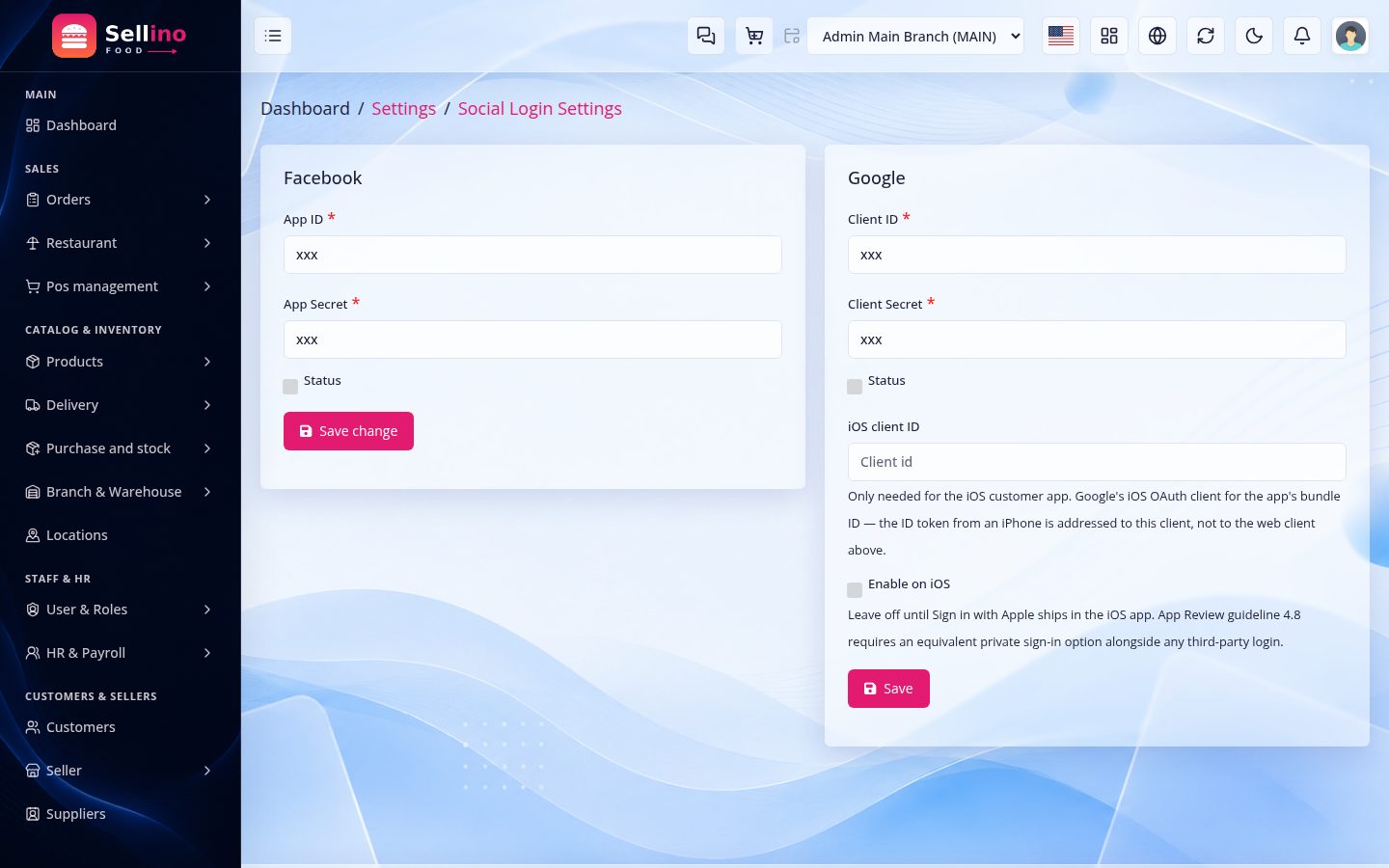
- Google and Facebook sign-in, each with its own on/off switch, client ID and client secret.
- Both off → only email/phone login is offered. Accounts created socially merge with an existing account on the same email.
Real-time & Chat (Reverb)
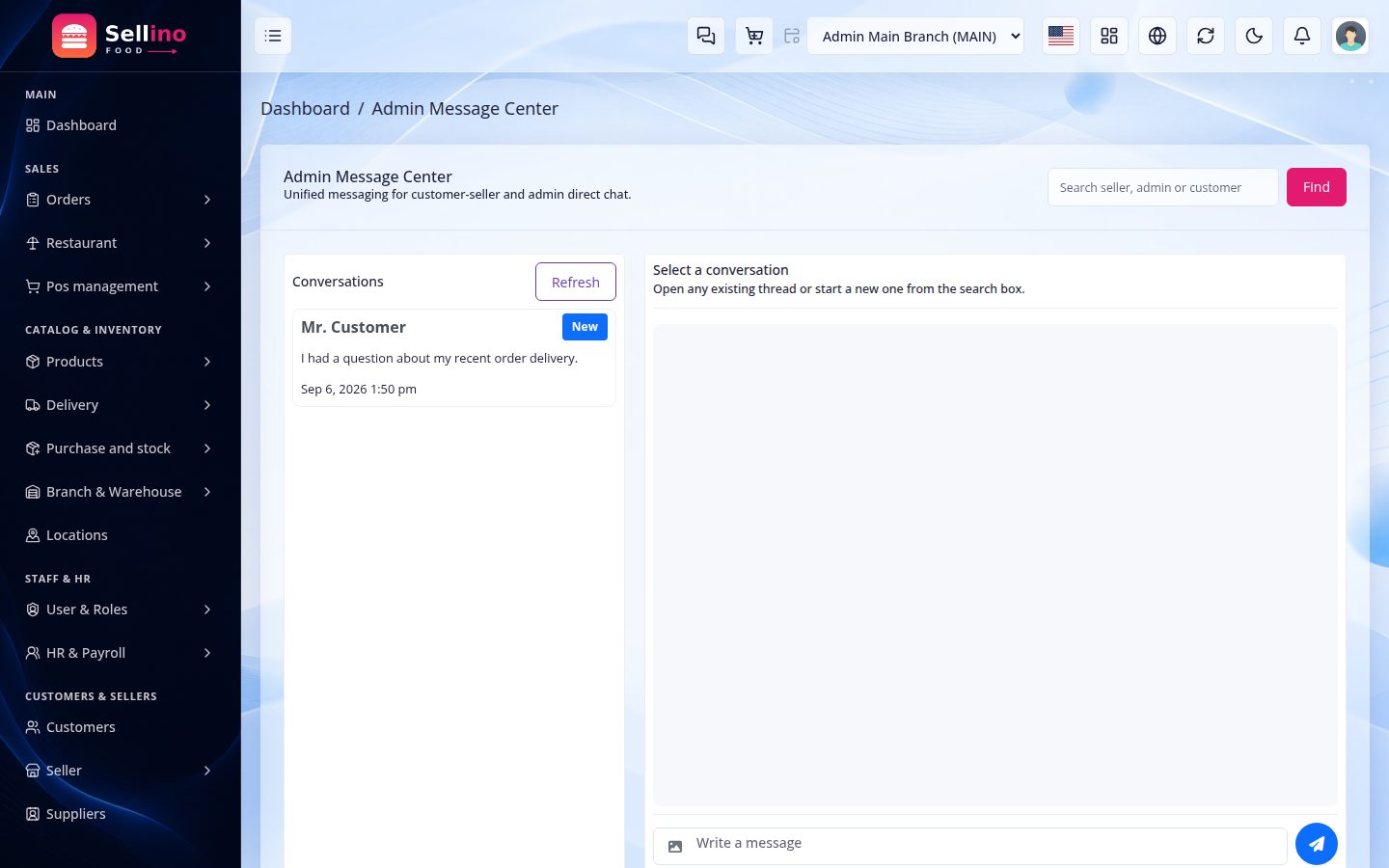
Live features — customer ↔ staff chat and live panel updates — ride on Laravel Reverb, a websocket server that ships with the item. It is fully optional: with the daemon off, everything else keeps working.
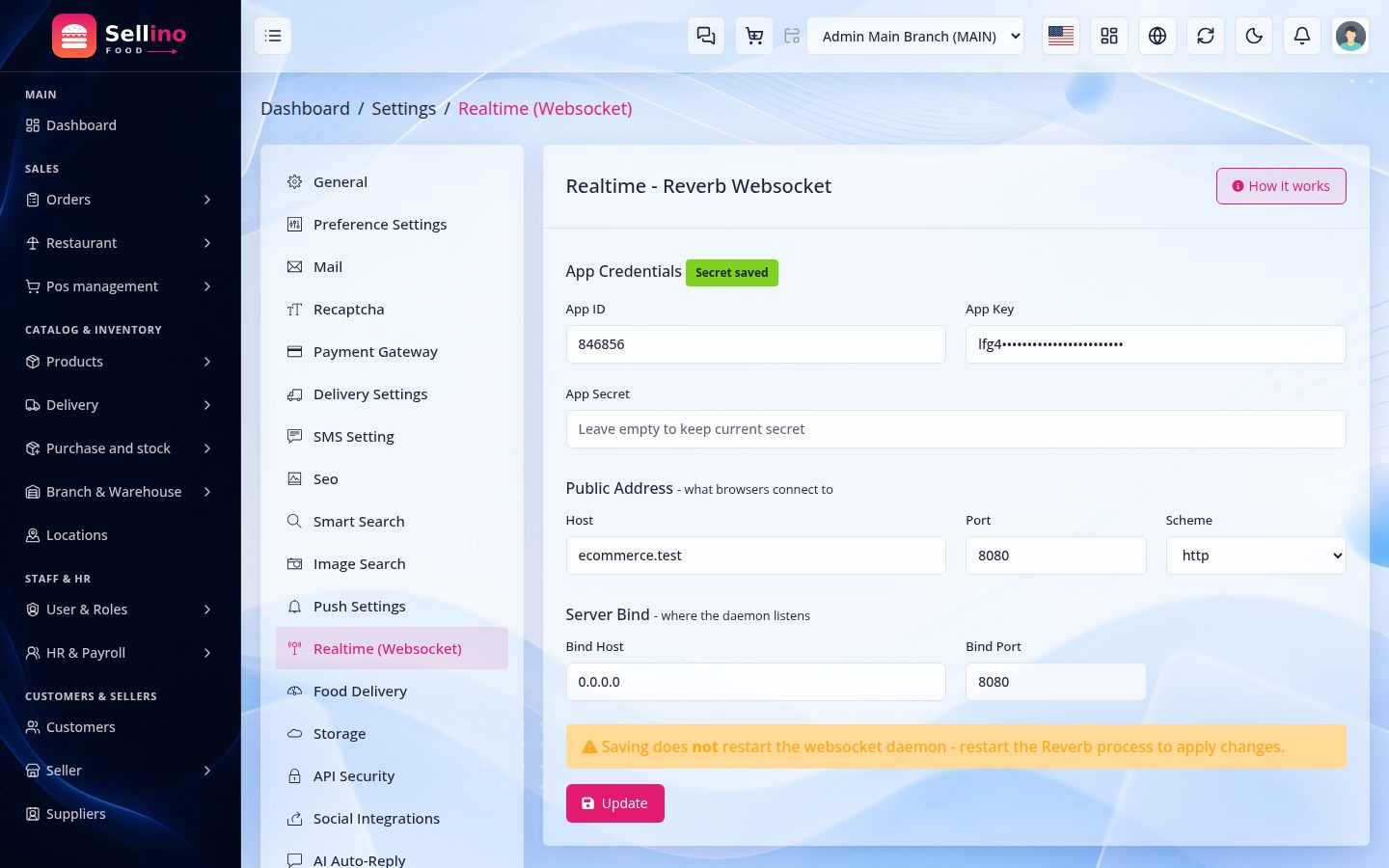
Settings → Realtime
- App id / key / secret — the credentials clients connect with; defaults come from
.env(REVERB_*), and values saved here win. - Host, port & scheme — what browsers and apps connect to (production:
https/wss on 443 behind your reverse proxy). - Server host & port — what the daemon itself binds to on the box.
Running the daemon
- Start it with
php artisan reverb:startand keep it alive with Supervisor / systemd — the same pattern as the queue worker. - The apps join the same websocket — each one's
kReverbAppKeymust match the effective key here; see Customer App → Configuration.
Push Notifications (Firebase)
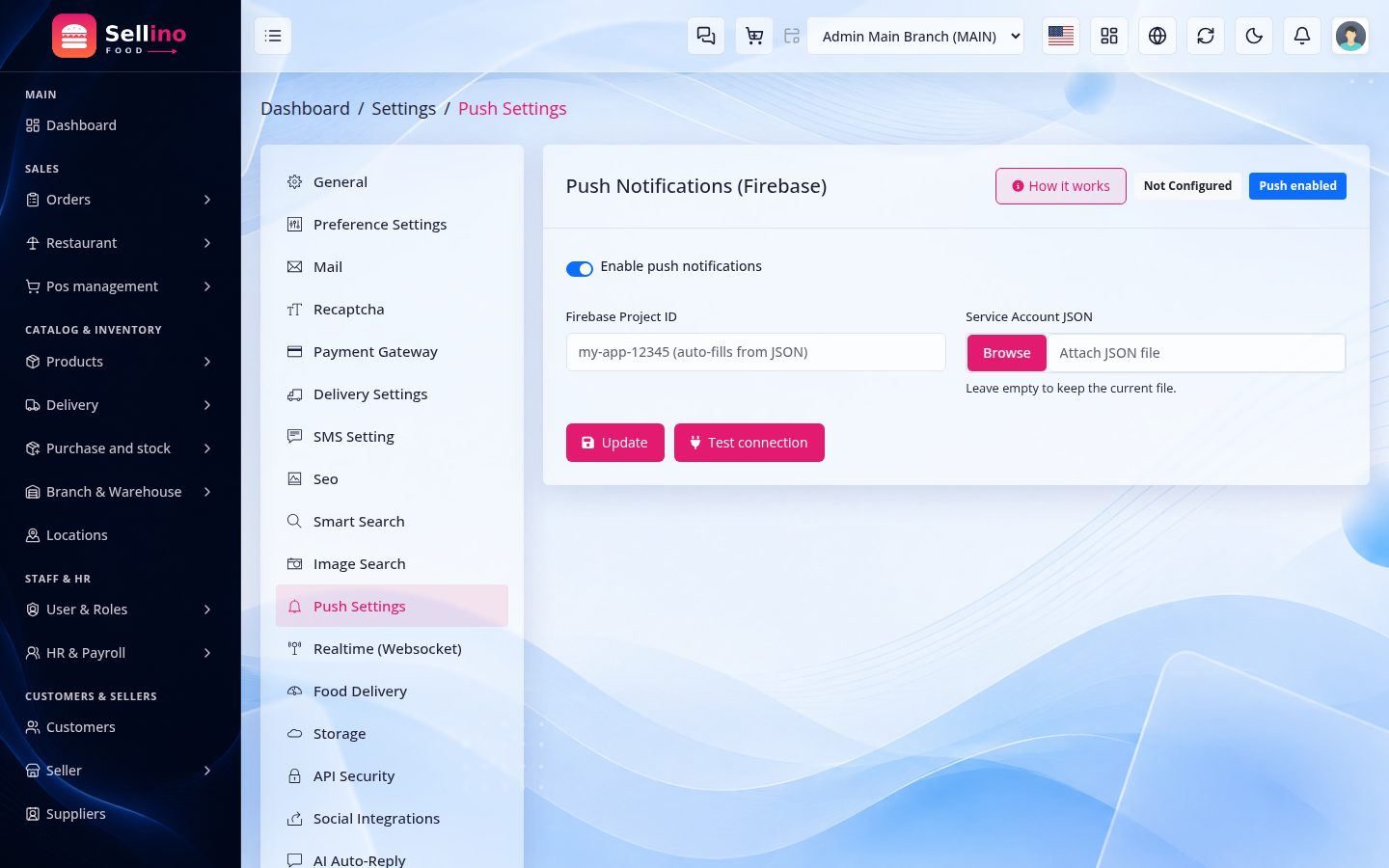
Sellino Food sends push notifications to the POS app through Firebase Cloud Messaging (FCM) — for low stock, stock transfer requests, return requests and announcements to your staff. This is the server half, configured in Settings → Push.
- Create a free Firebase project and download its service-account JSON.
- On the Push page, tick Enable push notifications, upload the JSON (the Project ID auto-fills), and hit Test connection to confirm.
- Devices register automatically when a user signs in to an app, so notifications reach the right person on all their devices.
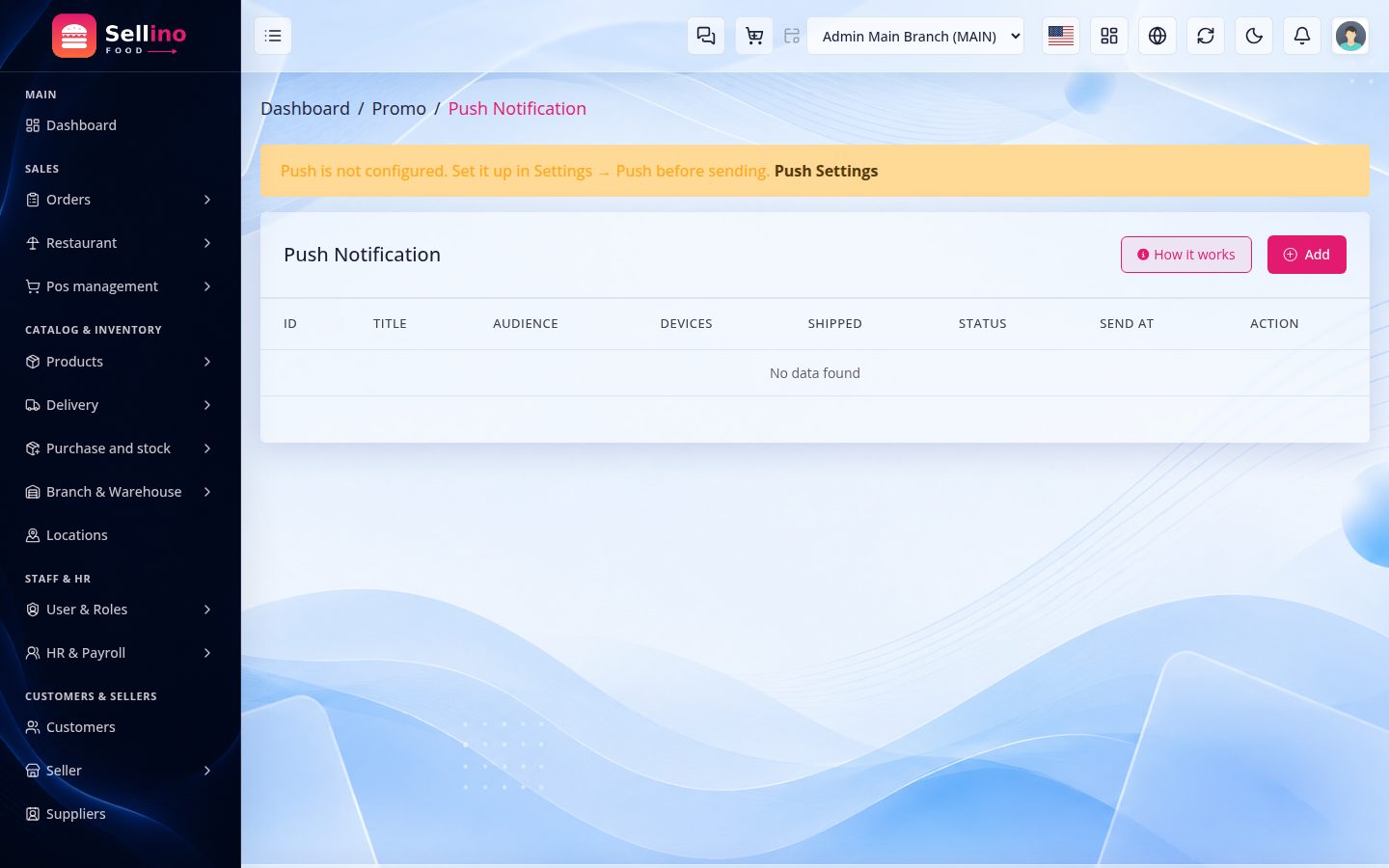
- Push campaigns — compose a promotional push, target an audience and send it now or schedule it; due campaigns are fanned out by the scheduler.
- Leave push disabled and everything else keeps working — it is fully optional.
Full procedure: the mobile apps also need their own Firebase config files, and iOS needs an APNs Auth Key. Because those steps are shared by the backend and both apps, they are documented once in Common Setup → Push Notifications (Firebase).
Note: Firebase is a Google service. A project is free to create, but any usage beyond its free tier is billed by Google and is not included in this item.
Storage (Local or S3-Compatible)
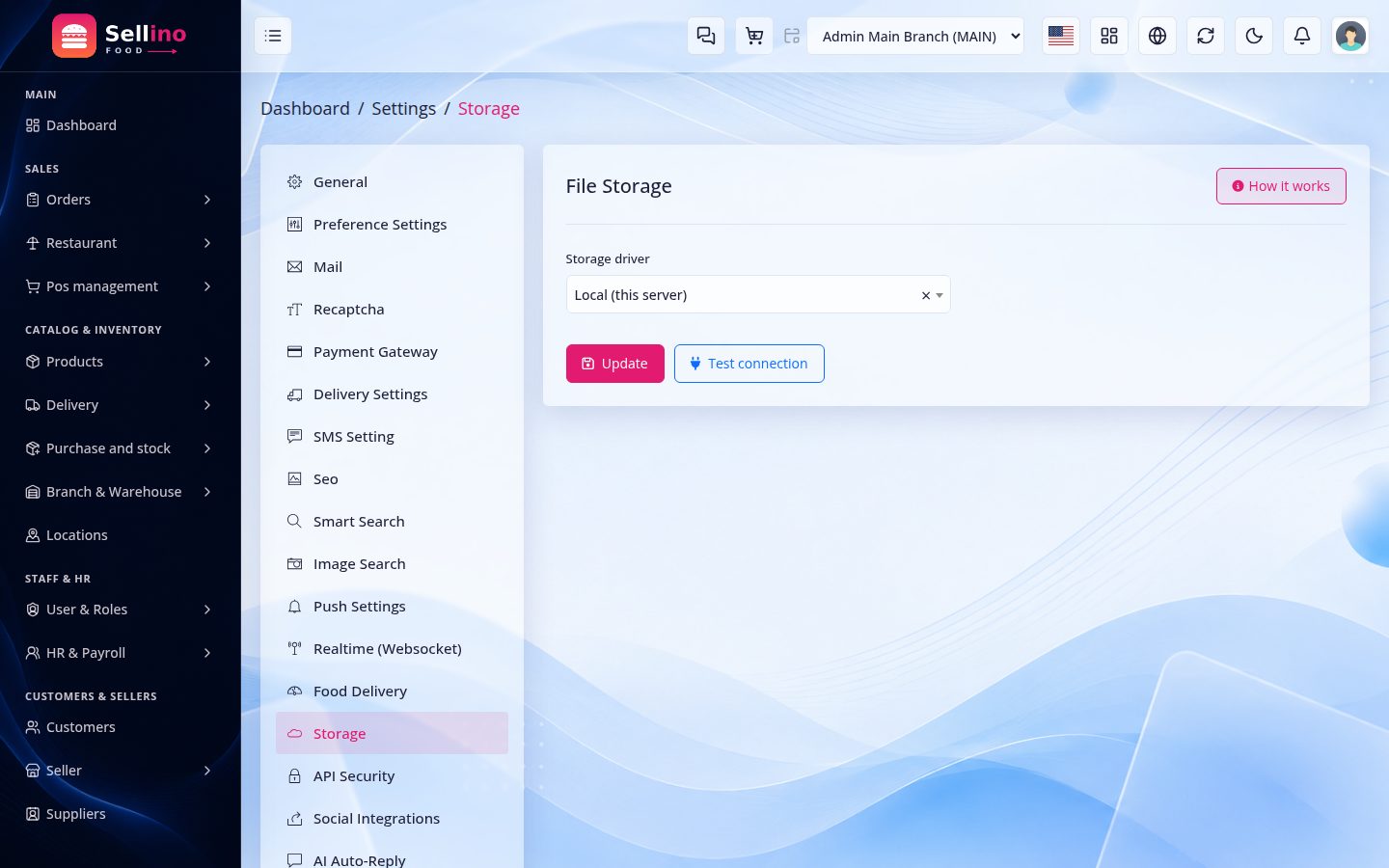
By default all uploaded media (product images, banners, attachments) is stored on your server's local disk — nothing to configure. When you outgrow that, switch to any S3-compatible bucket (AWS S3, DigitalOcean Spaces, Wasabi, MinIO, etc.) from Settings → Storage.
- Enter your bucket credentials on the Storage page and choose it as the active disk.
- Storage is per-file aware — files already saved locally keep serving from local, while new uploads go to the bucket, so switching over is safe and non-destructive.
- Great for scaling media off the app server and putting files behind a CDN.
Tip: Local disk is perfect to launch with. Move to a bucket only when your media volume or traffic calls for it.
Backups (Database & Files)
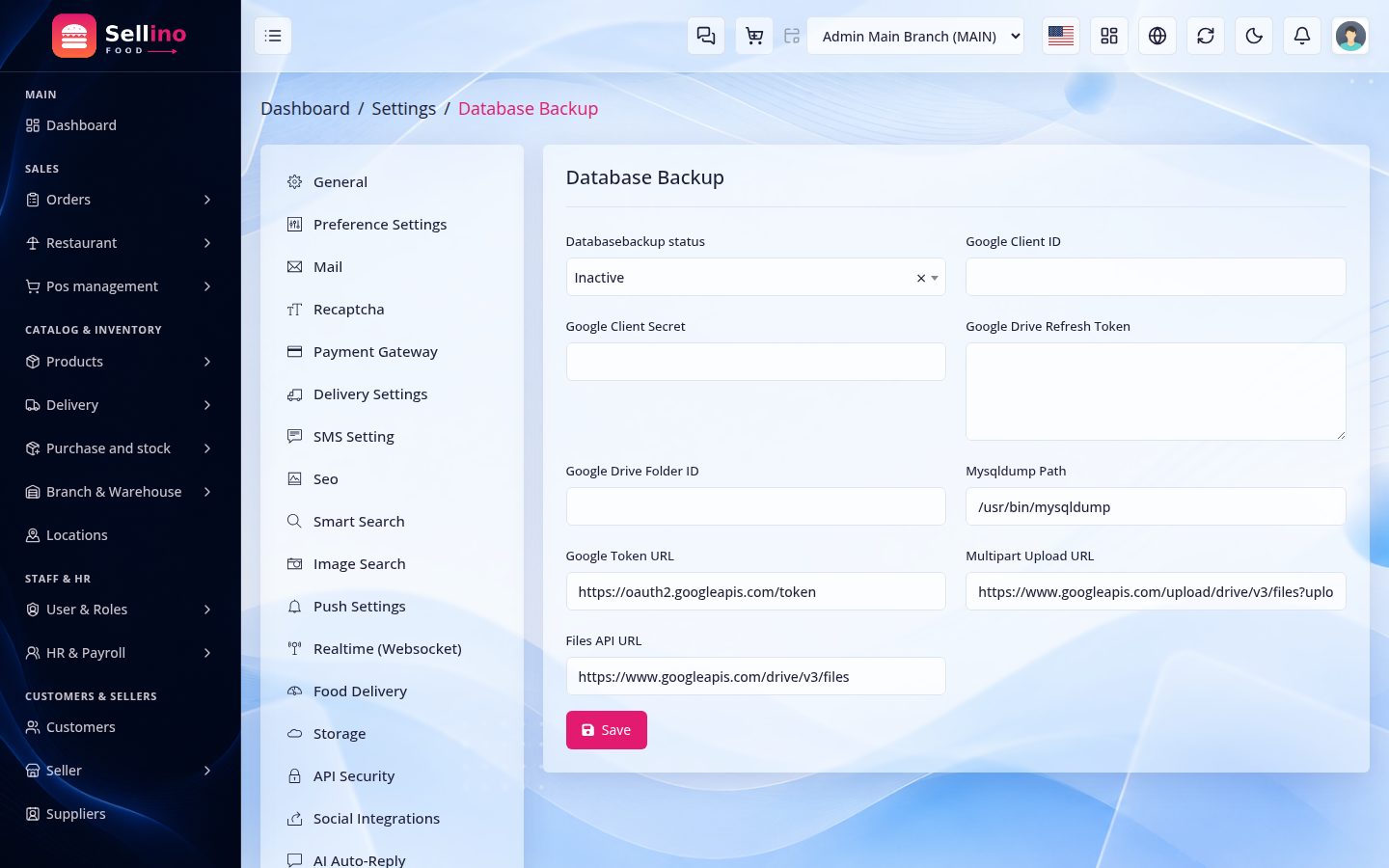
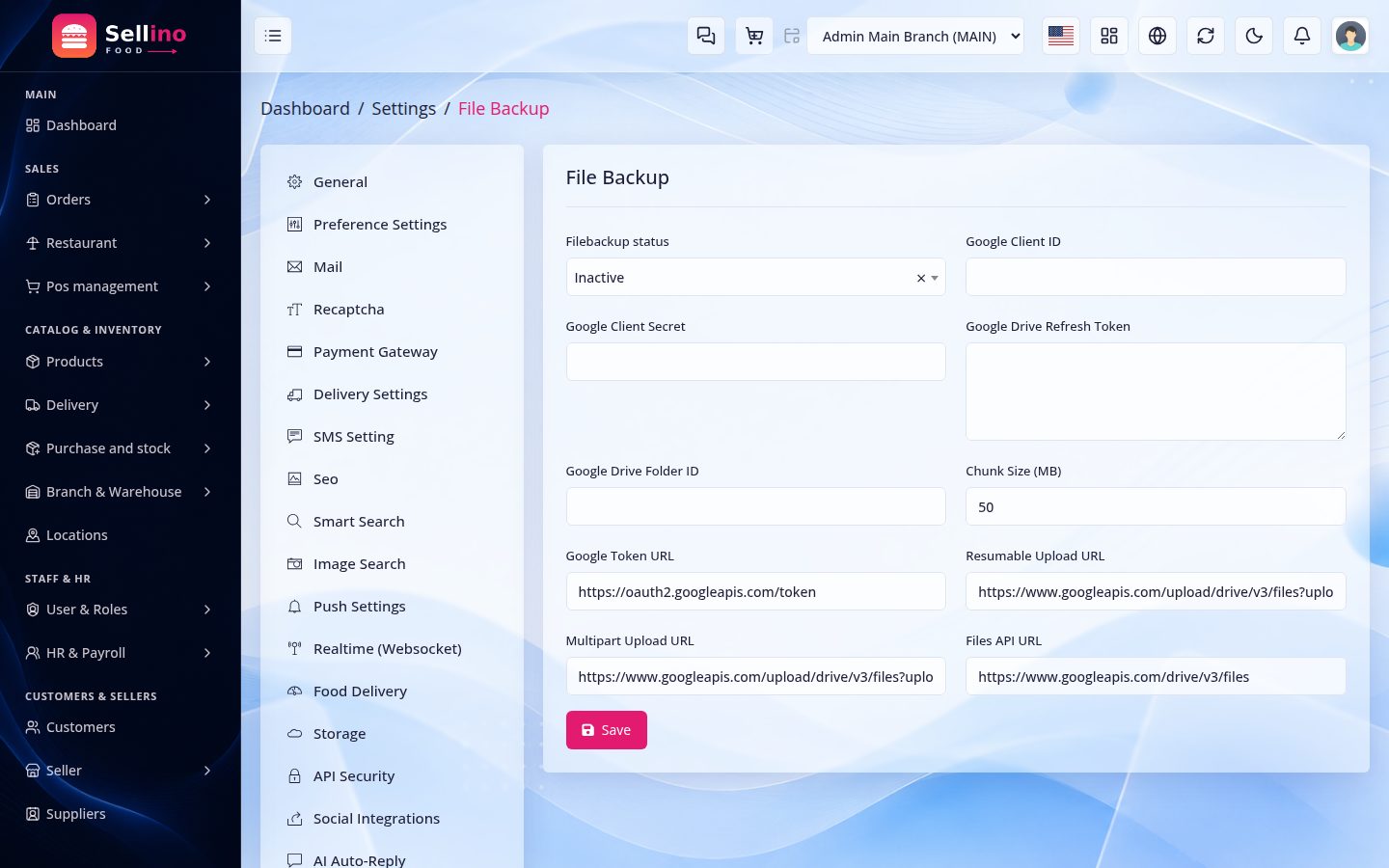
Two separate backup pages, both uploading to your own Google Drive: Settings → Database Backup and Settings → File Backup.
- Database Backup — dumps the MySQL database. Fields: enable switch, mysqldump path (leave default unless your host puts it elsewhere), and the Google Drive credentials.
- File Backup — archives the
public/directory (uploaded media). Adds a chunk size (MB) field so large archives upload in resumable parts. - Google Drive credentials — client ID, client secret, refresh token and target folder ID, from your own Google Cloud project. Drive storage cost is yours and not included.
- Run them —
php artisan backup:databaseandphp artisan backup:files. Automate with the scheduler cron entry.
Always take a fresh database and file backup before updating to a new version.
Troubleshooting
Most post-install issues come from server configuration, permissions or the .env file. Work through these before contacting support.
1. Blank page or HTTP 500 after install
- Open
storage/logs/laravel.log— it names the exact error. - Confirm
APP_KEYis set; if empty, runphp artisan key:generate. - Make sure the web root points to the
public/folder, not the project root.
2. "Permission denied" / cannot write to storage
chmod -R 775 storage bootstrap/cache; on cPanel set the folder owner to your hosting user.
3. Database connection error
- Verify
DB_HOST(usuallylocalhost),DB_DATABASE,DB_USERNAME,DB_PASSWORD. - Confirm the user is attached to the database with full privileges.
4. Changes in .env not taking effect
- After editing
.env, runphp artisan optimize:clearto reload config and routes.
5. Changes not showing / old data cached
- Clear caches:
php artisan optimize:clear.
6. POS says "no open register" and refuses to sell
- A sale needs a counter in the active branch and an open cash register on it. Create the counter, then open a register with its starting float.
- If the counter belongs to another branch, switch branch on the POS bar — a till is only usable in its own branch.
7. Emails / OTP not sending
- Complete Settings → Mail with valid SMTP host, port, encryption, username and password, then send a test. Many hosts block port 25 — use 465 (SSL) or 587 (TLS).
8. Branch screens are empty after an upgrade
- Run
php artisan branches:backfillonce. It creates a "Main Branch" and attaches your existing warehouses, counters and past sales to it. - The branch switcher hides itself when the operator may work in only one branch — that is expected, not a bug.
9. The POS app cannot reach the server
- Check
lib/core/env/prod_env.dart— the base URL and the app key must both match your server (Settings → API Security). A wrong key returns 401 before any screen loads. - On a device,
localhostis the phone itself — use the server's real address.
FAQ
Q: What's included in the purchase?
The Laravel web backend (food storefront + admin panel + restaurant panel + POS terminal + API), the source of all three Flutter apps (Customer, Restaurant, Rider), the database, and this documentation.
Q: What are the server requirements?
PHP 8.3+, Laravel 12.x, MySQL 8.0+, Composer, Node.js & NPM, with the standard PHP extensions enabled.
Q: Does it sell general products too?
No — this is the food edition. Every seller is a restaurant and the retail pages (shop, brands, deals) are switched off. If you need a general product marketplace, that is our separate eCommerce item; if you need a counter-only shop system, that is the POS item.
Q: Can one restaurant have several outlets?
Yes. A restaurant is the brand; each outlet is a branch with its own map pin, radius, hours, staff and stock. Reports and Profit & Loss read per outlet or for the whole chain.
Q: Does the POS app need the web panel?
It needs the same server: the app talks to the API (/api/v10/staff/*) that runs alongside the panel. Both work on the same data, so a sale made on the phone shows on the panel immediately.
Q: Does the app work offline?
No. A sale is created on the server so stock and cash stay correct across every till at once, which needs a connection. Plan for a stable network at the counter.
Q: Can I change logo, colors and texts?
Yes — branding, theme and every phrase are managed from the admin panel, no rebuild required. The receipt logo and footer are set under POS settings.
Q: Does it support multiple languages?
Yes, with LTR/RTL support. Add languages and translate phrases under Administration → Languages.
Q: How does the customer pay?
At the counter: cash, bank, mobile money (MFS) or any mix of them on one bill, with change calculated for you. Online card gateways are not part of this edition — nobody checks out on a website here.
Q: What hardware do I need?
Nothing mandatory. A thermal ESC/POS receipt printer, a USB or Bluetooth barcode scanner and a cash drawer are all supported and are what most shops use. Hardware cost is not included.
Q: How do I update to a new version?
Back up your database and .env, replace the source files (keep .env and storage/), then run php artisan migrate and php artisan optimize:clear.
Q: I still need help — what should I do?
Check Troubleshooting and storage/logs/laravel.log first, then contact us via our profile with the exact error message.
Third-Party Services & Costs
This item is a software product only. Third-party services and their costs are not included in the item price — including web hosting and domain, payment gateway accounts (e.g. SSLCommerz, bKash), SMS gateway, push-notification services (Firebase / FCM), optional cloud storage (S3-compatible buckets), the Anthropic (Claude) API or any OpenAI-compatible AI provider used for AI auto-reply, Google services (reCAPTCHA keys, Google Drive for backups, Google social login), any external vision API used for search-by-image, Meta services (WhatsApp Cloud API, Facebook Messenger, Facebook Pixel), and Apple/Google developer accounts for publishing the mobile apps. You arrange and pay for these separately, and generate your own application key and credentials during setup.
REST API & Data Models (for developers)
The three Flutter apps, the storefront widgets and any integration you write all talk to one versioned REST API: https://your-domain.com/api/v10/. The routes live in routes/api/v10/*.php (one file per area), the controllers in app/Http/Controllers/Api/V10/, and every response is shaped by a resource class in app/Http/Resources/.
Conventions
- Envelope — every reply is
{"status": true|false, "message": "…", "data": …}; validation errors come back as HTTP 422 witherrors.<field>[], auth failures as 401, throttled calls as 429. - Headers —
Accept: application/json, the sharedX-App-Key(Settings → API Security; the apps carry it inlib/core/env/) and, once signed in,Authorization: Bearer <JWT>. Tokens come fromPOST loginand are renewed withPOST login/refresh. - Accounts — one login endpoint, three account types:
type=customer(Customer App),seller(Restaurant App) anddelivery_man(Rider App). Restaurant staff use the same routes under/staff/*with theX-Branch-Idheader to pick the outlet. - Localisation & money — send
Accept-Language; amounts are decimals in the store currency, with a formatted twin (*_text) wherever the apps print them. - Rate limits — sign-in, OTP and password endpoints are throttled per IP (5–10 requests a minute); everything else 60 a minute per user.
Endpoint map
| Area | Routes (prefix /api/v10) | Used by |
|---|---|---|
| App bootstrap | app/settings (site mode, features, food settings, cuisines, tags), app/theme (colours, radii, screen styles), navigation, pages/{slug}, ui/sections | all apps |
| Auth | login, login/check-user, login/refresh, otp/ask, otp/verify, registration/*, password/forgot, password/reset, account/delete | all apps |
| Food discovery | food/restaurants (lat, lng, cuisine, tags[], sort, open_now, free_delivery, max_eta, min_rating, q), food/restaurants/{key} (profile, hours, menu by category, popular), food/popular-dishes, food/trending-dishes, food/deals, food/suggest, food/tags, food/order-again, food/location-search | Customer App, storefront |
| Dishes | products/{id} (sizes as variants, add-on groups, prep time, food tags), products/{id}/shipping-preview, search, suggestions | Customer App |
| Cart & checkout | cart (lines with add-on children, one restaurant per cart), checkout/summary (distance fee, packaging, tip, schedule), checkout/place-order, checkout/coupon, addresses (map pin), wallet | Customer App |
| Orders & tracking | orders, orders/{id} (kitchen state, rider, live location), orders/{id}/cancel, returns, replacements, notifications, device-tokens (push), chat/* | Customer App |
| Restaurant panel | seller/* and staff/*: dashboard, orders (accept with prep time, reject, preparing, ready), products (availability switch, add-on groups), branches (pin, radius, hours, open/closed), restaurant/* (floor, tables, checks, KOT, KDS, reservations), reports and payouts | Restaurant App |
| Riders | delivery/*: online, location, tasks, tasks/{id}/pickup, tasks/{id}/deliver (OTP + photo), earnings, history | Rider App |
Print the live list on your install with php artisan route:list --path=api/v10 — it stays in step with the code, unlike a hand-written reference.
Data models in the apps
- Customer App — one Dart class per API resource in
lib/data/models/(app_config_model.dart,restaurant_model.dart,menu_item_model.dart,cart_item_model.dart,order_model.dart,address_model.dart…), each with afromJsonthat mirrors the resource class on the server; repositories inlib/data/repositories/wrap the endpoints, controllers (GetX) hold screen state. - Restaurant App — feature folders under
lib/features/<feature>/, each with itsmodel/, repository and controller (for examplefeatures/restaurant/model/restaurant_models.dartfor floors, tables, checks and KOTs). - Rider App —
lib/features/<feature>/data/models/(for exampledeliveries/data/models/delivery_shipment_model.dart), the same repository → controller layering. - Adding a field is a three-step change: expose it in the server resource, add it to the Dart model's
fromJson, then read it in the widget — the envelope and headers never change.
Changelog
Version 1.1.0 — September 2026
- Food home v2 — hero with live search suggestions and "Popular right now" chips, or the new Bento hero (six live tiles); new sections Deals & offers (tap-to-copy codes), Trending this week, Order again, Top rated restaurants, How it works and Collections (free delivery / under 30 min / top rated / new); a photo-grid cuisines style; a floating cart bar.
- Restaurant discovery — live result board and a filter deck: result count, removable pills, Reset, Open now, sort, cuisine and tag rails, plus Free delivery, Max ETA and Minimum rating filters.
- Food tags are now an editable list in Settings → Food Delivery and filter discovery, menus and the popular rail on web, API and app (several tags = all of them).
- Food header & footer (Style 13 / Style 14) with the Deliver-to pill, restaurant search and cuisine rail; a cuisine dropdown replaces the retail category menu and the Offers button jumps to the deals strip.
- Food-only builder — Widgets, the section picker and Appearance list only the food set in a food edition (two heroes, the food sections, a banner and a newsletter block, the food header and footer); nothing is deleted, a mode switch brings the rest back.
- Settings — Let customers choose the outlet (branch chip beside the pin), scheduled delivery and auto dispatch switches documented; Dashboard Primary Color under Appearance.
- Branding — Sellino Food logo, favicon and accent apply automatically in food modes across storefront, admin and sign-in screens (
FOOD_BRAND_LOCK=falserestores your uploads). - Customer App — food home gains the deals strip, trending and order-again rails and tag chips; restaurant page header v2 (identity card, status pill, stat row, Popular rail); the App Theme form hides screens the edition cannot render.
- API —
food/trending-dishes,food/deals,food/suggest,food/order-again,food/tags;tags[]on the restaurants and popular-dishes endpoints. - Demo data —
FoodMenuSeeder(six categories, 21 dishes with sizes, optional add-on groups) with studio-style dish photos; appearance seeded with the food palette. - Fixes — cart add-on lines on the food pages, restaurant actions on an admin POS terminal for marketplace-stock orders, the food nav when the retail category menu is off, and a wrong sample photo on one demo dish.
Version 1.0.0
- Initial release of Sellino Food — the food-delivery edition of the Sellino platform (
SITE_MODE=food-multivendor). - Multi-restaurant marketplace — restaurant sign-up and approval, cuisines, commission per restaurant or category, payouts and a restaurant panel.
- Outlets — map pin, delivery radius, weekly opening hours with midnight-crossing windows, manual Open/Closed override, average prep time and per-outlet staff, stock and reports.
- Menu — dishes with sizes, prep time, food tags and an availability (86) switch; optional stock tracking for limited items.
- Add-on groups — required and min/max select rules, billed as child order lines so tax, commission, coupons and refunds work on them with no special case.
- Kitchen flow — accept with a prep time or reject, preparing, ready; auto-accept option; driven from the order page, the Restaurant App or the kitchen display.
- Distance-based delivery fee — base + per-km + packaging, free delivery above an amount, minimum order and a radius gate, all previewed at checkout.
- Riders — platform or restaurant-owned, online switch, live location, OTP delivery with proof photo, earnings with commission and tips.
- Rider tip — presets at checkout, held as a settleable liability and never counted as platform revenue.
- Food storefront — page-builder food home, discovery and restaurant pages with two restaurant-page styles.
- Restaurant module (dine-in) — floors, tables with QR tokens, a live floor map, running checks with move and merge.
- Restaurant POS — order-type bar, table selection, add-on picker, item notes, void with reason, complimentary items and permissioned discounts.
- KOT & kitchen stations — category and dish routing, one fire per station, reprint counting, item void with reason and optional network ticket printing.
- Kitchen Display — fullscreen board on any screen, late-ticket pulse, station filter; dine-in KOTs and delivery orders on one board.
- Waiter screen and public QR table ordering with optional waiter approval and per-IP rate limiting.
- Billing — service charge per outlet, waiter tip as a liability, split payment across several methods on one bill.
- Reservations — seven-state lifecycle, hold window and deposits posted against the check.
- Recipes & food cost — ingredients with wastage, food-cost percentage with a red flag, and consumption through normal stock movements.
- Restaurant reports — sales by order type, food cost and gross profit, best and worst sellers, hourly sales, table turnover, average prep time, waiter covers and voids.
- Purchasing & ingredient stock — suppliers and dues, purchase orders, multi-warehouse with lots and layers, adjustment, wastage, transfer and supplier returns; FIFO or average costing.
- Double-entry accounting — Chart of Accounts, journals, banks and MFS accounts, deposits, fund transfers, expenses and bank reconciliation.
- Coupons, flash sales, campaigns, loyalty points and membership tiers, plus a unified messaging inbox with rule and AI auto-reply.
- HR & Payroll — employees, departments, attendance, salary generation, loans and advances, all journaled.
- Administration — users, roles and granular permissions, activity and login logs, multi-language with RTL/LTR.
- Customer App, Restaurant App and Rider App (Flutter, Android & iOS) on one REST API.
- Push notifications (Firebase) and local or S3-compatible media storage.